Fygo

Help Center

  • Getting Started
  • How to Install and Initialize FygoOS?
  • How to Install the App and Connect to Fygo NAS?
  • How to Install FygoOS on a Virtual Machine?
  • Troubleshooting System Installation Issues
  • Storage
  • How to Create a Volume?
  • Do Hard Drives Hibernate Automatically?
  • How to Use SSD Cache Acceleration?
  • Fygo TV
  • How to install Fygo TV and create a library?
  • How to create Fygo TV accounts for family and friends?
  • Cannot select a folder when creating a library?
  • Photos
  • How to Back Up Phone Photos?
  • How to Share Photos with Others?
  • AI Photos Feature Guide
  • How to Import Google Photos into Fygo?
  • Video Plays with Black Screen but Has Sound in Web Photos?
  • Remote Access
  • How to Remotely Access Your Fygo NAS?
  • System Settings
  • How to create a new user?
  • About Bluetooth Network Setup
  • How to Use a Wireless Network Adapter?
  • How to Change FygoOS Ports?
  • How to Use the System Configuration Backup and Restore Feature?
  • Frequent Network Errors in System Settings?
  • How to Enable Two-Factor Authentication (2FA)
  • Unable to Complete Two-Factor Authentication (2FA)?
  • How to Enable Email Notification Service
  • How to Authorize an AI Agent to Access Your NAS?
  • Files
  • How to share My Files with other users?
  • How to share a Team Folder?
  • How do file permissions work and how can I configure them?
  • How to create an external share link for a file?
  • File Services
  • Notes on Mounting Fygo NAS via WebDAV on Windows
  • Notes on Mounting Fygo NAS via NFS on Windows
  • SMB 3 Multichannel Requirements
  • Media File Formats Supported by DLNA
  • Virtual Machine
  • How to Install and Use Virtual Machine?
  • How to Use Virtual Machine Hardware Passthrough?
  • Fygo Sync
  • Fygo Sync Feature Guide
  • How to Use On-Demand Sync
  • Frequently Asked Questions
  • Backup
  • Encrypted Backup Overview
  • iSCSI
  • iSCSI Glossary
  • iSCSI Basic Features
  • User Group Configuration
  • CHAP Configuration
  • Frequently Asked Questions
  • Fygo Seek
  • What File Formats Can Fygo Seek Preview?
  • How to Grant Fygo Seek Access to a Folder
  • How to Manage Fygo Seek Project Access
  • How to Import Eagle Assets into Fygo Seek
  • How to Export Comments to Editing Software
  • How to Share Assets for Client Review
  • How to Manage Asset Versions
  • How to Use AI Search in Fygo Seek
  • How to Customize Brand Display
  • How to Use a Custom Domain for Fygo Seek
  • How to Add Asset Watermarks
  • Fygo Seek License and Plan FAQ
  • Security
  • How to Set Up and Use the Access Code?
  • security-report-principles-testing-rules
  • Security Vulnerability Report Handling Rules
  • Security Vulnerability Report Template
  • Security Advisories
  • License
  • Fygo License overview and activation guide
  • Fygo License FAQ
  • More
  • Contact Us
  • What is the difference between a local account and a Fygo Account?
  • What is the difference between administrator and standard user permissions?
  • Fygo Beta Disclaimer
  • Rockchip Series eMMC USB Flashing Tutorial
  • Rockchip Series TF Card Flashing Tutorial
  • Boot FygoOS from NVMe on Rockchip Devices - Flash U-Boot to SPI
  • Public source code
  • How to Authorize an AI Agent to Access Your NAS?

    On FygoOS, you can authorize an AI Agent (such as Codex or Claude Code) to access your NAS, so it can help you view files, manage apps, and more.

    Requires FygoOS 1.2.0800 or later.

    Install Skills

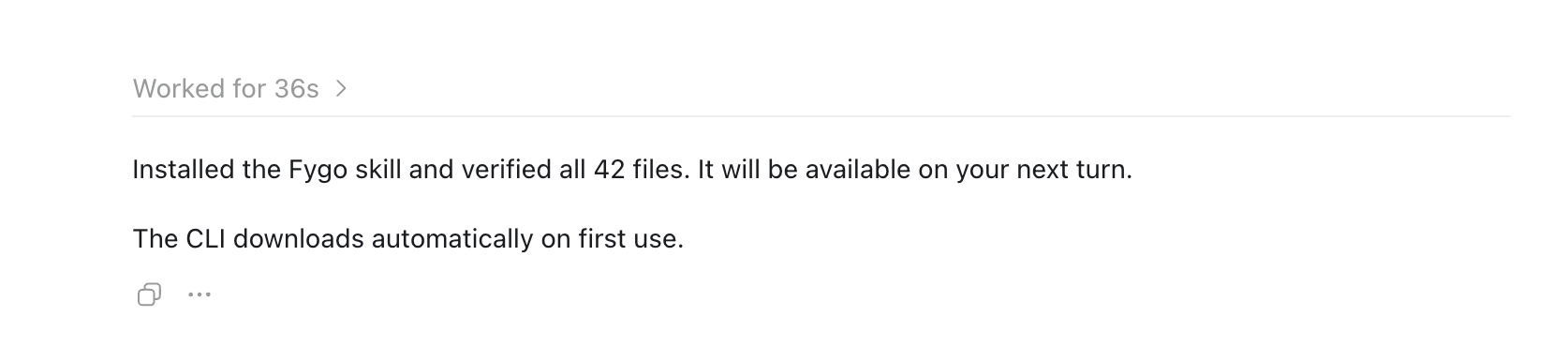
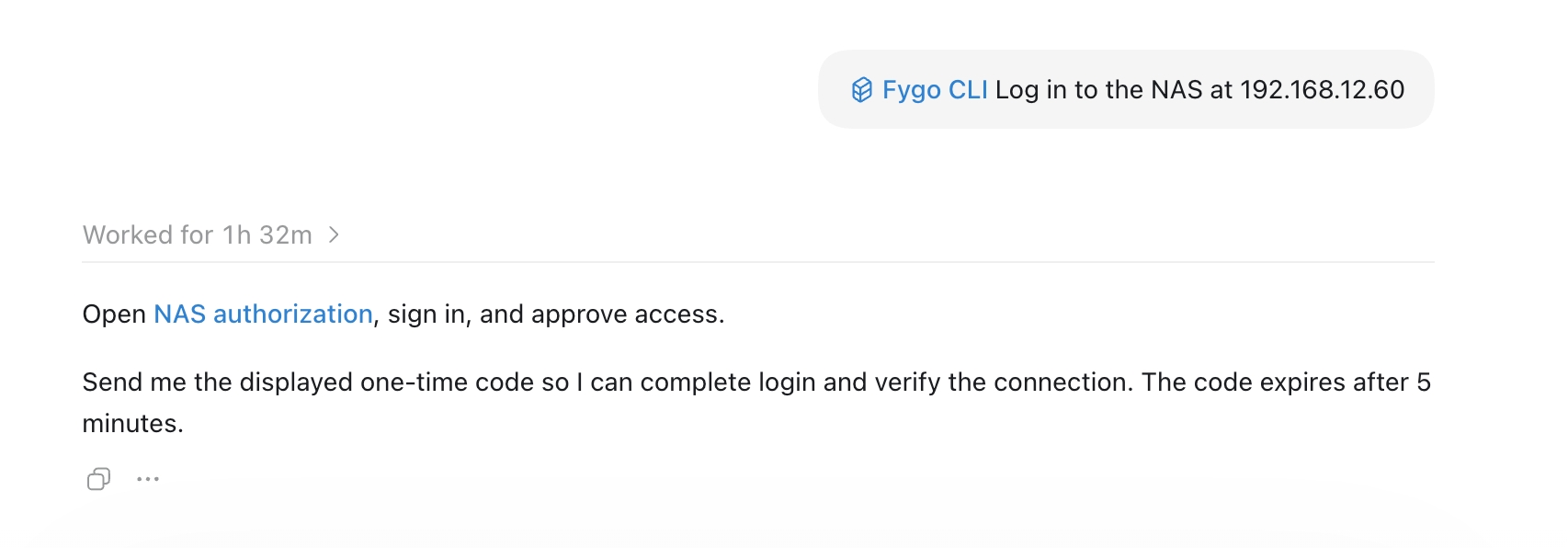
    Go to the Fygo official website to download the Fygo Skills package (zip), then send it directly to the AI Agent and ask it to install.
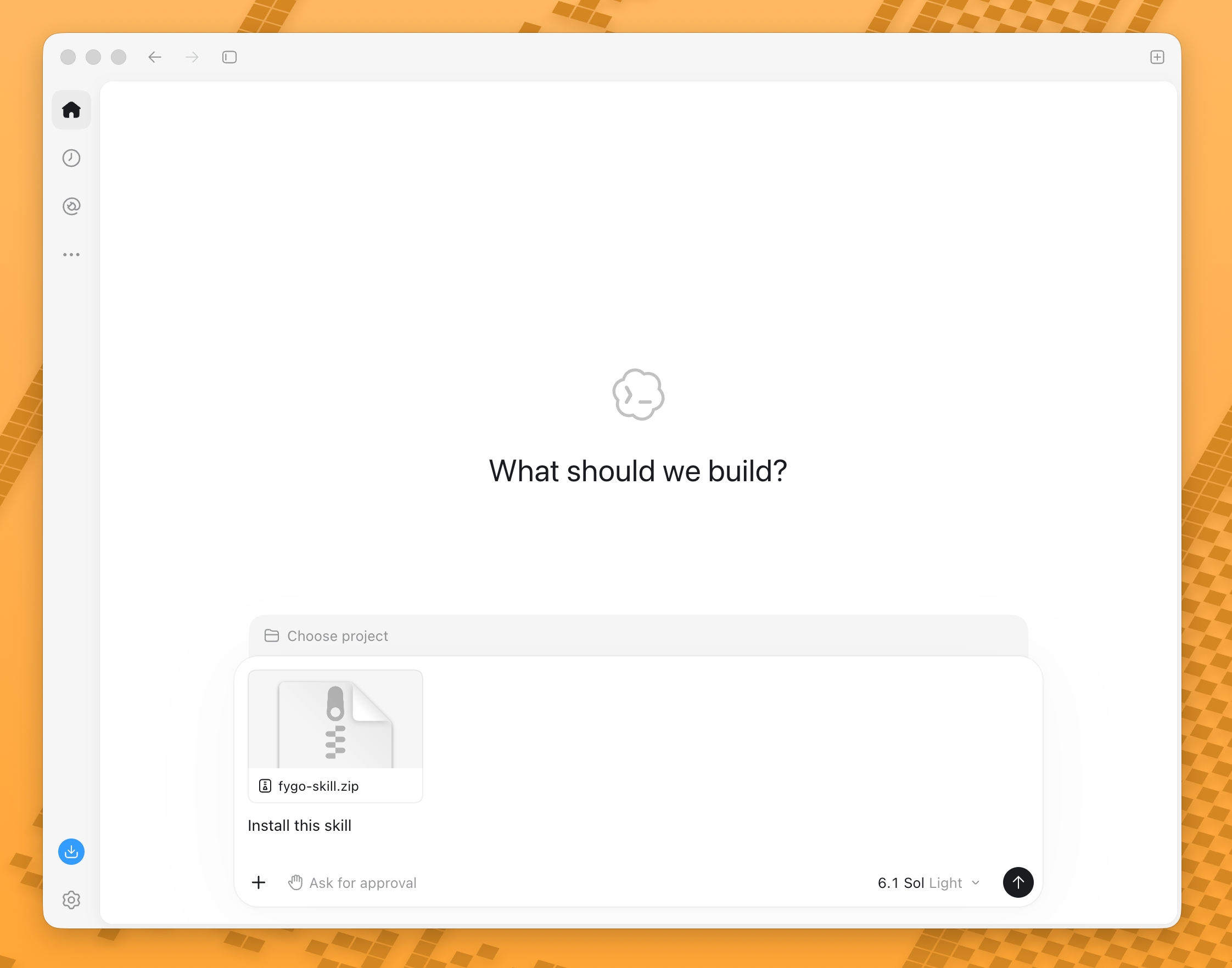
    The AI Agent can usually complete the installation on its own:
    Authorize Access

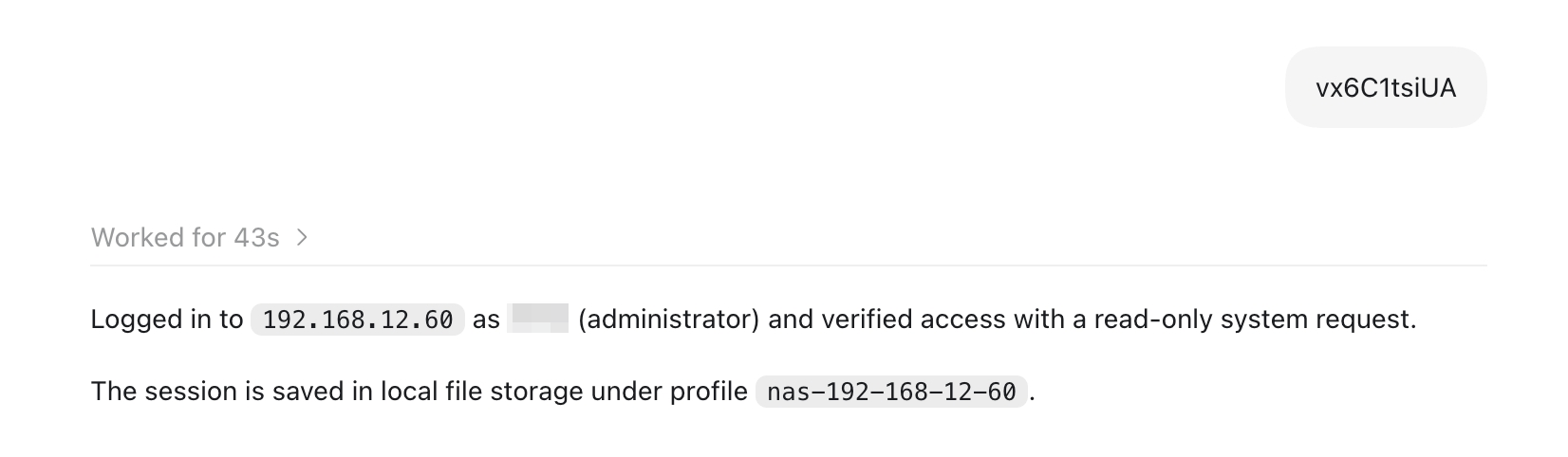
    1. In the conversation, tell the AI Agent which NAS to sign in to.
    2. The AI Agent will automatically open the authorization page in a browser and open a terminal for you.
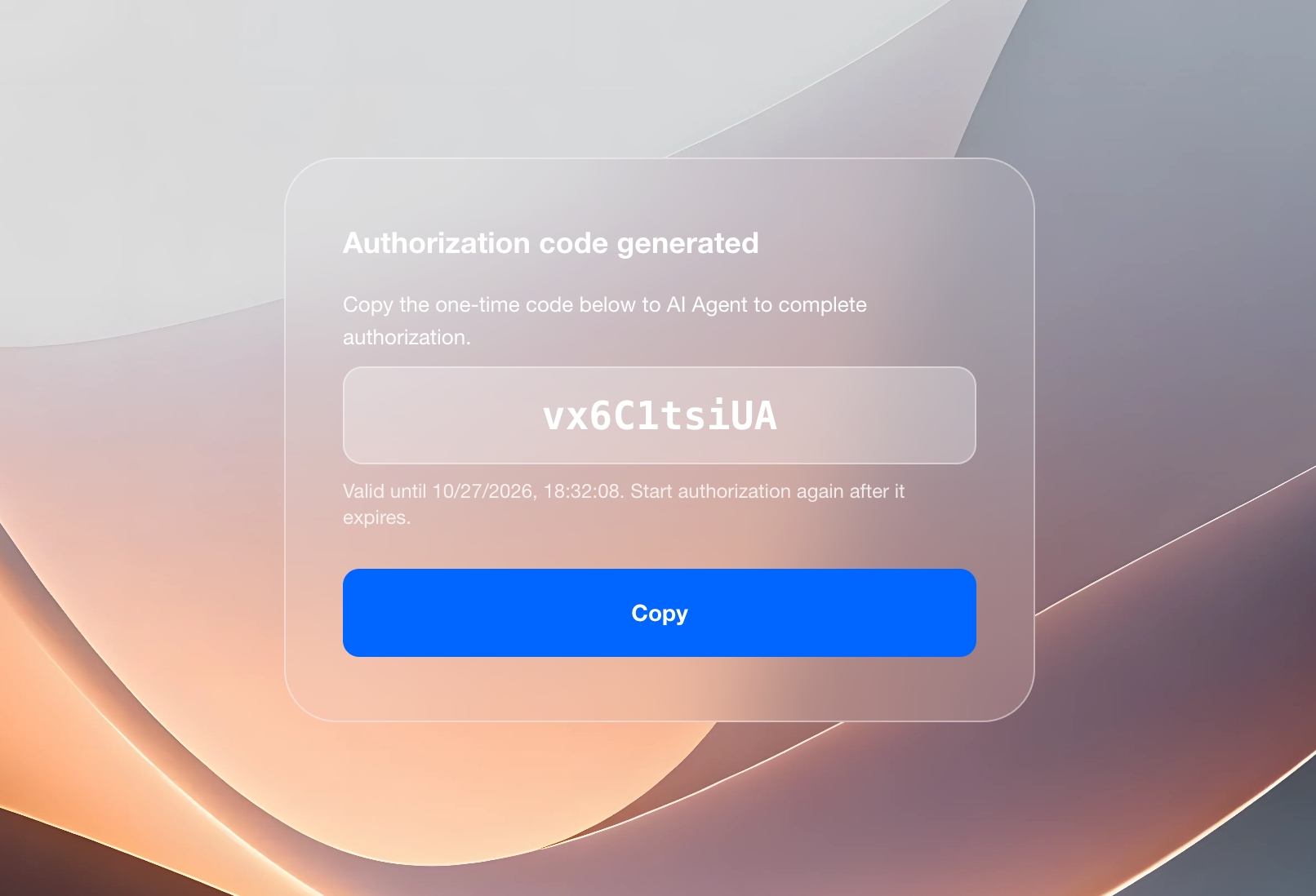
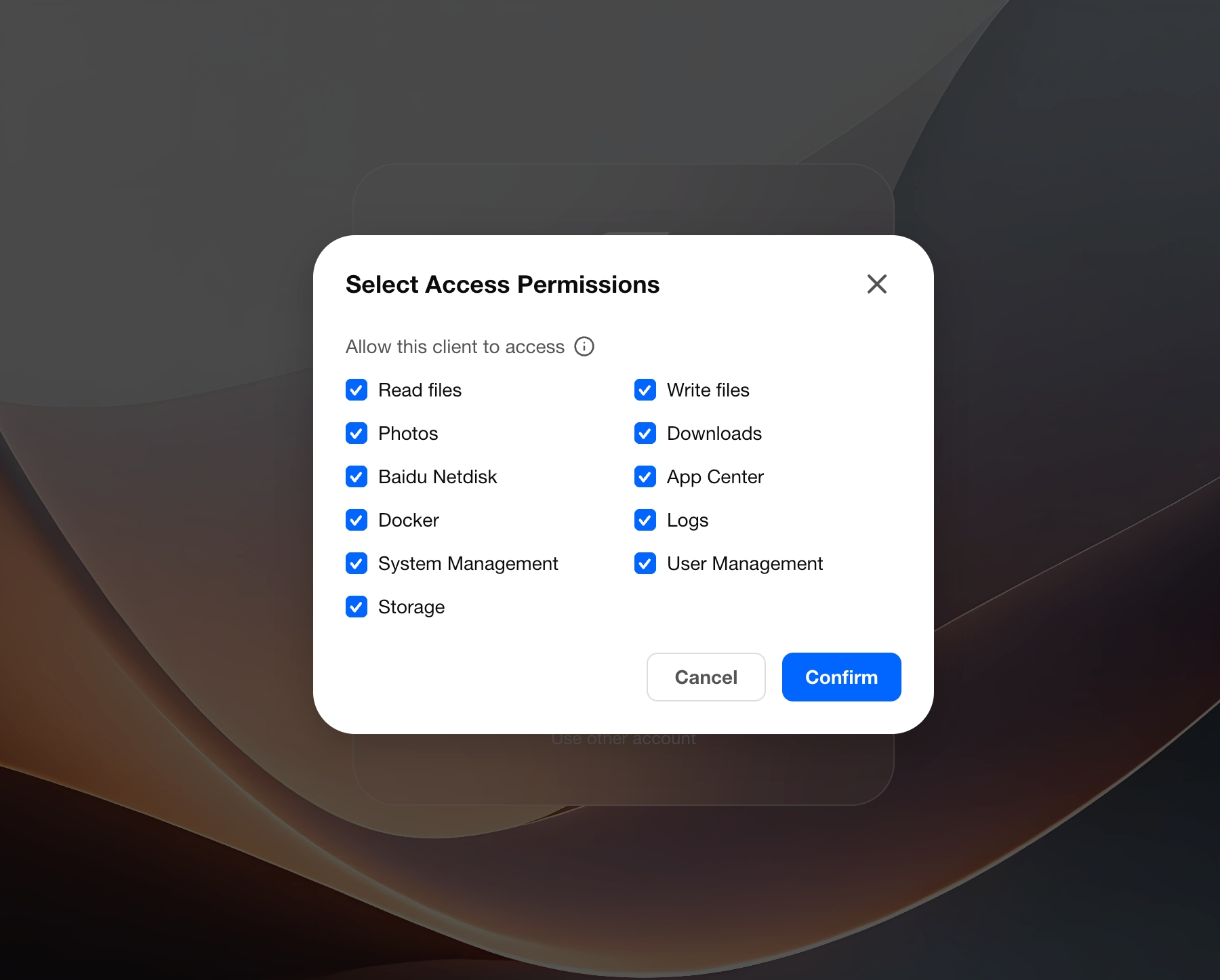
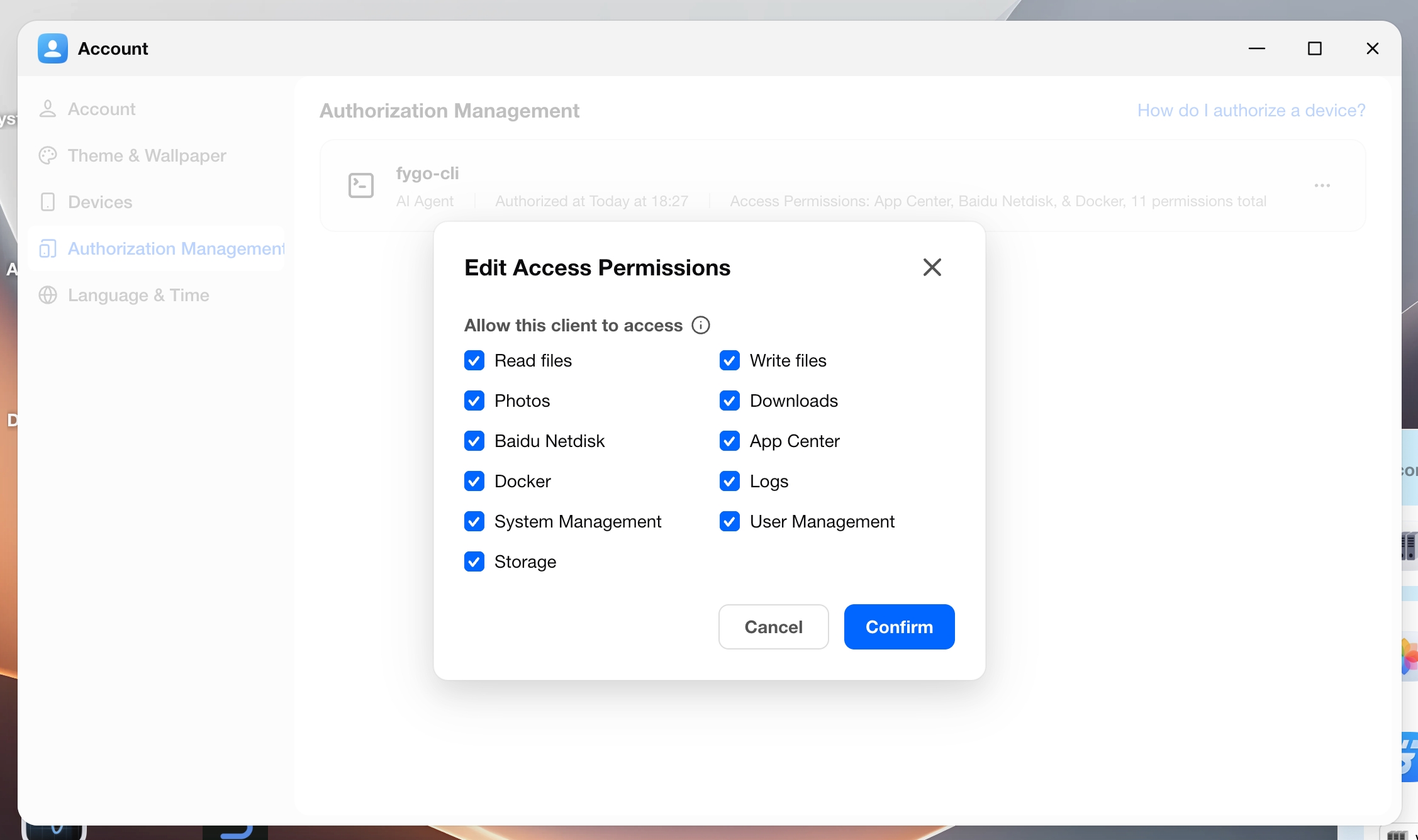
    3. Sign in to your NAS account, select the features you want to allow, confirm the authorization, then copy the one-time authorization code.
    4. Paste the authorization code into the terminal, then tell the AI Agent that authorization is complete.
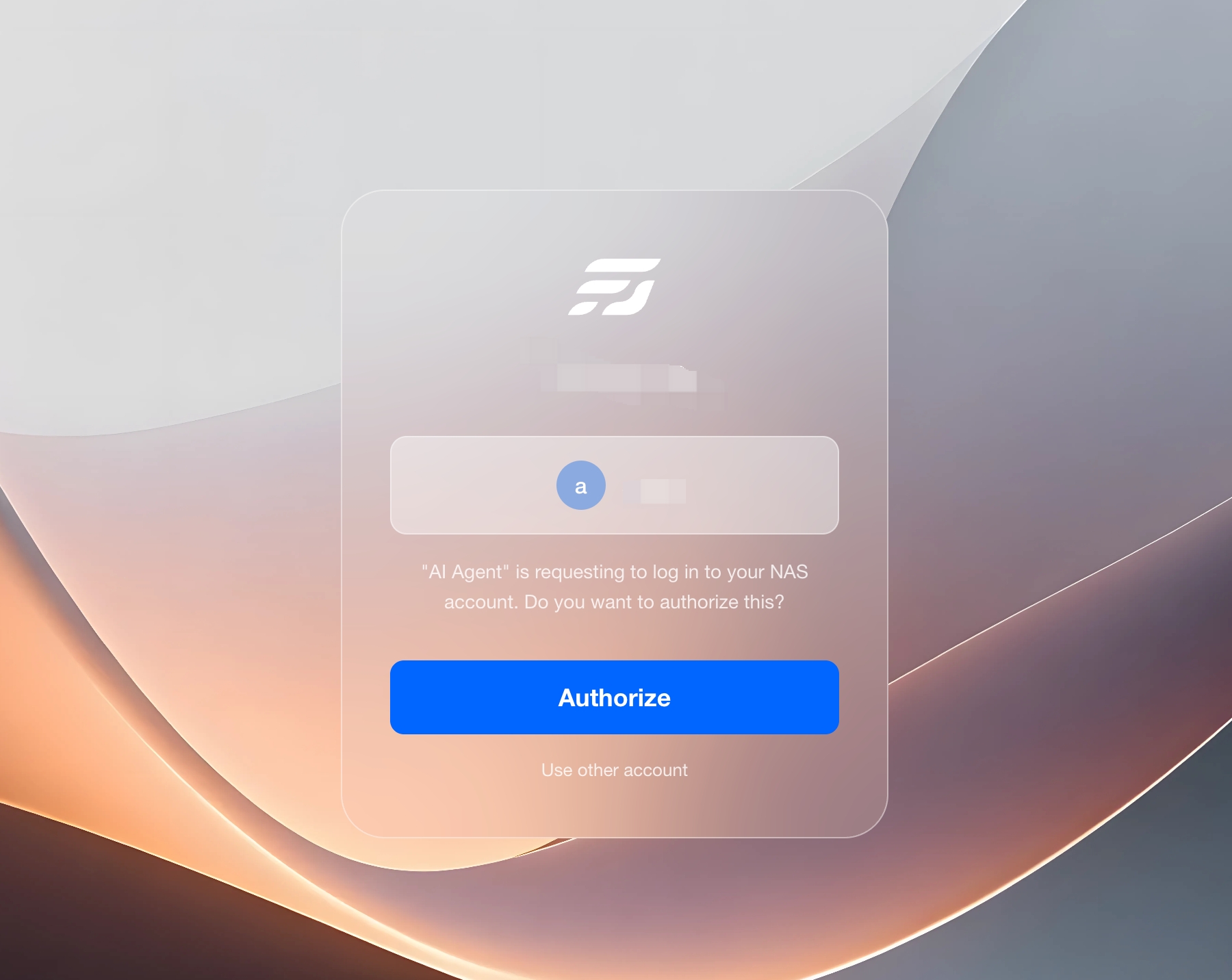
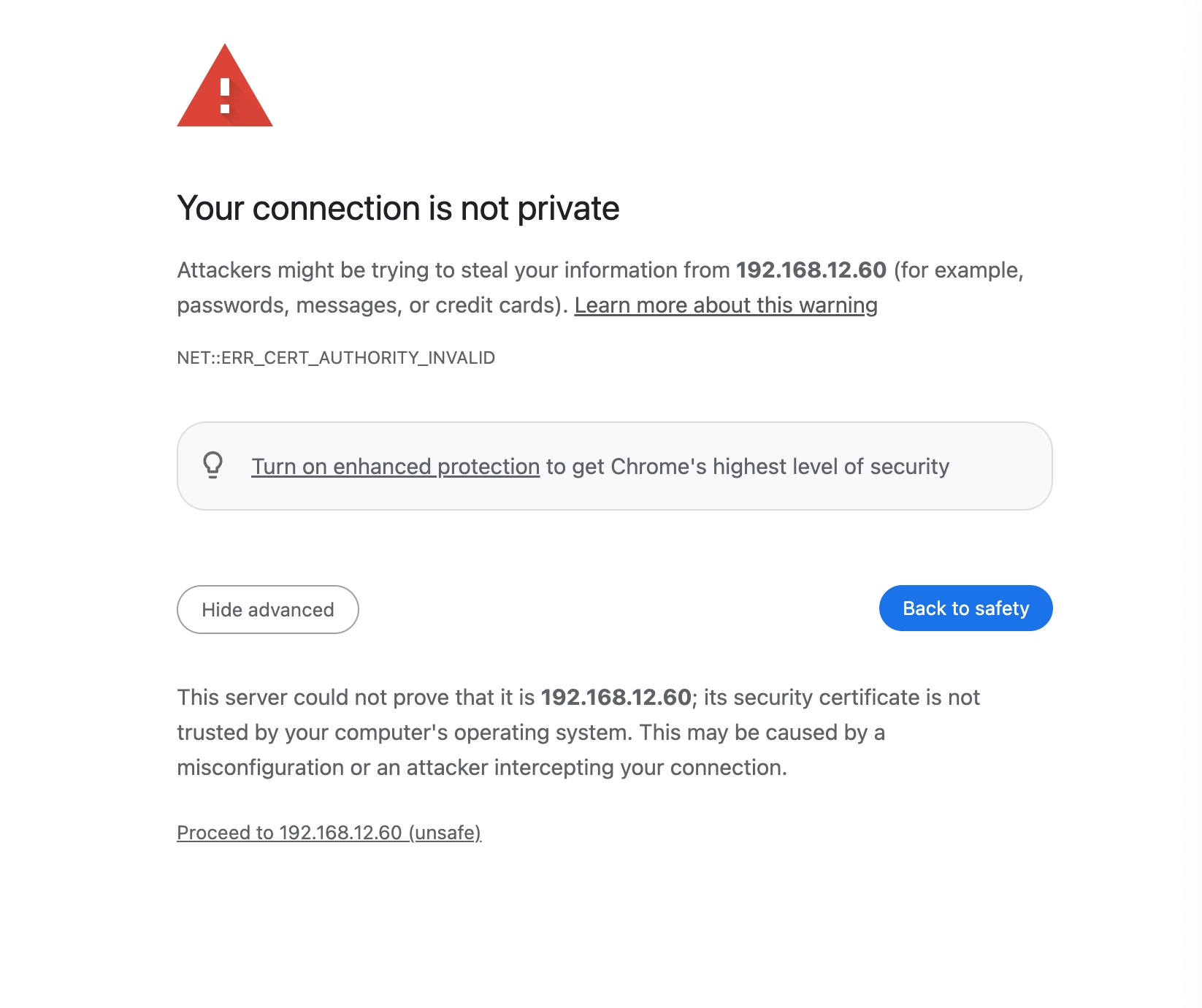
    The authorization page uses HTTPS by default. When you access it by IP address, the browser may warn that the self-signed certificate is not secure. Choose to continue.
    Authorizable Capabilities

    Common features you can select include: Read files, Write files, Photos, Downloads, Baidu Netdisk, App Center, Docker, Logs, System Management, User Management, and Storage Management.

    App Center, Docker, Logs, System Management, User Management, and Storage Management are typically visible only to administrators. Select what you actually need; you do not have to select all of them.
    After authorization succeeds, the record appears in Authorization Management, with the type AI Agent.

    This computer remembers the authorization, so you do not need to repeat the full flow every time. If you later see a permission error, go to Authorization Management to add the needed features, or revoke and authorize again. Refreshing the login does not add new permissions.

    Manage Existing Authorizations
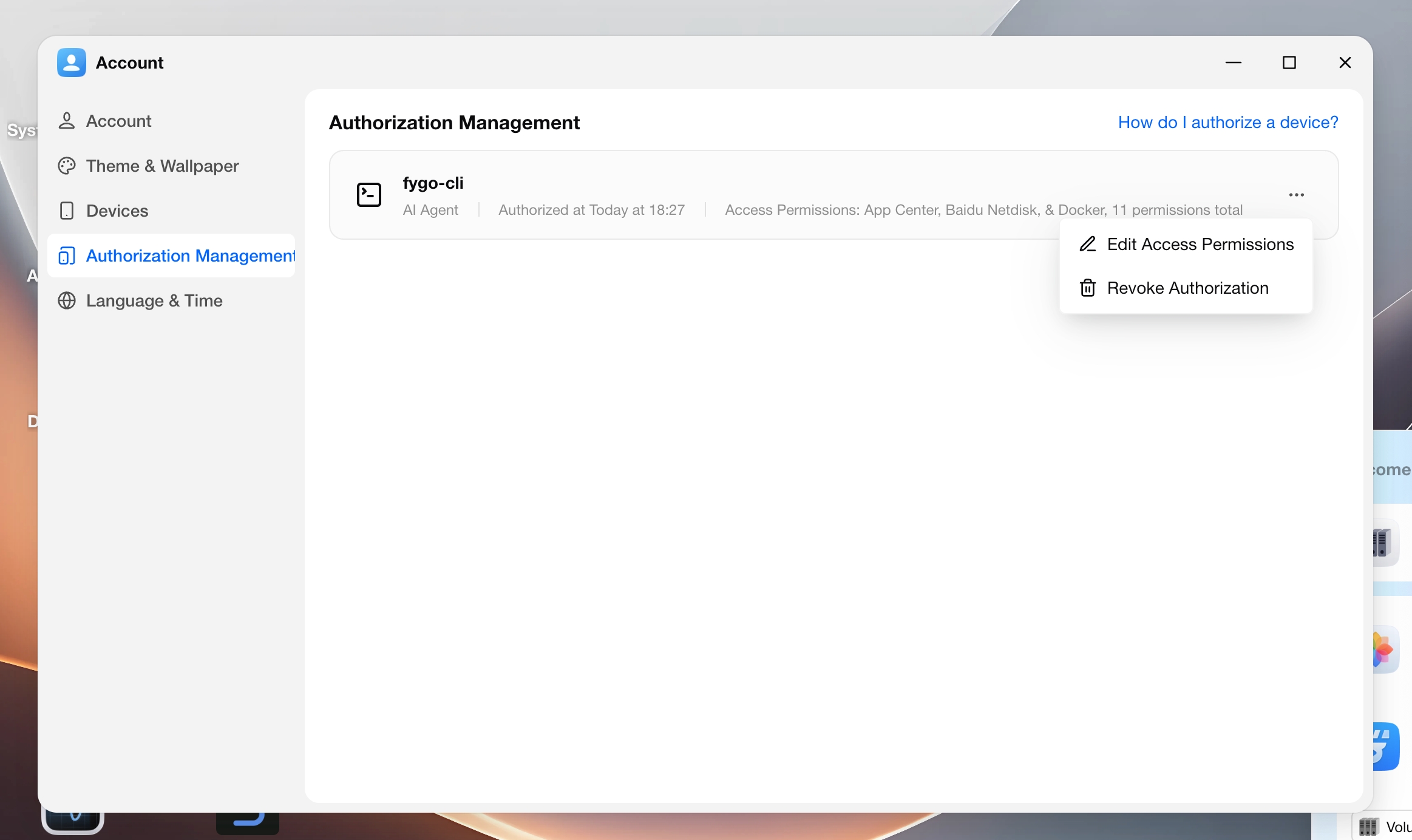
    Open My Account > Authorization Management to:

    • View the features authorized for each client
    • Adjust access permissions
    • Revoke authorizations you no longer use

    The list may contain multiple records, usually for different times or devices. You can revoke unused ones.
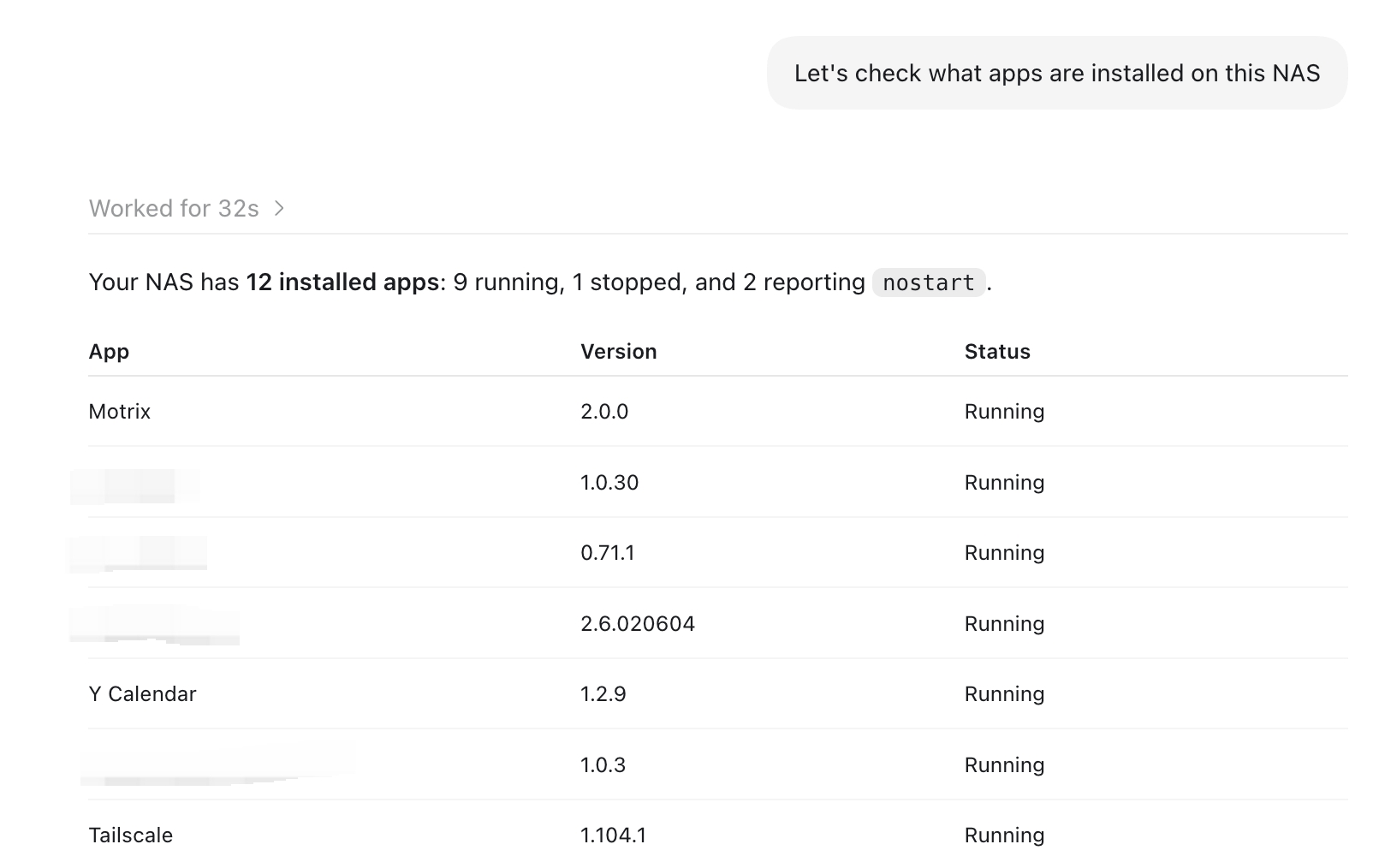
    Demo

    After authorization, you can ask the AI Agent in conversation to operate your NAS, such as viewing files or managing apps.
    Was this article helpful?