
How to Set Up and Use the Access Code?
What is the access code?
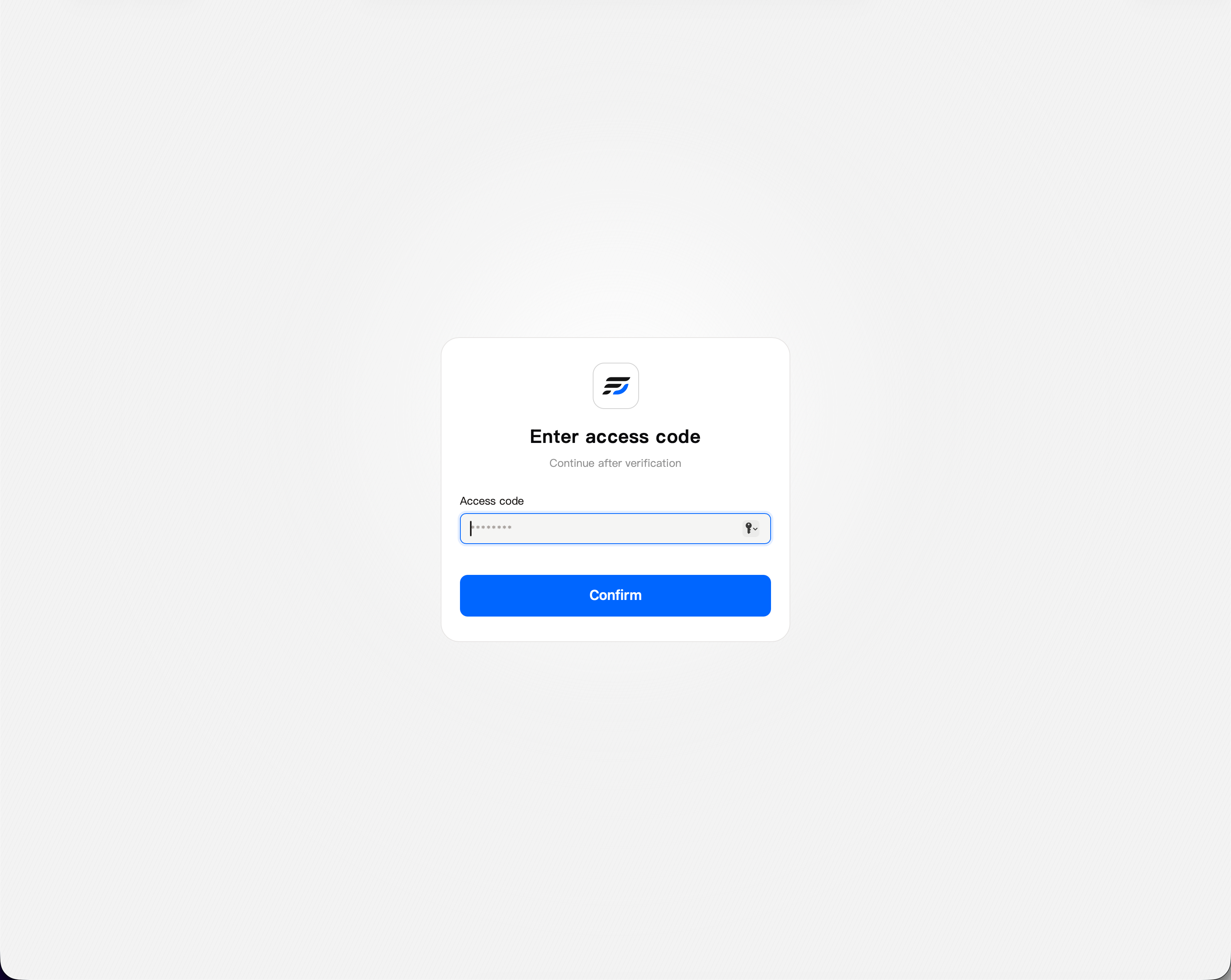
The access code is a security check required before accessing the device. Once enabled, the access code must be verified before entering the login page and any app entry points.
It adds an extra layer of protection before device access and helps reduce the risk of unauthorized access, such as direct attempts to open the login page, malicious scanning of device entry points followed by repeated attempts with access codes or account credentials, or direct access to media, Photos, or third-party app entry points.
After the access code is enabled, the following entry points require access code verification on first access:
- System login page
- Apps: media, Photos, and various third-party apps
- Clients: Fygo App, FygoTV, Fygo Sync PC client, and more
In other words, any access through these device entry points requires access code verification first.
How do I enable or change the access code?
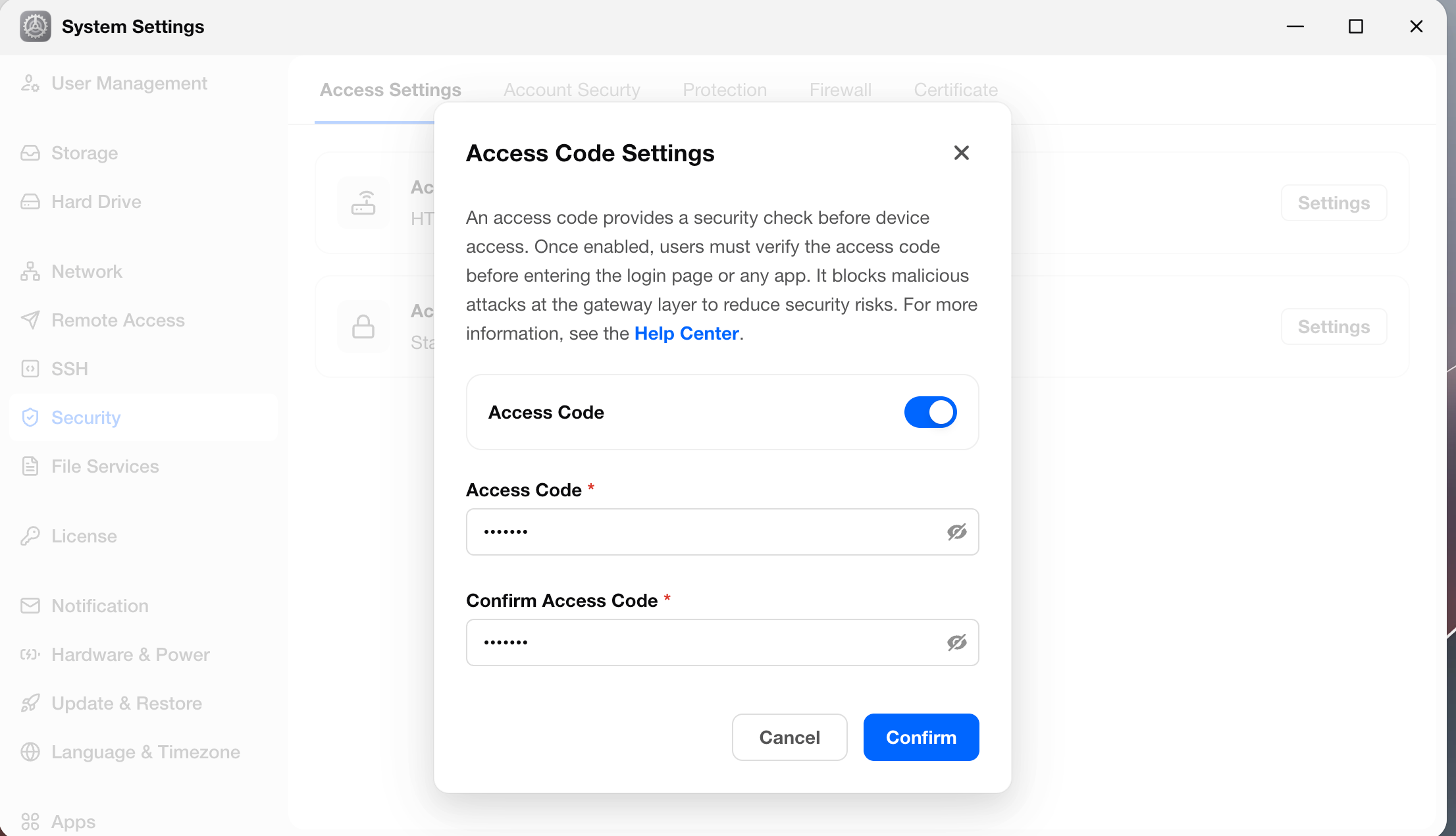
You can enable, disable, or change the access code in System Settings > Security > Access Settings.
After enabling it, you must enter and confirm the access code before saving.
Note:
- Enabling or changing the access code may interrupt ongoing upload tasks or other running services.
- After enabling or changing the access code, users who are already logged in on other devices will be forcibly signed out and need to log in again.
What should I do if I forget the access code?
If you forget the current access code, you can recover or handle it in the following ways:
- If another administrator account on the device can still access the system, that administrator can go to System Settings > Security > Access Settings and reset the access code.
- If you already have access to the device through SSH, you can also check the current access code with the following command:
/usr/trim/bin/security_service --access-code
How can I access without manually entering the access code?
Yes. If you want others to access the device without manually entering the access code, you can include the current access code directly in the access link. This allows the system to complete access code verification automatically when the link is opened.
If you access the device through a domain, you can append /c/{access-code} to the URL.
Example:
https://your-domain.example.com/c/{access-code}
If the access code is verified successfully, the user will proceed directly to the next login flow. If the access code is incorrect or verification fails, the page will return a 404 error.
What happens after repeated failed attempts?
If the access code is entered incorrectly multiple times, temporary access restrictions may be triggered, and access will be unavailable for a period of time.
If an administrator changes or disables the access code, the restriction status will be reset by the system.