
How do file permissions work and how can I configure them?
This article explains how FygoOS file permissions are configured and how they take effect. If you encounter issues such as insufficient permissions, inability to delete files, or failed operations from a computer, you can use this article for troubleshooting.
1. File permission mechanism
Files in FygoOS volumes use the Windows ACL permission mechanism, which has the following characteristics:
- Supports freely combining 13 permissions for more detailed control over reading, writing, deletion, modification, and other operations.
- Supports both Allow and Deny permission types.
- Supports permission inheritance from parent folders to subfolders and files.
- When accessing files from a computer through SMB, permission behavior is more consistent with Windows file permission habits.
2. File permission entries
You can view or adjust file permissions from the following entries. Each entry is intended for a different scenario:
- File right-click > Details > Permissions: Use this to view or edit permissions on the file itself. Select a file or folder, right-click it, and go to Details > Permissions. You can view the current permission list and add, edit, or delete permission rules.
- File right-click > Share on This Device: Use this to share a personal file or folder in My Files with specified users. You can select access permissions while sharing, and modify them later in Sharing Settings. For details, see How to share My Files with other users?.
- Files > Team Folder: Use this for Team Folders maintained by multiple users. Administrators or authorized users can set permissions for Team Folder members or groups, and other users can access them from Files > Team Folder. For details, see How to share a Team Folder?.
- System Settings > Apps: Use this to set which folders and permissions an app can access. Only administrators can perform this operation.
3. Permission types and settings
When setting member permissions in Team Folder, or sharing personal files with others, FygoOS provides common permission combinations so you can quickly complete setup. If you need more flexible permission control, choose Custom.
| Permission type | Description |
|---|---|
| Read Only | Can view and open files, but cannot modify content. |
| Read/Write | Can view, upload, create, move, modify, and delete files, including deleting the item itself and deleting subfiles and subfolders. |
| No Access | Explicitly denies access to the file or folder. |
| Custom | Opens custom permission settings, where you can precisely control read, write, and management permissions. |
Note: No Access is a deny permission and has a higher priority. It may override allow permissions obtained through a group or parent folder. Use it carefully.
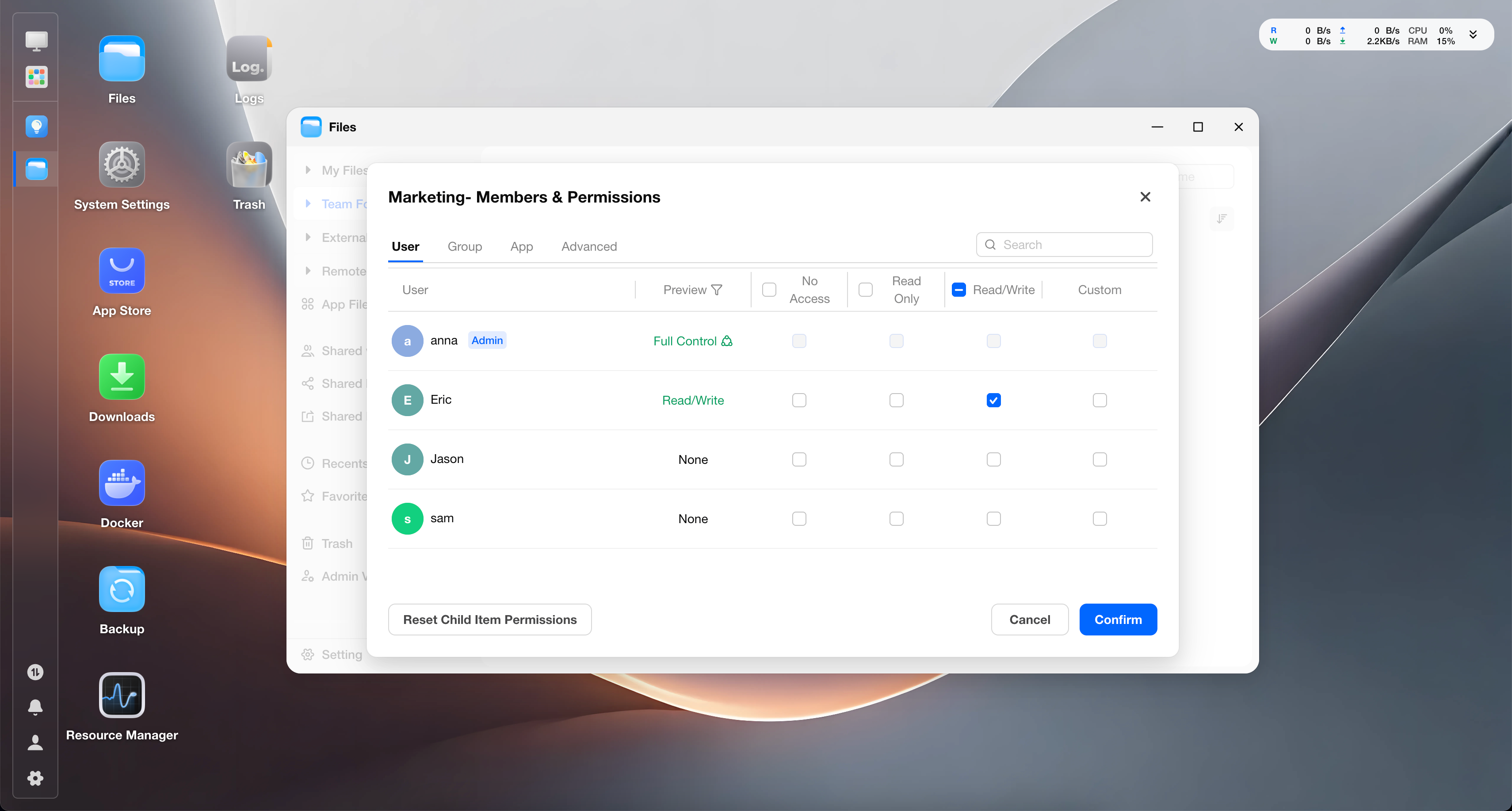
Custom permissions
When common permission combinations do not meet your needs, such as allowing users to upload files but not delete files, choose Custom. You can also go to Files > Details > Permissions, then add or edit permissions to open custom permission settings.
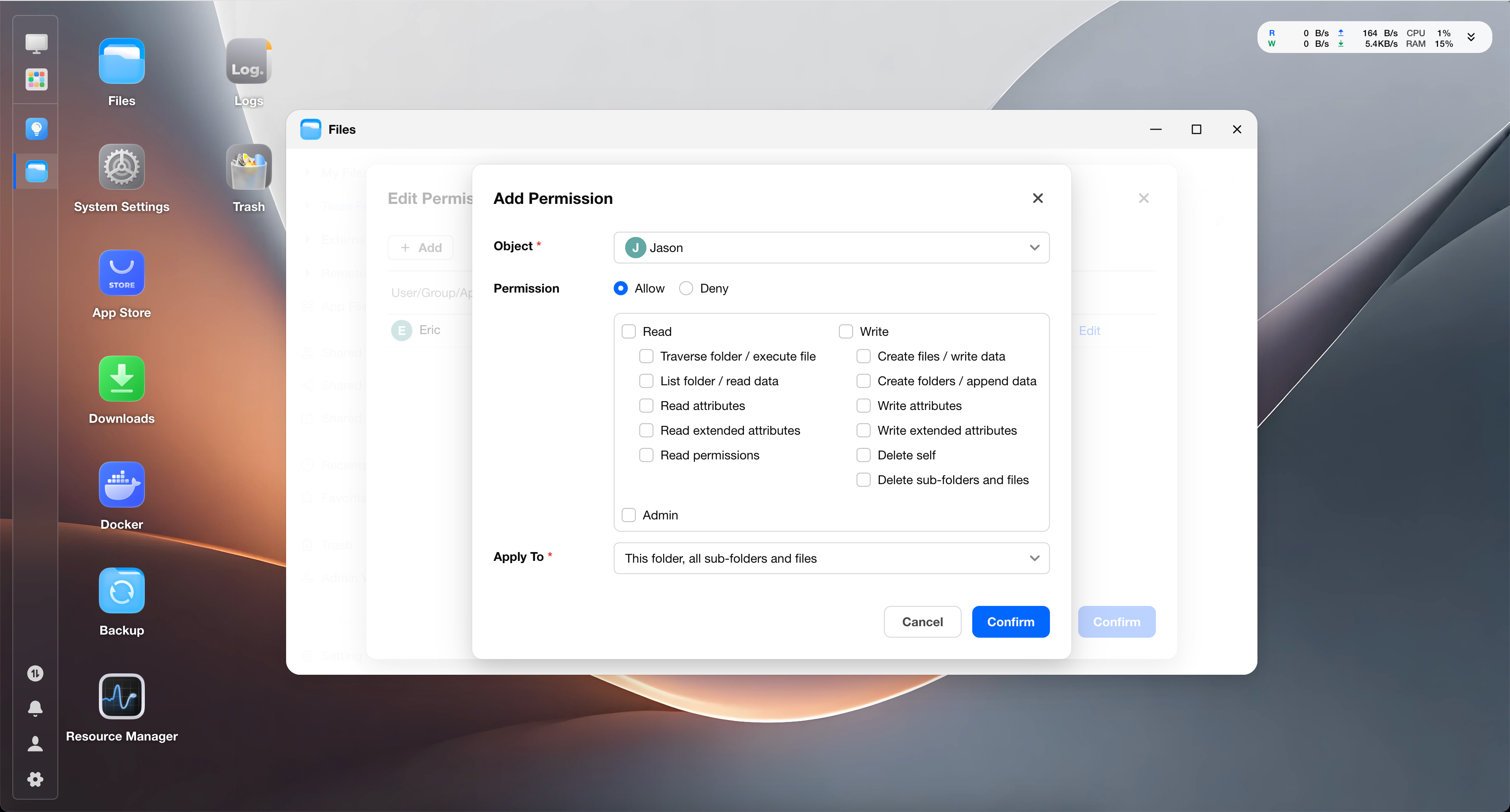
Custom permissions usually require the following settings:
- Object: Who this permission rule grants or restricts. This may include users, groups, apps, Everyone, or Owner.
- Permission type: Select Allow to grant the corresponding operation permissions, or Deny to prohibit them.
- Permissions: Controls which specific operations the object can perform.
- Apply to: Sets the scope of the permission, such as applying only to the current folder or also applying to subfolders and files.
Custom permissions are divided into 3 categories, with 13 items in total:
- Read
- Traverse Folder / Execute File
- List Folder / Read Data
- Read Attributes
- Read Extended Attributes
- Read Permissions
- Write
- Create Files / Write Data
- Create Folders / Append Data
- Write Attributes
- Write Extended Attributes
- Delete
- Delete Subfolders and Files
- Management
- Change Permissions
- Take Ownership
For example, when you want users to upload files but not delete files, you can use custom permissions to keep read, create, write, and related permissions while removing delete-related permissions.
4. How file permissions take effect
By source, file permissions can be divided into two types:
- Explicit permissions: Permissions set directly on the current file or folder.
- Inherited permissions: Permissions inherited from a parent folder. These are also called implicit permissions.
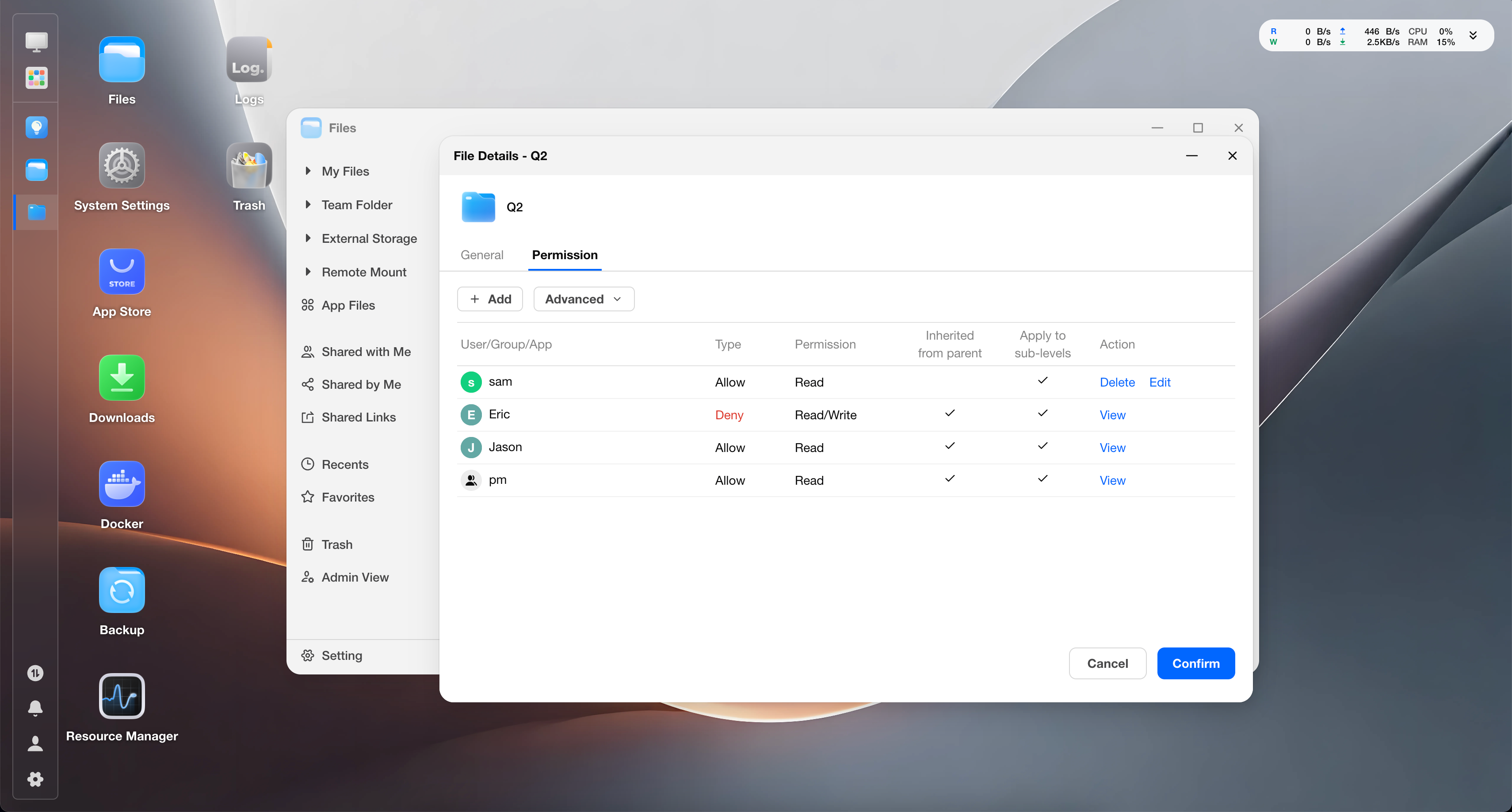
Pay attention to the following situations when determining the effective result:
When explicit and inherited permissions both exist
- Explicit permissions set directly on the current file or folder usually take precedence over implicit permissions inherited from a parent folder.
- When multiple parent levels all have inheritable permissions, the nearest parent folder usually takes precedence.
- If a subfile or folder has Disable inheritance from parent permissions set, it is no longer affected by parent permissions.
In Details > Permissions > Advanced, you can handle inherited permissions in the following ways:
- Disable inheritance from parent permissions: Stops the current file or folder from continuing to inherit parent permissions. When disabling inheritance, you can convert existing inherited permissions to explicit permissions so they continue to take effect, or remove all inherited permissions.
- Reset child item permissions: Reapplies the current permissions to lower-level folders and files. This is often used when you want child items to follow the current folder permissions again.
These operations affect permission results for the current folder or lower-level files. Use them only when you need to unify permissions or manage subfolders separately.
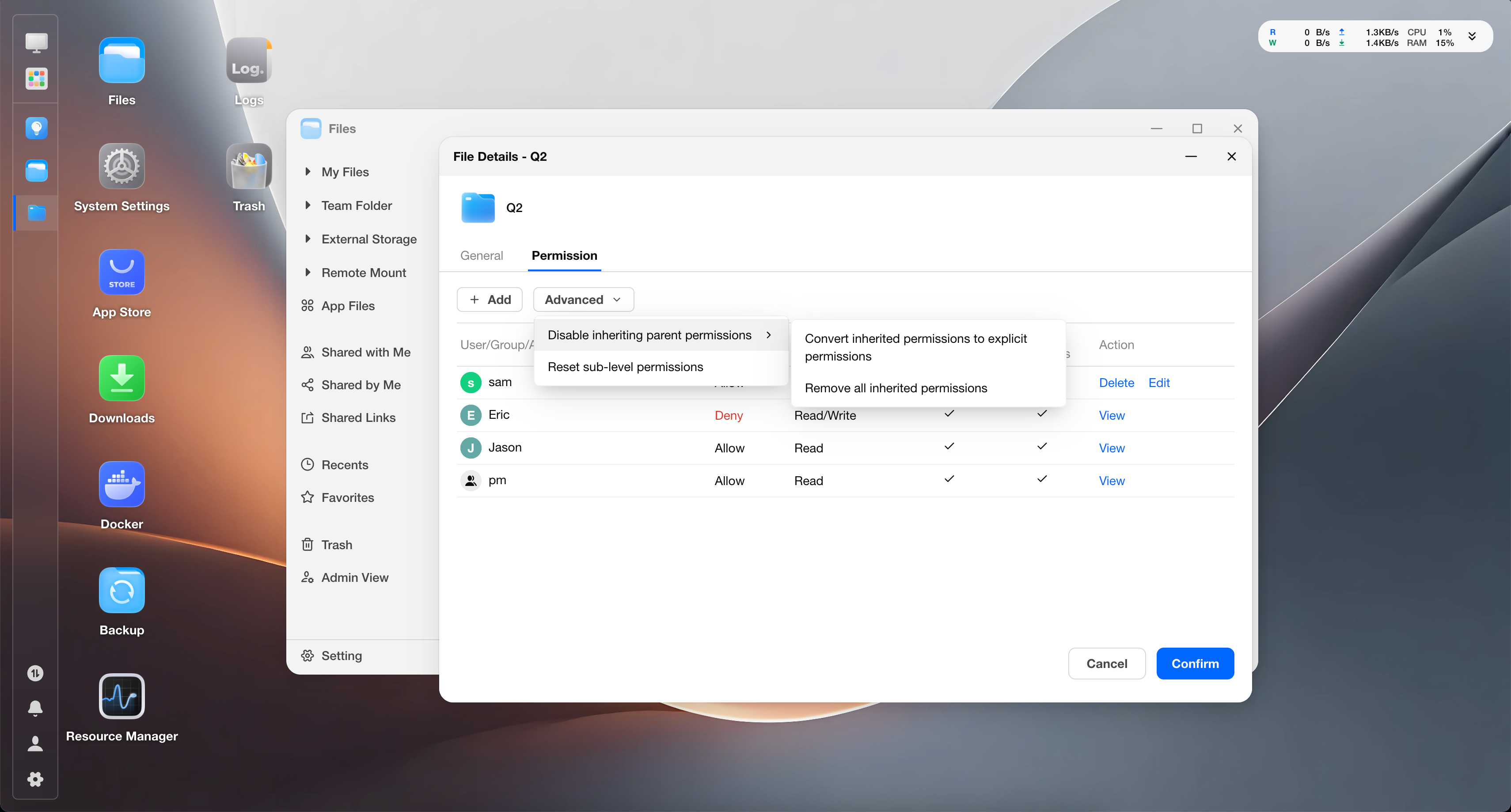
When allow and deny permissions both exist
- Deny permissions have a higher priority and may restrict allow permissions obtained through other rules.
When user and group permissions both exist
- If the same user matches both user permissions and group permissions, the system calculates these permissions together.
When accessing files through SMB
- When accessing files in NAS volumes from a computer through SMB, permissions are still controlled by FygoOS file permissions.
- Windows and macOS may request multiple permissions during a single operation. If custom permissions are too narrow, file operations from a computer may fail, such as opening, creating, or saving files.
Cases not restricted by normal permission rules
- Administrators: Have the highest permissions for all files.
- User directory owners: Have the highest permissions for files under their own user directory, that is, My Files.
- Docker directories and some app directories: Use POSIX ACL instead of Windows ACL to ensure apps work properly.
5. Common scenarios and issues
How do I let a user view files but not modify them?
Set the permission for the user or group to Read Only.
If you also want subfolders and subfiles to be view-only, make sure the permission scope includes subfolders and files.
How do I let a user upload and edit files but not delete them?
Use Custom permissions.
When configuring permissions, keep read, create, write, and related permissions, but do not grant delete-related permissions. This is suitable for scenarios such as collecting materials or collaborative uploads.
How do I let a user access a parent folder but block access to a subfolder?
First, set an allowed permission, such as Read Only or Read/Write, for the user or group on the parent folder.
Then set No Access for the user or group on the subfolder that needs restricted access. The deny permission on the subfolder takes precedence over the allow permission inherited from the parent folder.
If the subfolder needs to be managed independently, you can also disable inheritance from parent permissions and then set permissions separately.
How do I stop a subfolder from following parent permission changes?
Use Disable inheritance from parent permissions in the subfolder permission settings.
After inheritance is disabled, parent permission changes may no longer affect the subfolder. To restore this, inherit parent permissions again or reset child item permissions.
Why can I see a file but not open it?
Possible reasons include:
- You can access the parent folder but do not have permission to read the current file.
- The current file or subfolder has been separately set to No Access.
- The subfolder has inheritance disabled and does not inherit access permissions from the parent folder.
- When accessing through SMB, the computer requests additional read-related permissions.
Contact the administrator or file owner to check your actual permissions for the file.
Why do I have Read/Write permission but still cannot delete files?
Deleting files requires the corresponding delete permission.
If the file or folder uses custom permissions, you may be allowed to create and edit files but not delete them.
Why can't I view or modify permissions?
Viewing permissions requires permission to read permission information. Modifying permissions requires Change Permissions permission.
If you do not have the corresponding permissions, the permission list may show insufficient permissions, or you may only be able to view it without editing.
Administrators and user directory owners usually have higher permissions. Some locations may also only support viewing or not support permission settings due to system restrictions.
Why do operations from a computer fail over SMB even though I have permissions?
After mounting a FygoOS folder to a computer through SMB, Windows or macOS may request multiple file permissions while browsing, previewing, creating, editing, and saving files. If custom permissions are too narrow, operations such as opening, creating, or saving files may fail.
In addition, when editing and saving files from a computer with certain software, the software may create temporary files, replace the original file, or clean up temporary files after saving. If delete permission is missing, abnormal behavior may occur. For example:
- When editing a file with WPS on Windows, if delete permission is missing, the file can be saved successfully, but a temporary file that should have been deleted may remain in the same directory.
- When editing a file with Photoshop on Windows, if delete permission is missing, saving may fail.
Suggestions:
- If the computer reports access denied, return to Files > Details > Permissions in FygoOS and check the user's or group's actual permissions.
- If you do not have special requirements, use common permission types such as Read Only and Read/Write first. If you must use custom permissions, make sure read, write, attribute read/write, and related permissions are complete.
- Some professional software has limited support for files in network locations. For example, Adobe officially recommends opening local computer files first when using software such as Photoshop. We recommend using FygoSync to sync files from the NAS to your computer before editing. After saving, changes will sync back to the NAS.