
How to Import Eagle Assets into Fygo Seek
If you have used Eagle to manage pictures, design inspiration or asset packages before, you can first export the .eaglepack file in Eagle and then import it to Fygo Seek. After importing, Seek will try to retain the folder structure, tags, ratings, descriptions and other information in Eagle so that you can continue to organize, search and share assets in Seek.
What do I need to prepare before importing?
Before importing, please confirm:
- The folders or assets that need to be migrated have been organized in Eagle.
- The
.eaglepackfile has been exported from Eagle. - Seek The project folder has enough storage space.
- The current account has upload permission for the target project or target folder.
- There is no folder with the same name as the Eagle resource package in the target folder to avoid naming conflicts during import.
How to export .eaglepack in Eagle?
In Eagle, you can export folders or selected assets as .eaglepack files.
Common export steps:
- Open Eagle and select the folder or asset to be imported to Seek.
- Right-click the selected folder or asset.
- Select "Export" or "Export".
- Select "Export as .eaglepack" or "Export as .eaglepack".
- Set the file name and export location.
- After saving, you will get a
.eaglepackfile.
If you want to migrate the complete classification, it is recommended to select the corresponding folder in Eagle and export it; if you only migrate some assets, you can select only these assets and export them.
How to import Eagle resources in Seek?
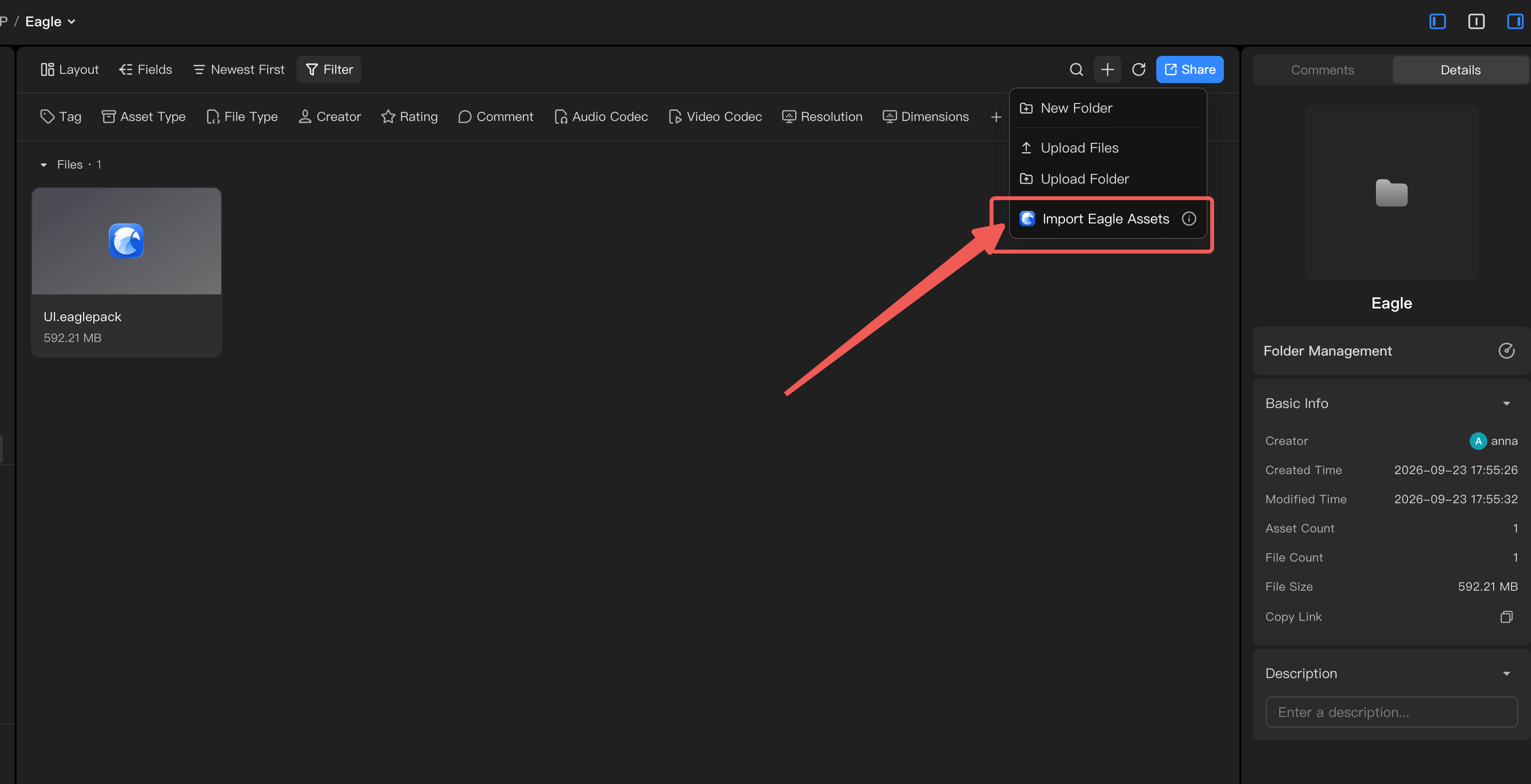
Method 1: Upload through the import portal .eaglepack
- Open Seek and enter the project that needs to import assets.
- Enter the target folder.
- Click "Import Eagle Resources".
- Select or drag and drop to upload the
.eaglepackfile. - After the upload is successful, Seek will add a new task of "Parse Eagle Resources".
- After the task is completed, view the import results in the current folder.
After uploading, Seek will first determine whether the file format is correct. If the file is not .eaglepack, the page will prompt that the format is not supported; if the upload fails, Eagle resources will not be parsed.
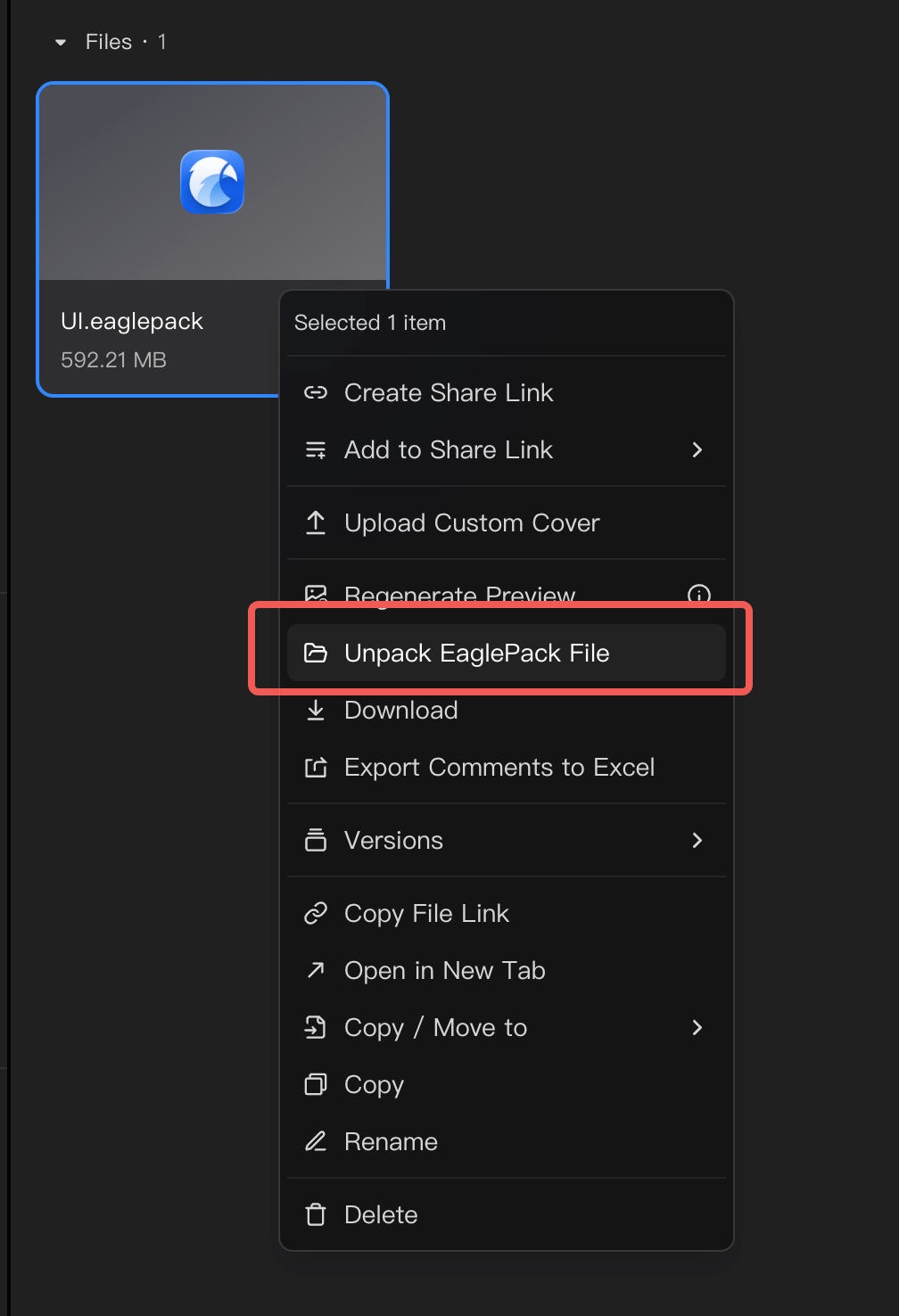
Method 2: Right-click on the existing .eaglepack file to parse it
If you have uploaded the .eaglepack file to Seek, you can also right-click on the file directly.
- Find the uploaded
.eaglepackfile in Seek. - Right-click the file.
- Select "Parse Eaglepack File".
- Seek will parse the Eaglepack file in the current folder.
This method is suitable for saving the Eaglepack file to the project first, and then deciding when to parse it.
What information will be retained after importing?
Seek will parse the Eagle metadata in .eaglepack and try to keep the transferable information in Seek.
| Eagle information | Seek processing method |
|---|---|
The folder where it is located folders | Map to the Seek folder according to the folder relationship in Eagle |
| The same asset exists in multiple folders | will keep one file in the corresponding folder. |
Deleted file isDeleted | Ignore, do not import the file |
Description annotation | Reserved as asset description |
Tag tags | Automatically create non-existing tags; if there is already a tag with the same name, reuse the existing tag |
Rating rating | Reserved for asset rating |
| Color | Keep the color data corresponding to the asset |
URL source url | Currently not importing |
| Thumbnail | Do not save Eagle thumbnails directly. Seek will regenerate the thumbnails and previews after importing. |
After the import is completed, Seek will continue to generate thumbnails, previews and indexes according to its own rules. Some large files or special formats may need to wait for a while before they can be previewed normally.
Common failure causes and solutions
| scene | Possible reasons | Handling suggestions |
|---|---|---|
| Insufficient storage space | There is insufficient storage space for the target project. | Clear space or change the target folder and import again |
| The format is not supported | Currently only supports .eaglepack files | Please export .eaglepack in Eagle first and then import it |
| Eagle resource version is too low | The metadata version in Eaglepack is below the compatibility range | It is recommended to re-export after upgrading Eagle .eaglepack |
| A folder with the same name exists | There is already a folder with the same name as the resource package in the current folder | Rename the existing folder, or select another target folder and import again |
| Upload failed | The file upload process is interrupted, network abnormality or service abnormality | Check the network and re-upload; if the upload fails, it will not continue to parse Eaglepack |
| Network abnormality | The network is disconnected or the request times out | Check the network connection and try again |
| Service exception | Seek service is temporarily unavailable | Refresh the page or try again later |
| File parsing failed | Eaglepack file is damaged or the content structure is abnormal | Go back to Eagle and re-export .eaglepack and then import it again |
| File not found | Eaglepack file was moved, deleted or failed to upload successfully | Confirm that the file exists and re-upload or re-parse it. |
| The importable resource was not found in the asset package | There are no parsable asset files in Eaglepack | Check whether the exported content in Eagle is correct |
Notes
- Importing Eagle resources will create a new folder under the current target folder. It is recommended to confirm the import location first.
- When the Eaglepack is large in size or has a large number of assets, it may take a long time to parse and generate previews.
- Please do not delete the
.eaglepackfile being parsed or the target folder during the import process. - After the import is complete, it is recommended to check whether the folder structure, tags, ratings and descriptions are as expected.