
How to Customize Brand Display
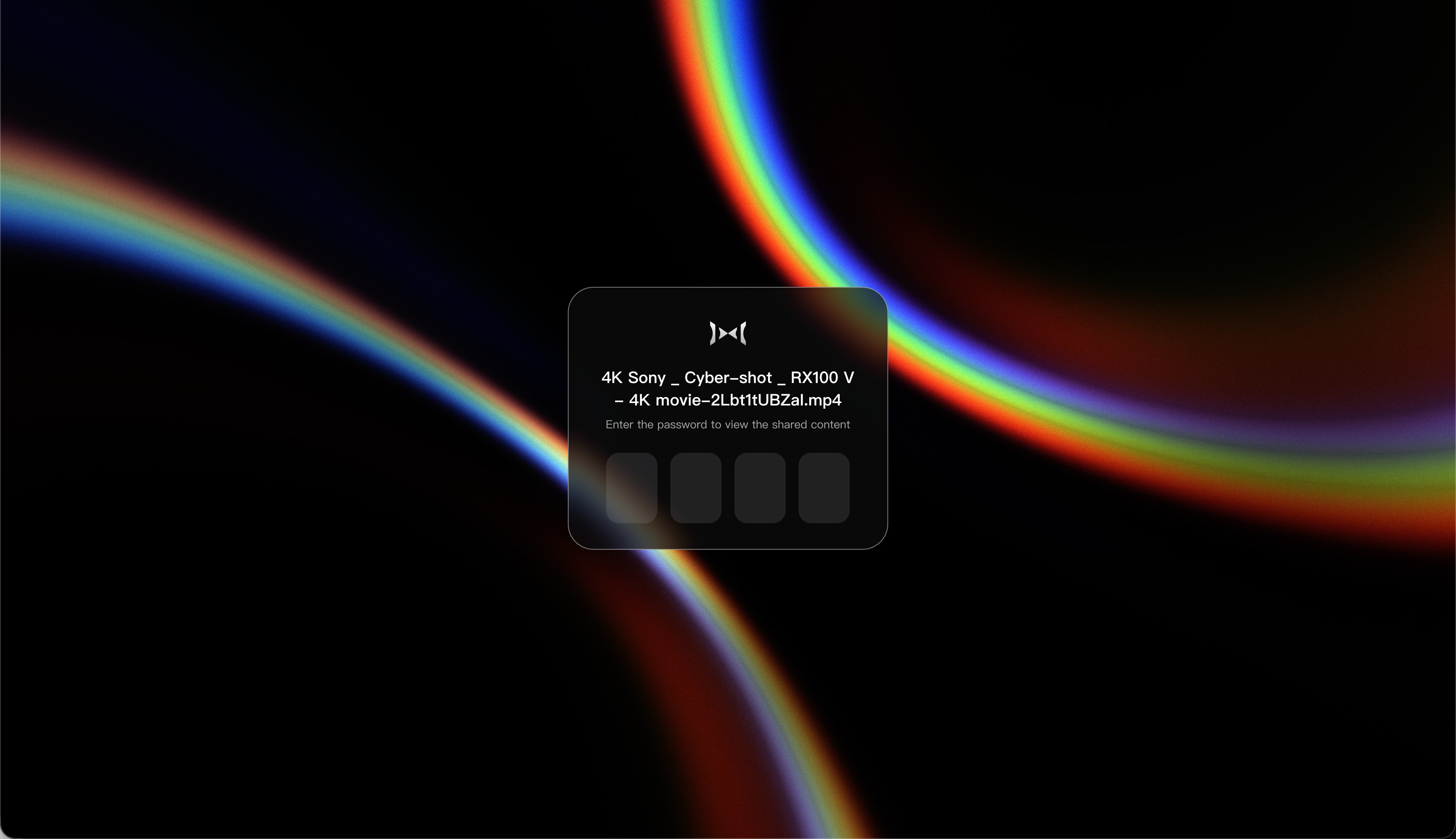
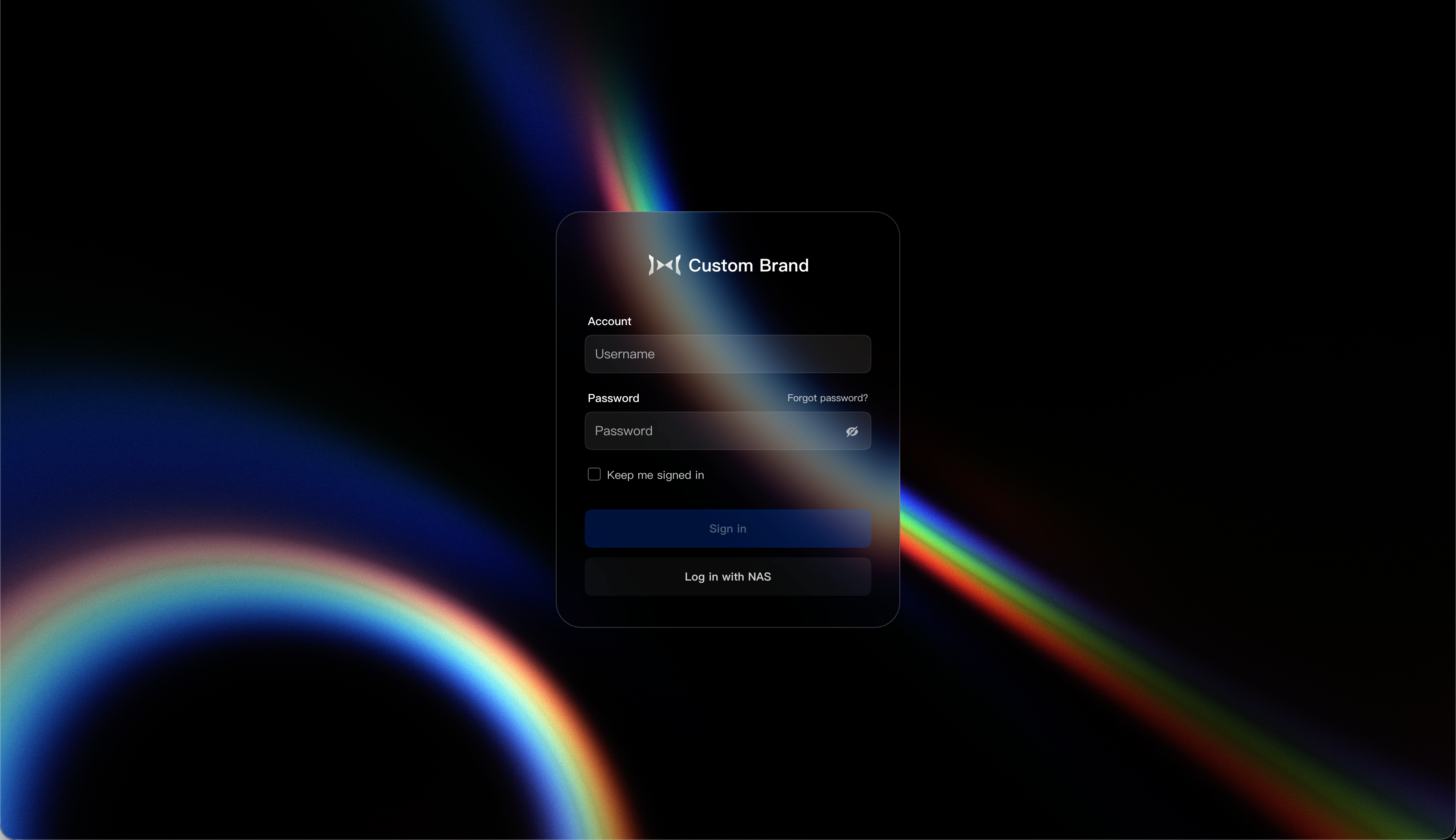
If your plan includes brand customization, Fygo Seek lets you set a brand name and logo for the sign-in page, guest Share Link pages, and other supported views. This helps clients recognize your team or brand.
Where will the brand information be displayed?
The current brand information is mainly displayed in these locations:
- Seek login page.
- External Share Link page.
- In-app brand display page.
Guests see the published brand name and logo, not your plan, license, or trial details.
How to set up brand display
Step one: Enter custom brand
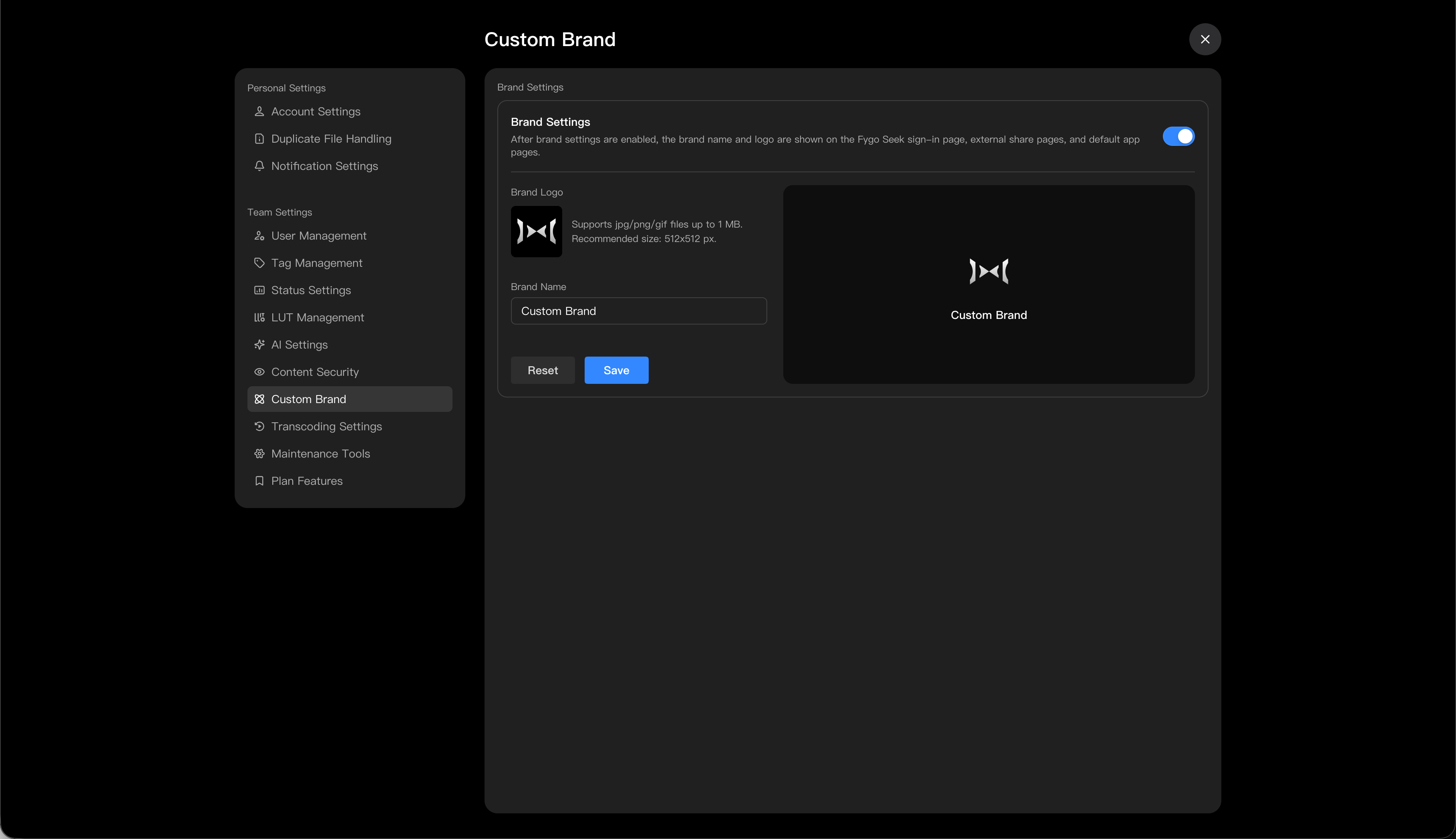
Administrator enters: Settings → Custom Settings
If the brand settings are unavailable, check your Plan Features.
Step 2: Fill in the brand name and logo
Fill in the brand name in the brand settings.
For brand names, it is recommended to use a team, company or studio name that customers can recognize, such as:
- A certain photography studio.
- A certain film and television production.
- XX brand visual center.
After uploading the brand logo, Seek will display the logo in the brand placement.
Recommended image specifications:
- Supports PNG, JPG, and GIF formats.
- It is recommended to use square or nearly square images.
- Recommended size is no larger than 512 x 512 px.
- File size does not exceed 1 MB.
Logo can be previewed, replaced or deleted after uploading. After deleting the logo, the brand name can still be displayed.
Step 3: Preview and save
Before saving, it is recommended to check the effects in different display scenarios:
- Login page preview.
- Preview of external sharing page.
- In-app page preview.
Click Save after confirming it is correct. After successful saving, some pages may need to be refreshed before the latest brand information is displayed.
What should I do if the brand setting does not take effect?
You can check as follows:
- Confirm that your current plan includes Custom Branding.
- Confirm that the brand name has been filled in and saved successfully.
- Refresh the login page or share page.
- If the plan has expired or no longer includes this feature, the brand display may return to the default Seek style.
- If the logo displays abnormally, try uploading the image again.
Notes
- It is recommended to give priority to the PNG format logo with a transparent channel, as the display effect is usually cleaner.
- It is recommended to use a clear logo with plenty of white space to avoid being too small or difficult to read on the sharing page.
- Brand settings are mainly used to configure the brand name and brand logo. If you need to configure the access domain name, please see How to customize the domain name of Fygo Seek?" .