
How to Export Comments to Editing Software
Seek supports exporting review comments into files that can be recognized by editing software, helping editors quickly locate the modification opinions of customers or teams in editing projects.
Current common export methods include:
- Exports as
EDLfor use in workflows such as DaVinci Resolve. - Exports to
XMLfor use in workflows such as Adobe Premiere Pro. - Print or export to
PDFor Excel for multi-person offline collaboration, archiving, communication or delivery records.
Comment export is a team collaboration capability. Whether comment export is supported, please refer to the current Plan Features.
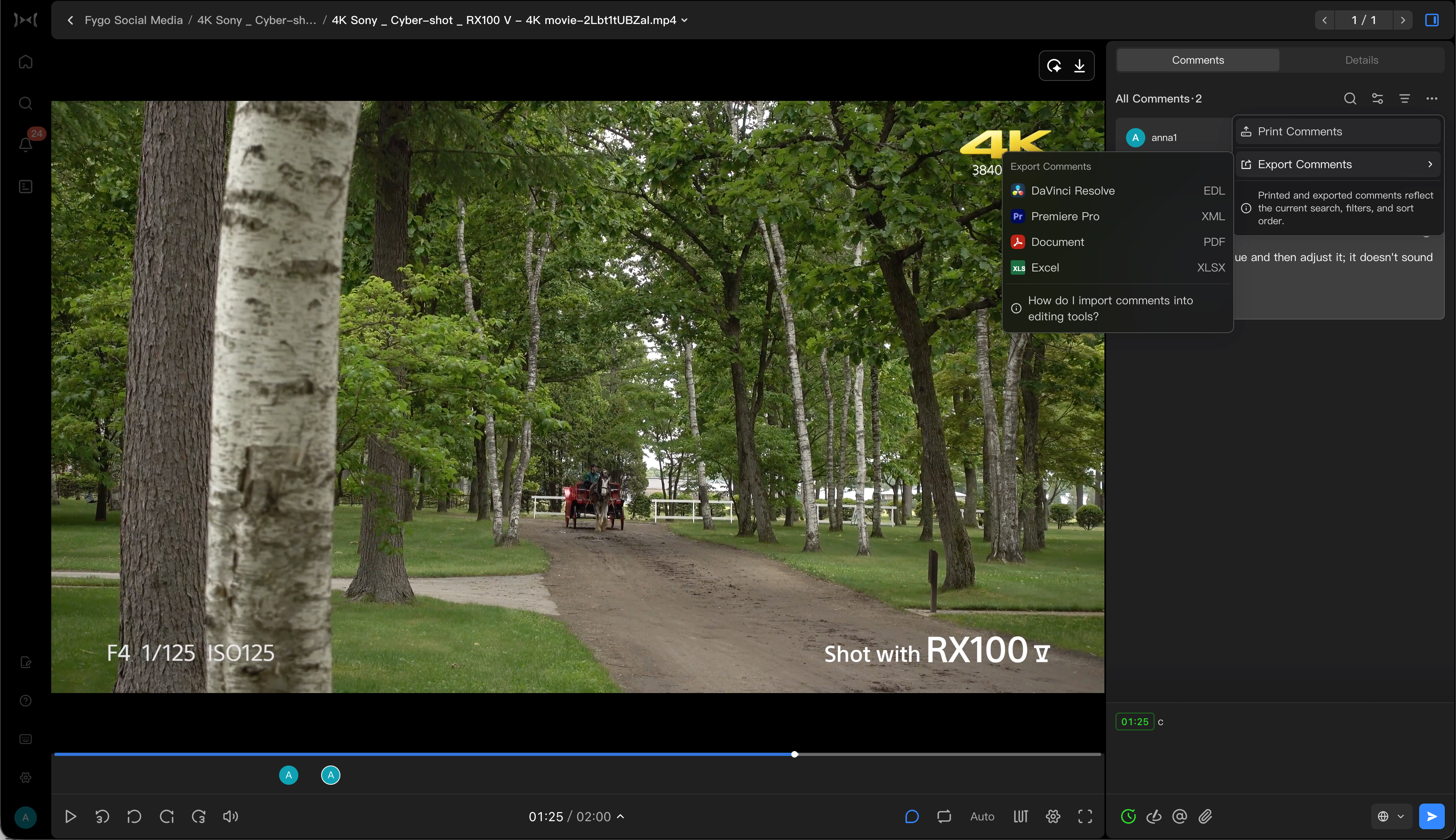
Export to EDL and import into DaVinci Resolve
Confirm before importing
Seek exported EDL is primarily used to import comments as markers on the DaVinci Resolve timeline. It is recommended to confirm before importing:
- The DaVinci Resolve project uses the same version of the video that corresponds to the comments in Seek.
- The video frame rate, timeline frame rate and starting time code remain consistent.
Operation steps
-
Open the video whose comments need to be exported, and click More Actions in the comment area on the right.
-
Select "Export Comments", select DaVinci Resolve / EDL, and download the
.edlfile. -
Open DaVinci Resolve, right-click the corresponding timeline in the media pool, select
Timelines → Import → Timelines Markers from EDL, and import the.edlfile you just downloaded.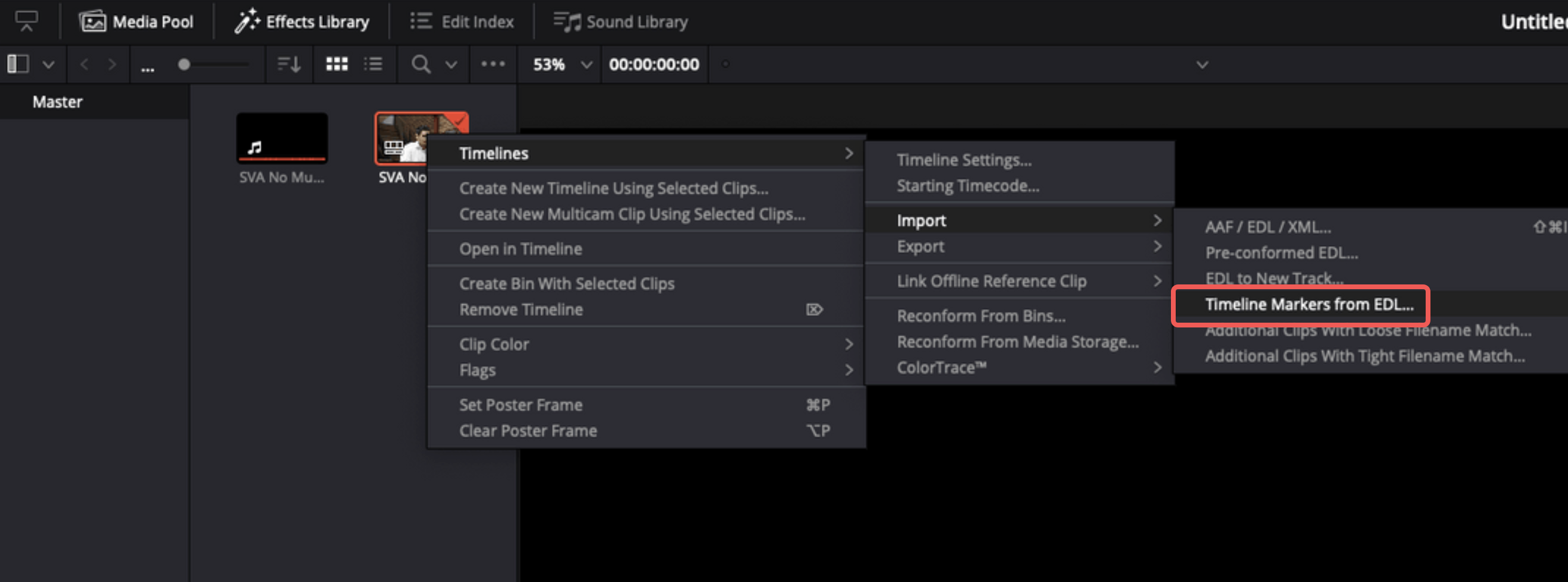
-
Check whether the mark appears at the corresponding time point.
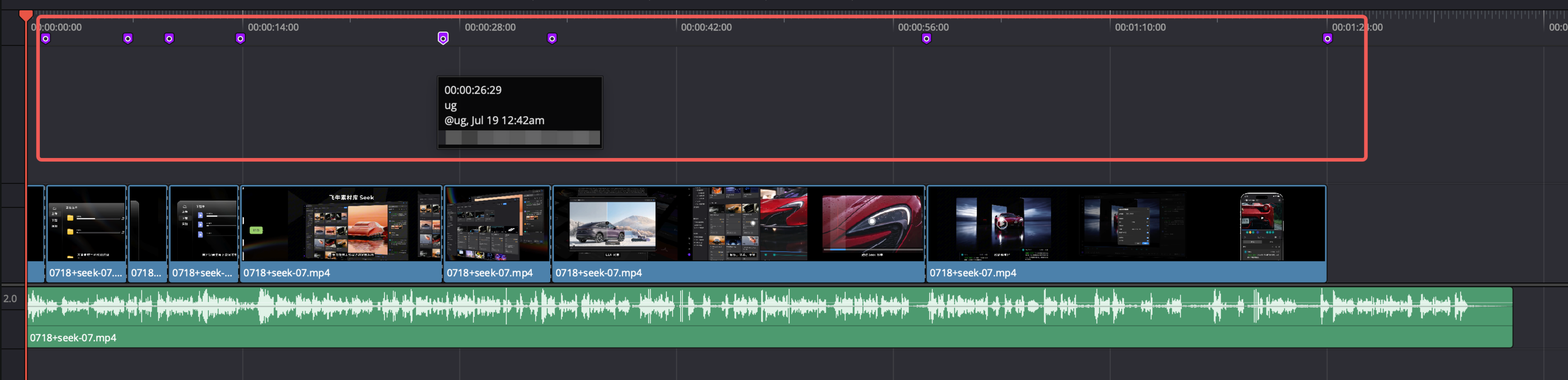 EDL is suitable for converting comments into markers or revision points on the timeline. Different editing software may support EDL in different ways. It is recommended to check the positions of the first few comments after importing.
Export to XML and import into Premiere Pro
- Open the video whose comments need to be exported, and click More Actions in the comment area on the right.
- Select "Export Comments", select Premiere Pro / XML, and download the
.xmlfile. - Open Adobe Premiere Pro and import XML into the project.
- Check that the timeline mark, comment content and location are correct.
XML will try to retain the comment text, creator and time point information. After importing, it is recommended to check key modification points against the list of comments in Seek.
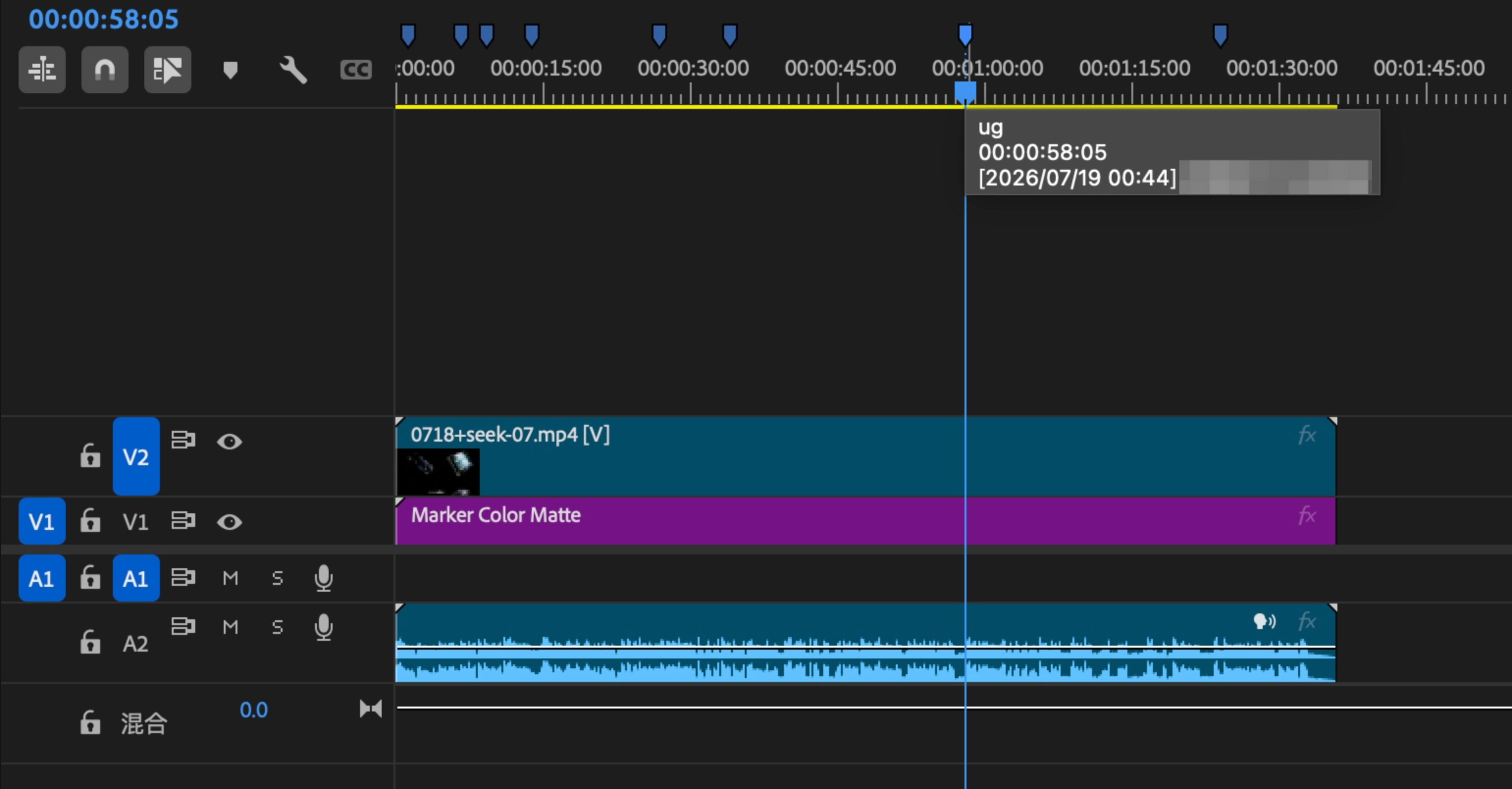
What should I do if the time codes are inconsistent?
If the time point is not accurate after importing into the editing software, you can check:
- Whether the asset version in Seek is consistent with the asset version in the editing project.
- Is the video frame rate consistent?
- Is the frame rate of the editing project timeline consistent?
- Whether the exported comments are from the correct video version.
- Whether there is transcoding, cropping, speed change or title offset.
- Whether the starting time code of the DaVinci timeline is consistent with the starting time code of the video corresponding to the comment.
If the asset has been trimmed or moved in the editing software, the imported markers may need to be manually aligned. If there is an overall offset in DaVinci, you can try right-clicking the current timeline, entering Timelines → Starting Timecode, and adjusting the starting time of the timeline to be consistent with the video corresponding to the comment before importing or aligning the markers.
Notes
- Comment export is more suitable for video review scenarios.
- Subcomments, attachments, and brush content may have different levels of support in different export formats.
- If comments are filtered or sorted before exporting, the exported file will be based on the current filtered comment results and sorting.
- Before exporting, it is recommended to clear invalid comments or confirm the scope of feedback that needs to be exported this time through filtering and sorting; the export file will be generated based on the current filtering results and sorting.
- If the customer comments on multiple versions, please confirm that the exported version is the current version that needs to be modified.