
How to Use AI Search in Fygo Seek
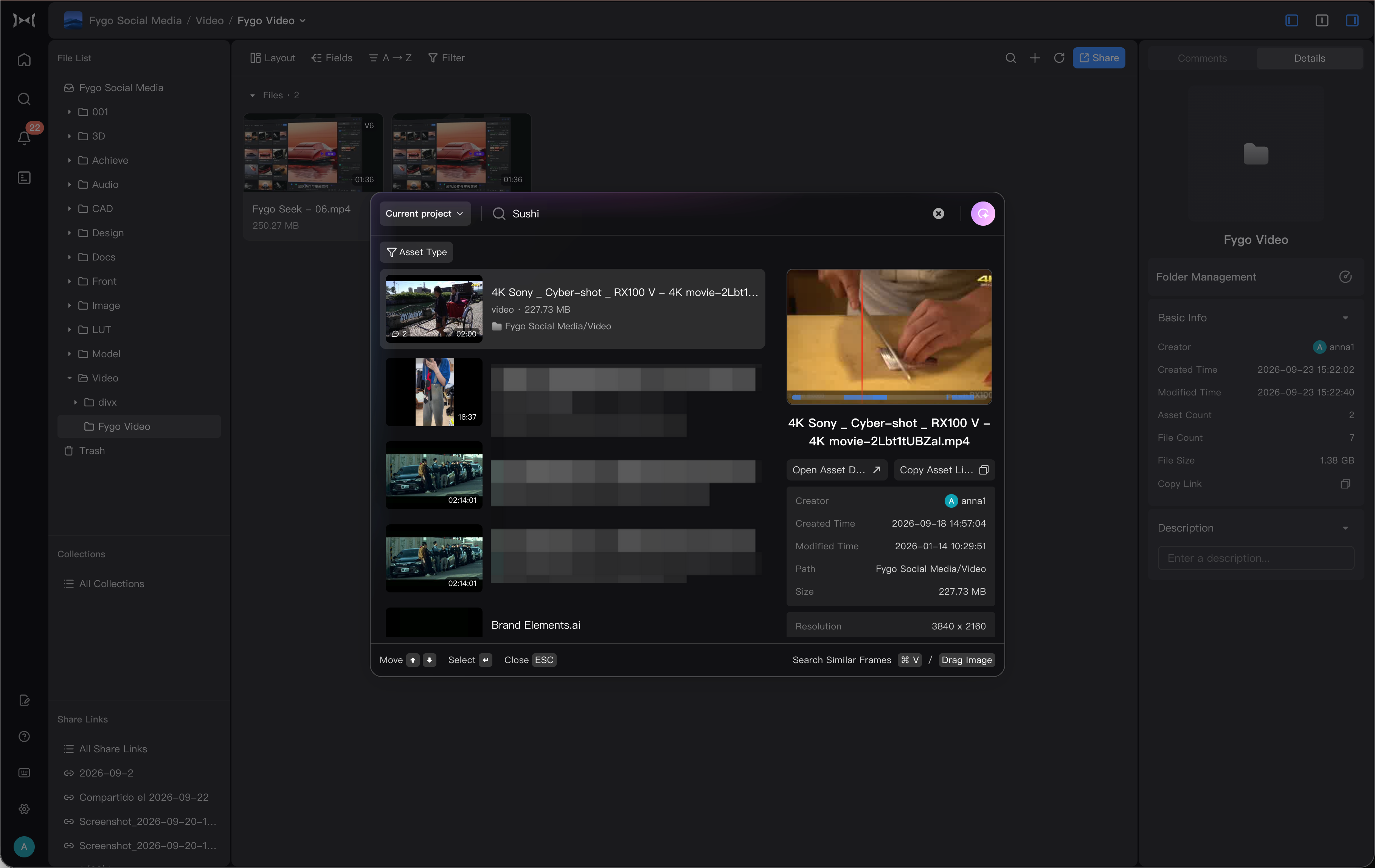
Fygo Seek’s AI search can help you find footage using natural language or reference images. For example, you can search for "portraits at sunset on the beach", "aerial photography of city night scenes", "product images with green background", and quickly find pictures or video clips that match the description.
AI Search is designed to find visual content in images, videos, and design files. It complements conventional searches based on file names, tags, and descriptions.
What do I need to prepare before use?
Before using AI search, you need to complete these preparations:
- Confirm that your Plan Features include AI Search.
- The administrator has enabled AI search in Seek.
- The device environment meets the requirements for AI search operation.
- Intelligent recognition model has been installed.
- The AI indexing task has been completed for the items or assets that need to be searched.
If you are an ordinary member and see the prompt "AI model is not installed or search index is not enabled", please contact the administrator.
Step one: Enter AI settings
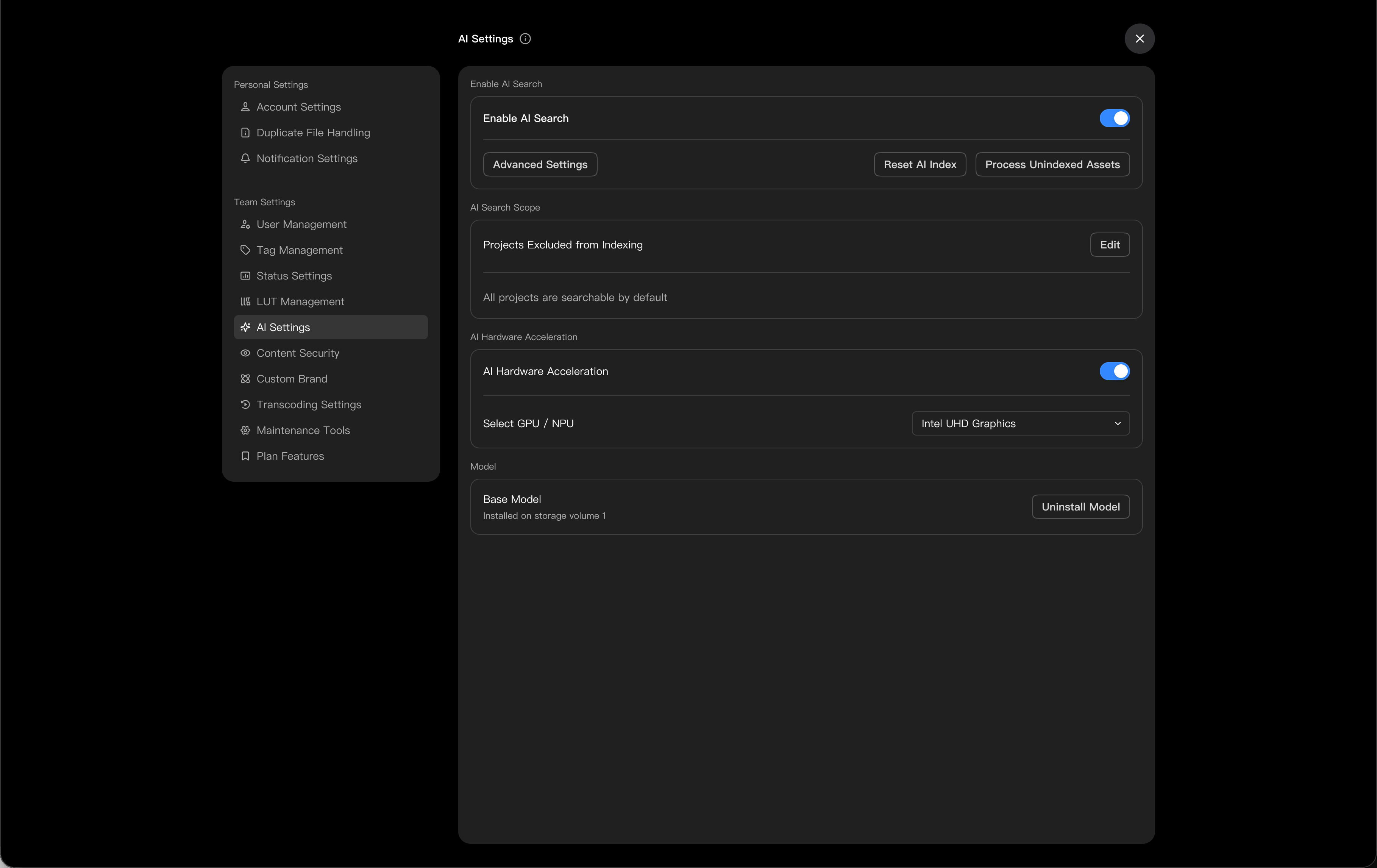
Administrators can enter: Settings -> AI
In AI settings, you can view:
- Whether the current environment meets the requirements for running AI search.
- Whether the model has been installed.
- Is AI search enabled?
- Projects excluded from indexing, such as confidential projects.
- Whether AI hardware acceleration is enabled.
Step 2: Install/download the model
Install the intelligent recognition model in "Model Management". The model is used to understand the semantic relationships between pictures, video frames and search text locally on the NAS, which is a must-have preparation before using AI search.
Since AI search needs to run the intelligent recognition model locally, it will have requirements on the hardware configuration and storage space of the NAS:
- Minimum memory required is 4 GB.
- If you install the enhanced model, it is recommended to have at least 8 GB of memory.
- The remaining storage space in the model installation location is no less than 20 GB, and the model files and related running files will be placed in the same storage space.
Additional Setup for AMD Devices
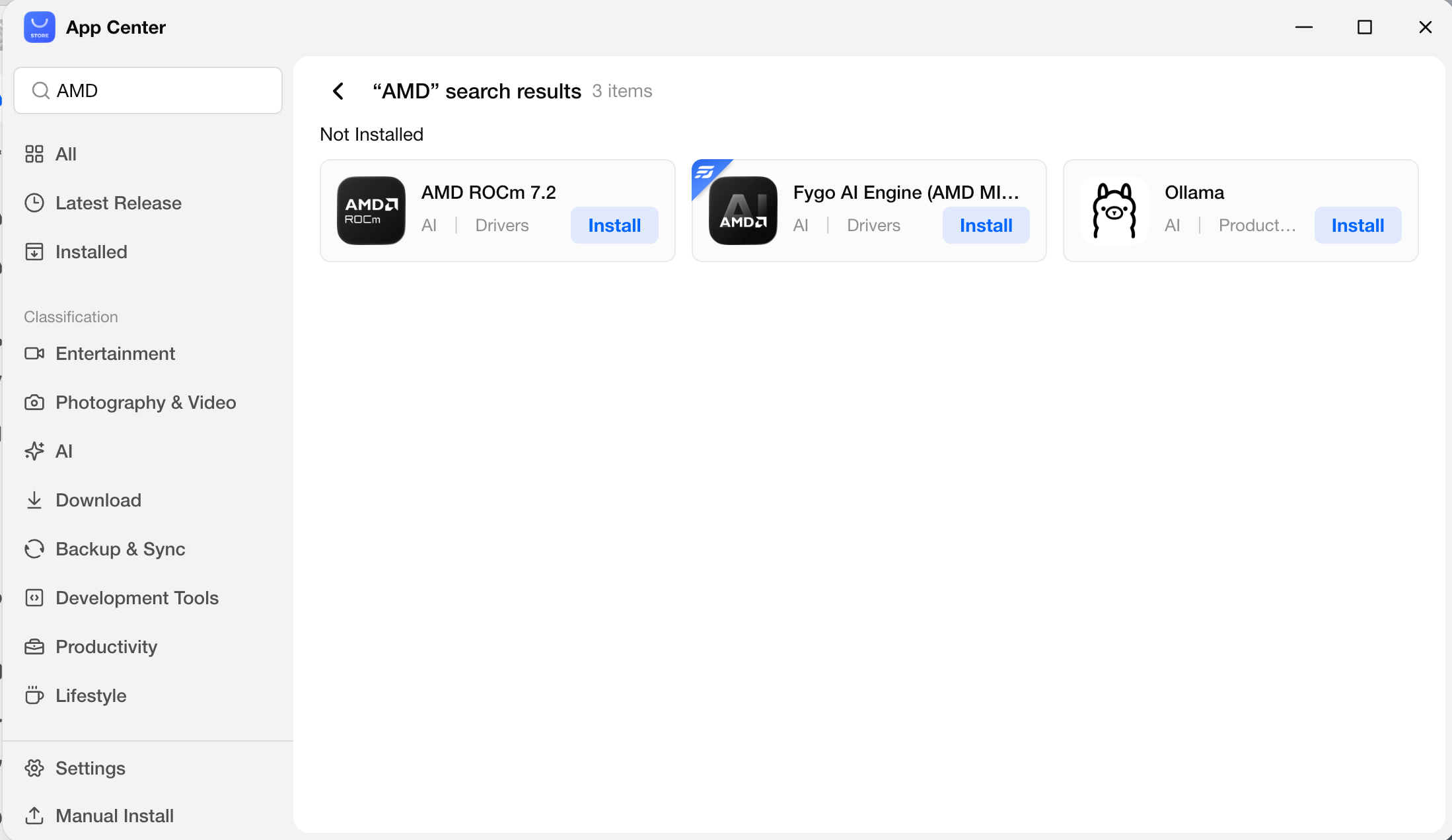
To use GPU acceleration for AI on an AMD device, first install these components from FygoOS App Center:
AMD ROCm 7.2Fygo AI Engine (AMD MIGraphX)
After installation, return to Fygo Seek → Settings → AI → Model Management, install a Smart Recognition model, and enable AI Search.
Direct download and installation
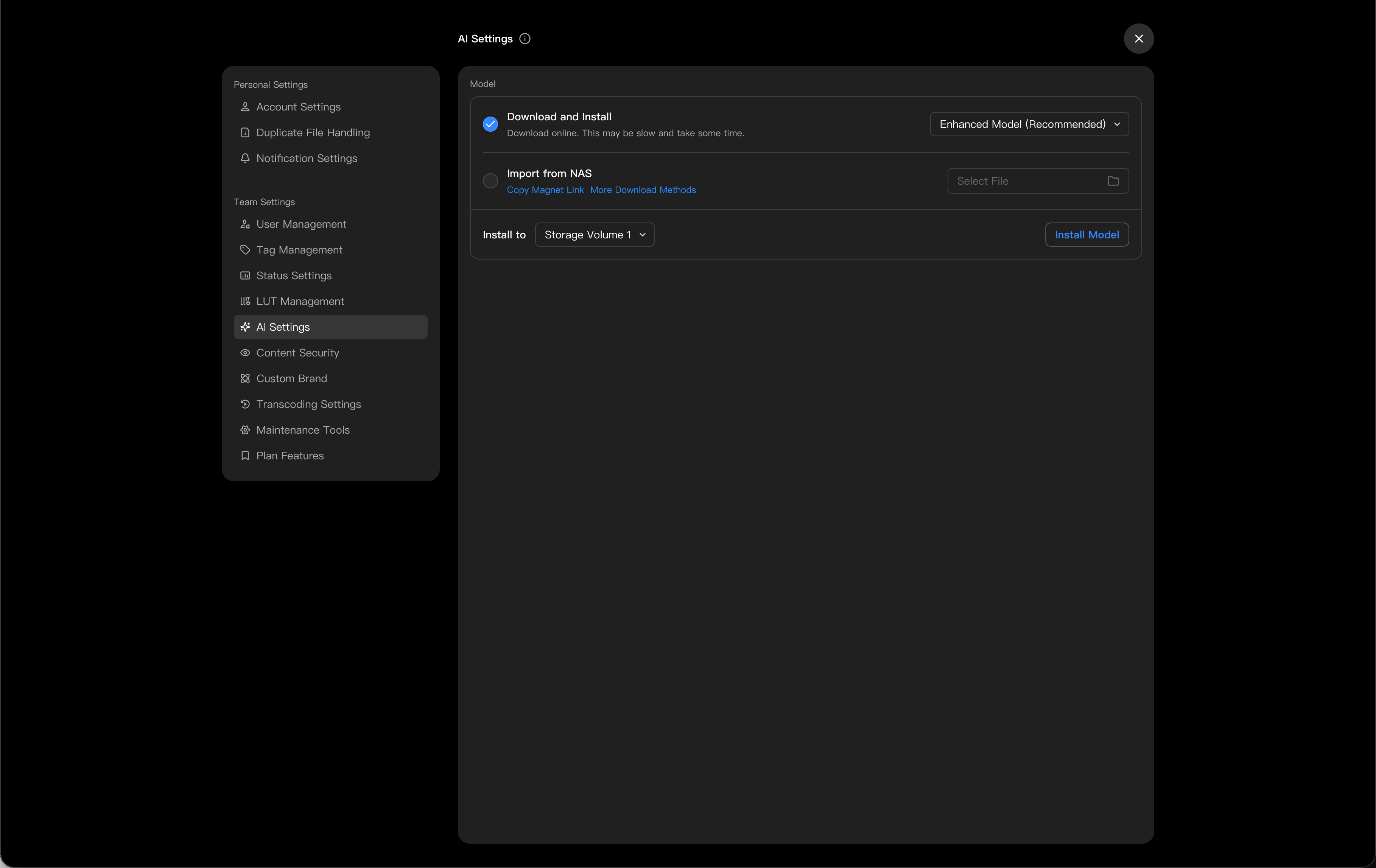
If the device network is normal, you can directly download and install the model in "Model Management". The download and installation process may take some time, and the specific time will be affected by network speed, device performance and storage space speed.
Install from a Model File
If direct download is slow, use the same AI model resources provided for Fygo Photos. Copy a magnet link below, open it in the FygoOS Download app, and save the file to the NAS. When the download finishes, go to Seek → Settings → AI → Model Management and select the corresponding .zip file.
Do not extract or modify the model file. Seek verifies and extracts it during installation. AI Search requires only a Smart Recognition model; Face Recognition models are primarily for Fygo Photos. Choose ARM or x86 files that match your device architecture.
FygoOS ARM Full Model Pack
FygoOS x86 Full Model Pack
ARM Individual Model Packages
-
Face Recognition, Standard Model V1.0.1
-
Smart Recognition, Base Model
-
Smart Recognition, Enhanced Model (requires at least 8 GB RAM)
x86 Individual Model Packages
-
Face Recognition, Standard Model V1.0.1
-
Smart Recognition, Base Model
-
Smart Recognition, Enhanced Model (requires at least 8 GB RAM)
What should I do if the installation fails?
- Check whether the NAS network is normal.
- Confirm that the remaining storage space in the model installation location is no less than 20 GB.
- Retry the download and installation when the device has sufficient resources.
After you uninstall the model, you will no longer be able to use AI search. If you want to use it again, you need to reinstall the model and reconfirm the index status.
Step 3: Enable AI search
After the model is installed, turn on the "Enable AI Search" switch.
Seek will generate an AI index for the selected images, videos, and other assets. Newly indexed assets become available in AI Search when processing finishes.
Step 4: Start AI search
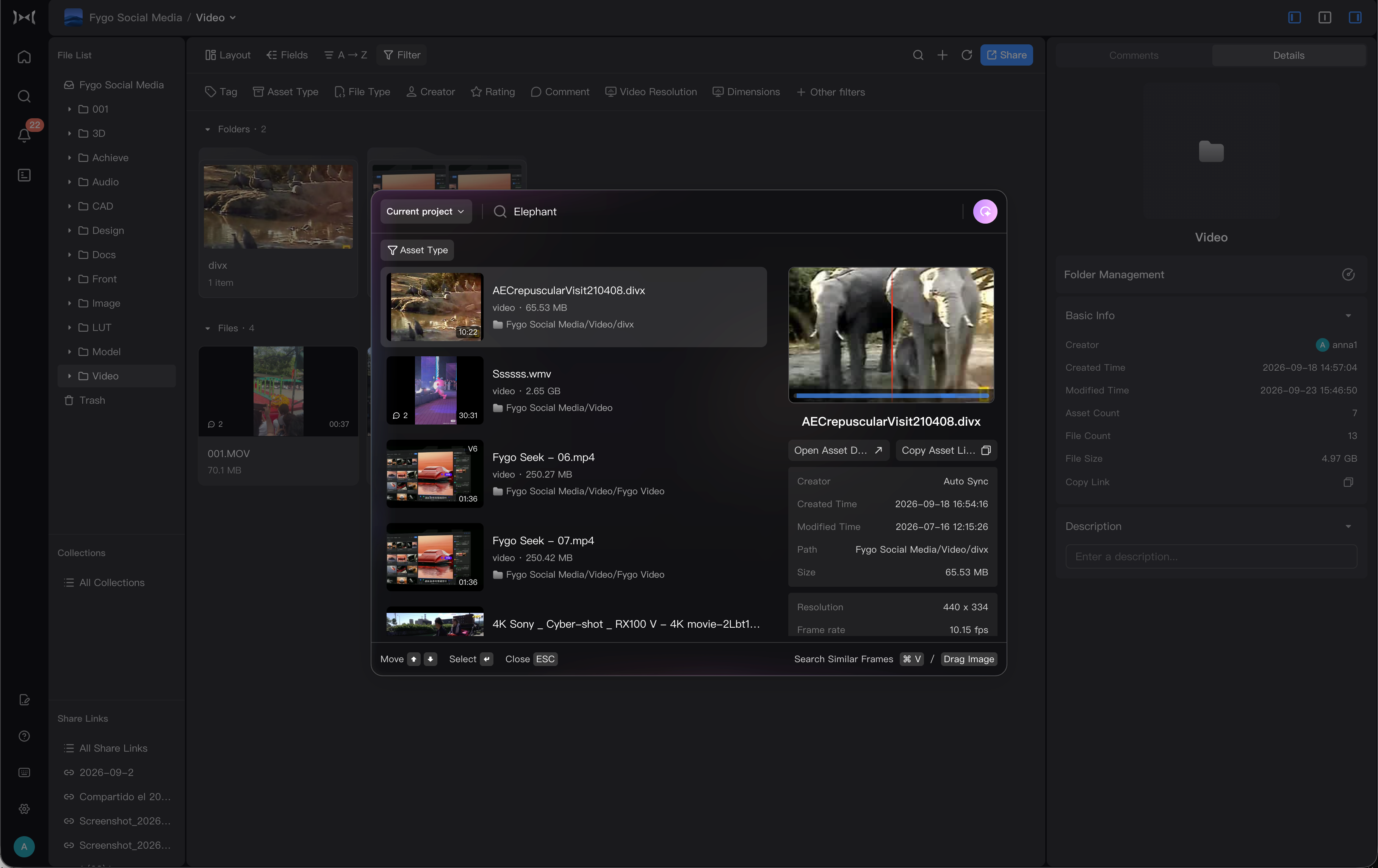
Open Global Search in Seek, enable AI Search, and enter a visual description.
You can search like this:
Portrait of sunset by the seaAerial photography of city night scenes suitable for the openingWhite background product pictureClose-up of product in red packagingTechnological blue background
After AI search is turned on, the search results mainly return assets such as pictures, videos, and design files.
Search for similar images
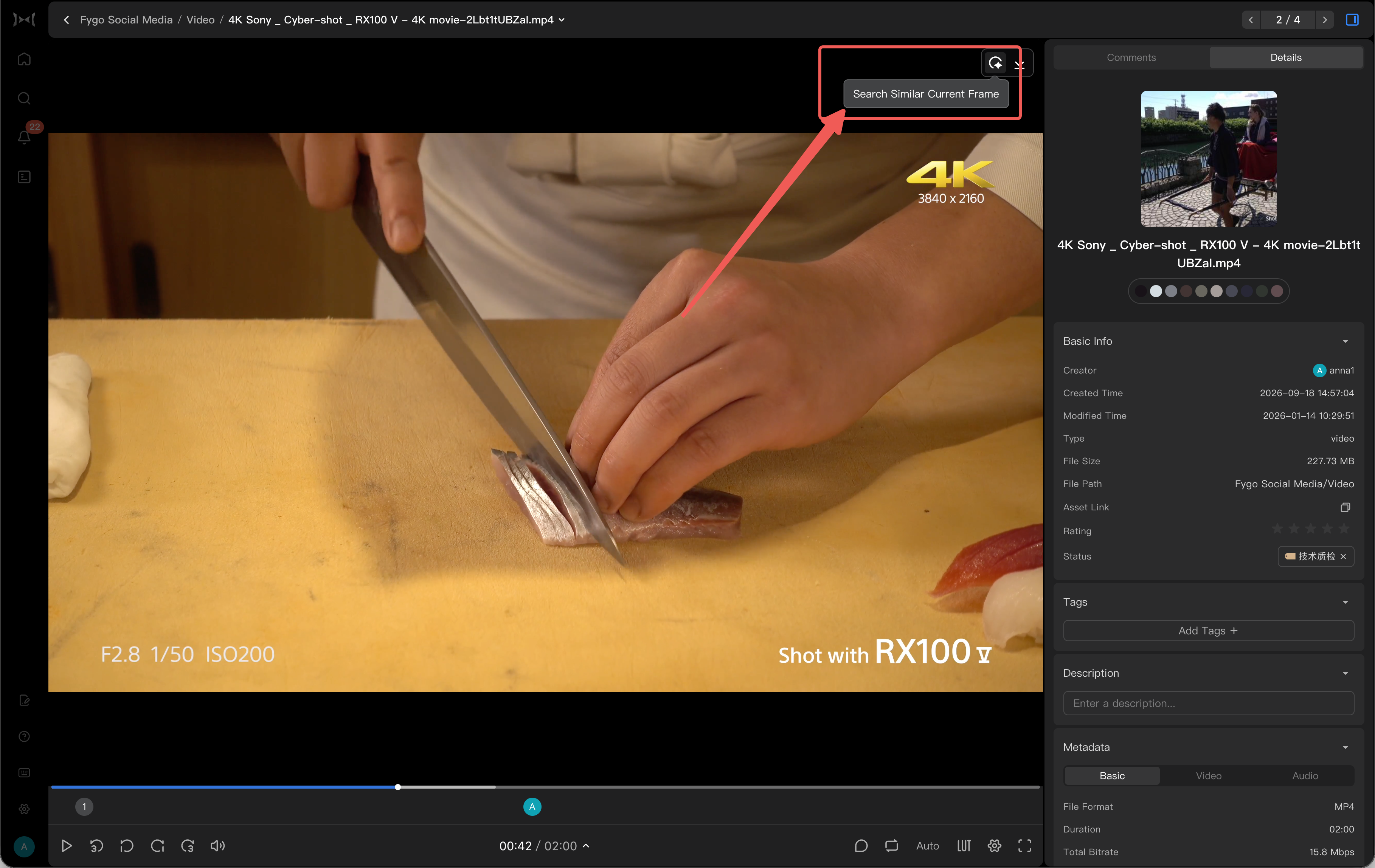
In addition to entering text descriptions, you can also use "Search Similar Screens" to find assets through reference screens.
Common methods include:
- Upload a reference picture: Upload or drag a reference picture into the supported portal, and then click "Search for similar pictures".
- Use the current scene of the video: When playing the video, pause to the scene you need to refer to, and directly click "Search for similar scenes".
Seek will search for similar pictures, videos, design files and other assets based on the content, style or composition of the reference picture.
This function is suitable for finding pictures of the same scene, similar composition, similar tones or similar products.
Why can’t I search?
If the AI search does not return the expected results, you can troubleshoot as follows:
- Confirm AI search is enabled.
- Confirm that the intelligent recognition model has been installed.
- Confirm that the project containing the asset is not excluded from the index.
- Confirm that the asset has been indexed by AI.
- Change the description to a description that is closer to the content of the picture, for example, change it from "a beautiful picture" to "a portrait of a person on the beach with backlighting."
- For the video just uploaded, wait for the video frame extraction and indexing tasks to be completed.
- If you have changed the model or indexing strategy, you can try resetting the AI index.
Notes
- AI search is better at finding picture content, scene, subject, style and composition.
- AI search does not guarantee understanding of audio content, subtitle content, or full document text.
- Results may be affected by model capabilities, index range, video frame extraction strategy and asset quality.
- AI index will occupy device resources. It is recommended to process a large amount of historical assets in your free time.