
How to Share Assets for Client Review
Fygo Seek lets you create a Share Link for customers, suppliers, or other guests to review project assets and finished videos. You can set an Access Password, Expiration Date, download and comment permissions, and watermark protection.
Shared review is suitable for customer film selection, video review, design draft confirmation, finished film delivery, supplier review and other scenarios.
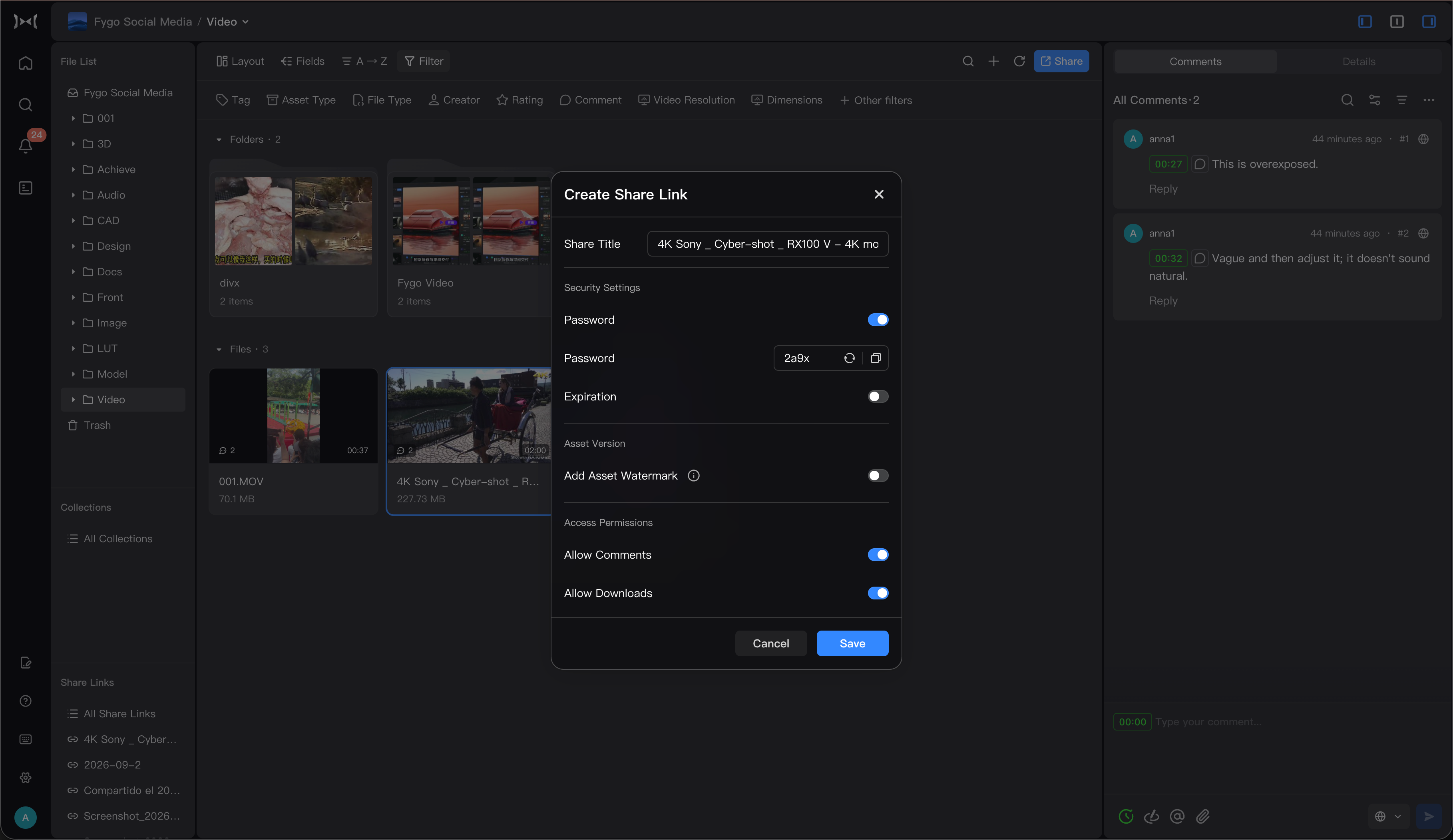
Step 1: Choose the content you want to share
Enter the project that needs to be shared and select the assets or folders to be shared.
You can share:
- Single or multiple files and folders.
- Collections that group assets using rules.
Step 2: Create Share Link
Click "Share" or "Create Share Link" to enter the sharing settings.
You can give the link an easily identifiable name, for example:
Customer A’s first cut review of promotional videoFirst round selection of wedding guest filmsBrand poster design draft confirmationExternal review of product images
Descriptive names make multiple Share Links easier to manage.
Step 3: Set access permissions
Choose the appropriate permissions based on who you want to share with.
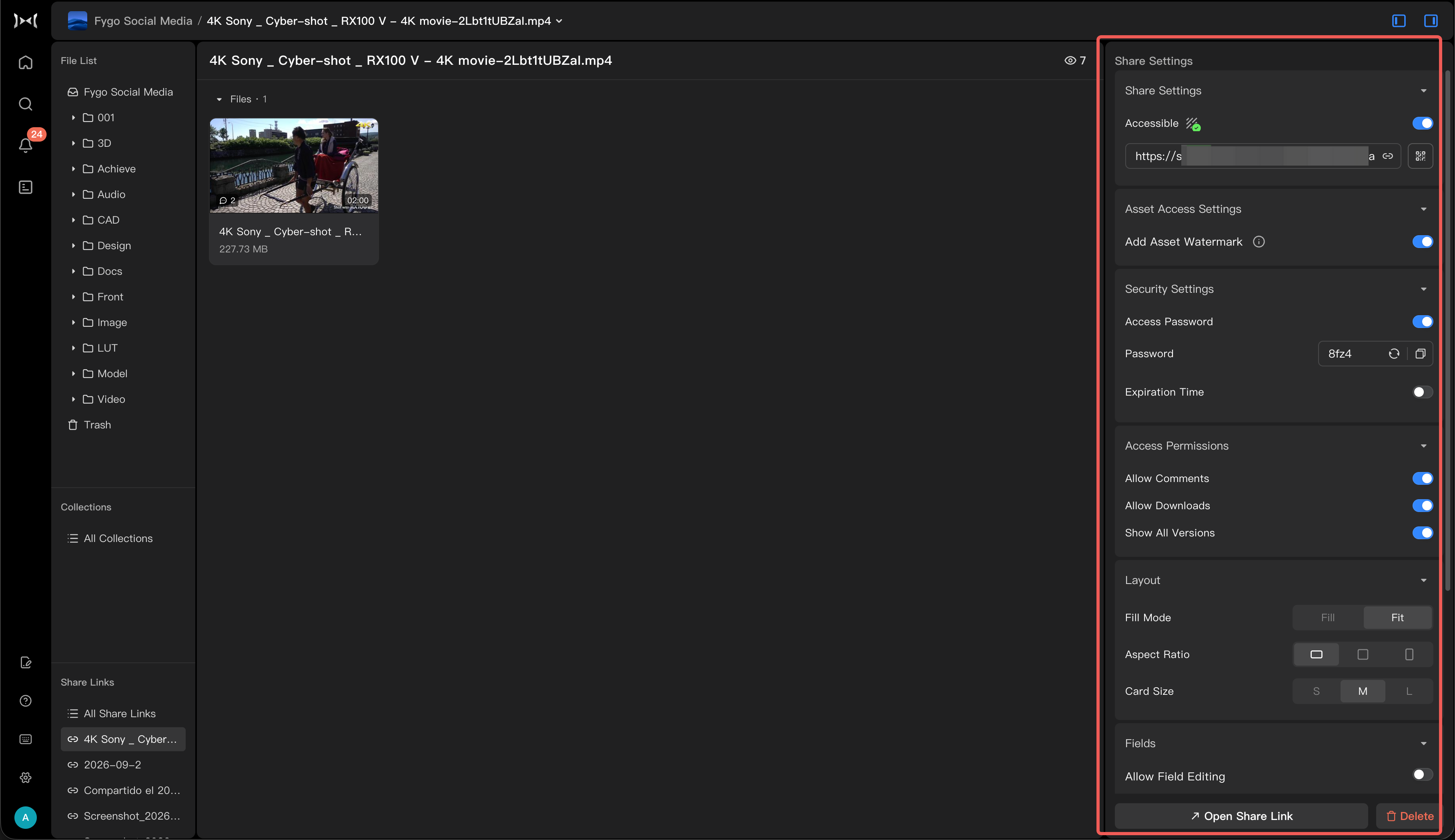 Common settings include:
| Setting items | Description |
|---|---|
| Access Password | Require a password before guests can view the link |
| Expiration Date | Stop access after the selected date |
| Allow Downloads | Allow guests to download shared assets |
| Allow Comments | Allow guests to submit review comments |
| Show All Versions | Allow guests to view an asset's previous versions |
| Visible Fields | Choose which asset fields guests can see |
| Allow Field Editing | Let guests edit fields when permitted |
| Show Original Metadata | Let guests view original file metadata |
| Field Selection | Choose visible status, description, rating, and tags when available in the plan |
| Layout and Sorting | Control the order in which guests see assets |
| Watermark Protection | Configure an on-screen or Asset Watermark when available in the plan |
If it is for client review, it is usually recommended to enable an access password, set an expiration time, and decide whether to allow downloading based on the sensitivity of the asset. It is recommended that fields and metadata only be opened for review to prevent external visitors from seeing unnecessary internal information.
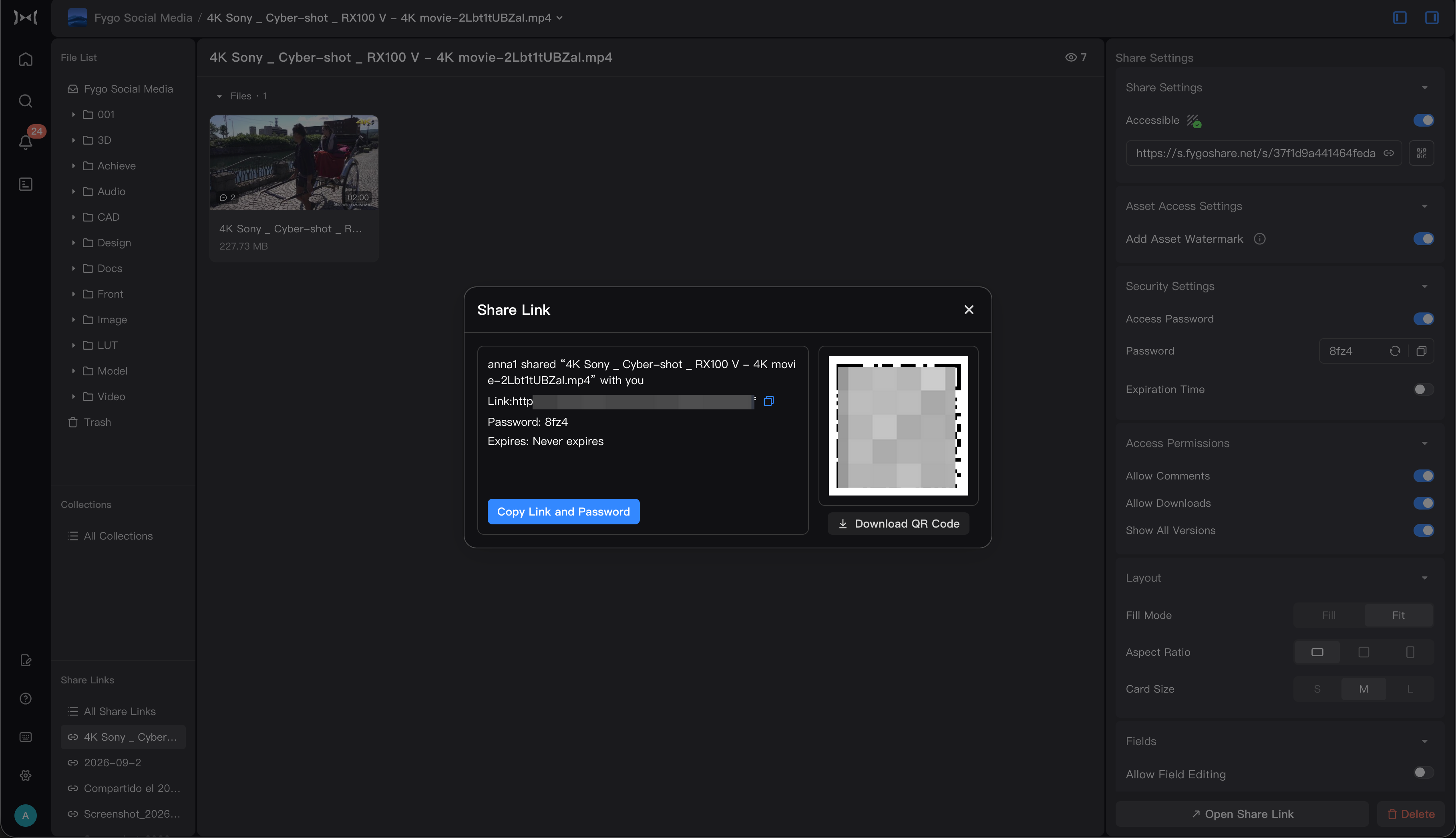
Step 4: Copy the link and send it
Copy the Share Link and send it to the guest along with the Access Password and deadline, if applicable. You can also download a QR code for the guest to scan on a phone.
Step 5: Review and process feedback
After the customer submits a review, you can return to Seek to view the review comments.
Common handling methods:
- View video feedback by time point.
- Filter pending issues by comment status.
- Respond to a customer or team member.
- Modify the asset and upload a new version.
- Export comments as EDL/XML into editing software.
What if a Share Link does not open?
You can check as follows:
- Confirm that the link has not expired and whether the accessibility switch is turned on.
- Confirm that the access password is correct.
- Confirm that Share Link has not been deleted or disabled.
- Confirm that the NAS network and remote access status are normal.
- If Asset Watermark is turned on, confirm that the watermark task has been completed.
- Confirm that the shared content has not been deleted or moved.
Notes
- Do not leave Share Link containing sensitive asset publicly accessible for an extended period of time.
- Before sharing externally, it is recommended to open the link in preview mode to check the effect.
- If the customer needs to download the original file, please confirm that this delivery method has been allowed within the team.
- If there are multiple versions of the same asset, please confirm that the correct version is shared.
- If the external link has Asset Watermark enabled, visitors cannot switch to other resolutions when previewing.
- If you need to customize the domain name used for external links, you can refer to How to customize the domain name of Fygo Seek.