
Fygo Seek License and Plan FAQ
Fygo Seek uses a license to determine which plan features are available on your device. Administrators can check the license in FygoOS under System Settings → License, and the active plan and expiration date in Seek under Settings → Plan Features.
Which plans are available?
Fygo Seek offers Personal, Pro, Team, Business, and Enterprise. User limits and features vary by plan. Check Fygo Seek Plans and Pricing and Plan Features in Seek for the current details.
How do I start a trial?
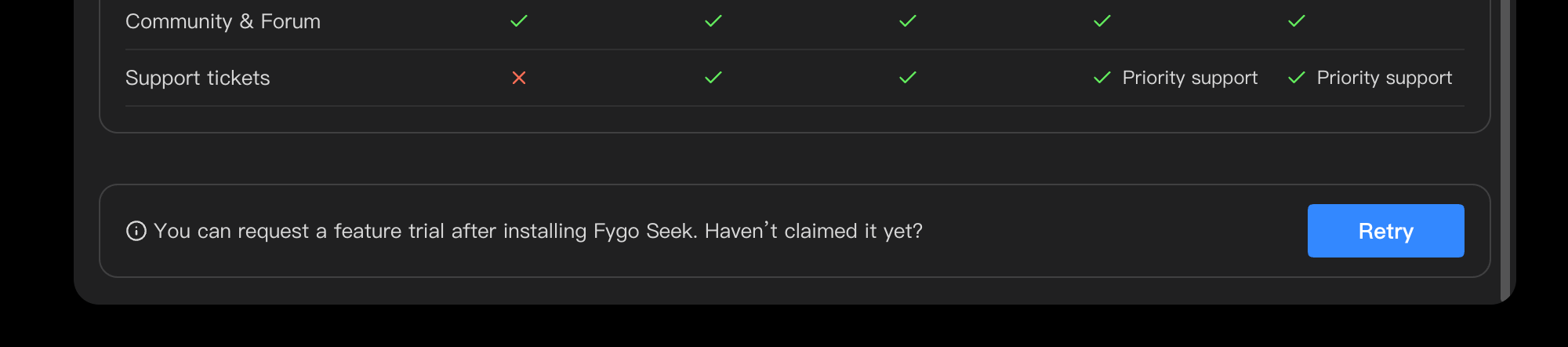
Trial lasts 30 days. After installing Seek, open Settings → Plan Features to check whether the device is eligible. If a trial activation option appears, follow the on-screen instructions. The available features are shown on that page.
How do I activate a purchased license?
Get the product key from your order instructions or purchase email. On the device where you will use Seek:
- Sign in to your Fygo account and open
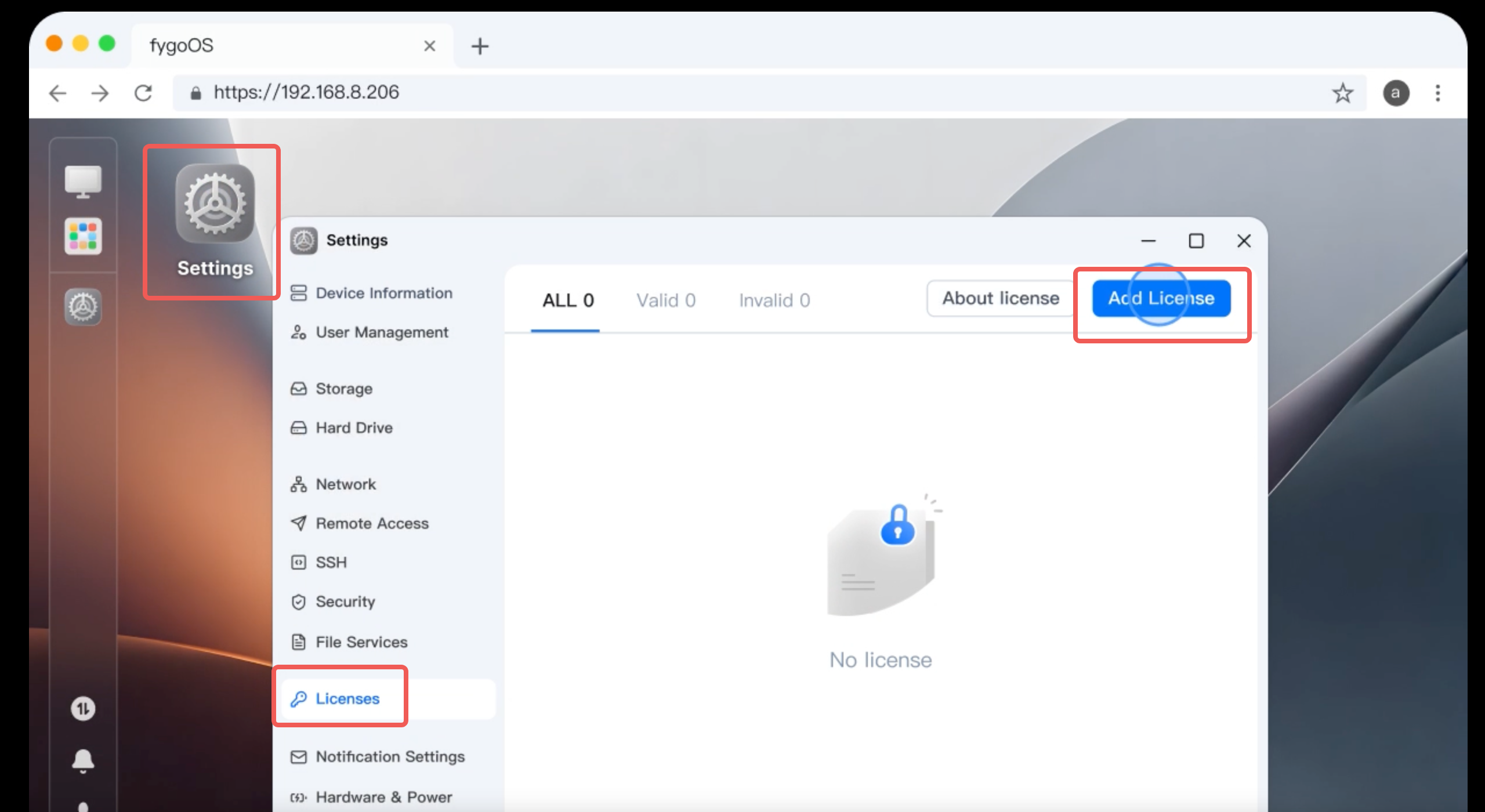
FygoOS → System Settings → License. - Select
Add Licenseand choose product key activation. - Enter the key and confirm.
- Refresh
Seek → Settings → Plan Featuresto check the plan and expiration date.
If an activated license does not appear, check the device's network connection and use the sync or restore option on the FygoOS license page.
What if a Hardware-Bundled License Does Not Activate Automatically?
A Fygo Seek license bundled with hardware normally activates automatically after the device connects to the internet. If it does not:
- Check that the device has a working internet connection.
- Restore the connection and wait for automatic activation.
- If the license still does not activate, submit a ticket with your order and device details.
Purchase, Invoice, and Refunds
How Do I Get an Invoice?
After purchase, you will receive an order email containing a form for your Invoice information. Complete and submit the form with the requested billing details.
If the email does not arrive, check your spam or promotions folder. If you still cannot find it, submit a ticket.
Are Refunds Supported?
Fygo Seek includes a 30-day free trial. During the trial, you can use the same feature set as the Business plan, with no hidden restrictions or trial-only differences.
We encourage you to use this trial period to confirm that Fygo Seek meets your needs and works with your device environment before purchasing. Because a full evaluation period is provided, refund requests are subject to a strict policy.
Fygo Seek purchases are non-refundable.
What happens when a license expires or its check fails?
When a plan expires, advanced features and configurations exceeding the available plan limits may become unavailable. The original files and project data are not deleted solely because a license expires. After renewal, refresh the license status and check that the required features are available again.
If the license check fails, Seek immediately operates under the Personal plan limits until the check succeeds. Check the network and system services, reduce device load if necessary, then retry in FygoOS → System Settings → License.
What if the license status looks wrong?
- Confirm that you are on the correct device and signed in to the Fygo account used for activation.
- Check the network, then sync or restore the license in FygoOS.
- Reopen Seek and check
Plan Features. - If the issue persists, contact support or submit a ticket with your order and device details.