
How to Use a Custom Domain for Fygo Seek
Fygo Seek’s remote access and external Share Link mainly rely on the remote access settings in FygoOS. You can first configure DDNS in FygoOS so that the external network can access FygoOS and Seek through the domain name; then configure the external link address as needed so that the Share Link generated by Seek uses the specified external access address.
Preparation before use
Before configuring, please confirm:
- A domain name that has been purchased and can manage DNS.
- Domain name DNS management backend access rights.
- FygoOS Administrator account permissions.
- NAS can now access Seek normally.
- The current network environment supports remote access. For example, the router, port, operator network, etc. are configured normally.
It is recommended to use a secondary domain name, such as seek.example.com, instead of using the primary domain name directly. If you only use the public IP as the external link address temporarily, you do not need to prepare a domain name, but you may need to readjust the external link settings after the public IP changes.
Set up DDNS remote access Seek
If you want to access Seek through the domain name from the external network, you can first configure DDNS in FygoOS.
Operation path: FygoOS → System Settings → Remote Access → DDNS
DDNS can bind dynamically changing public IP addresses to a domain name. After the configuration is completed, you can access FygoOS in the external network environment through the corresponding domain name and enter Seek.
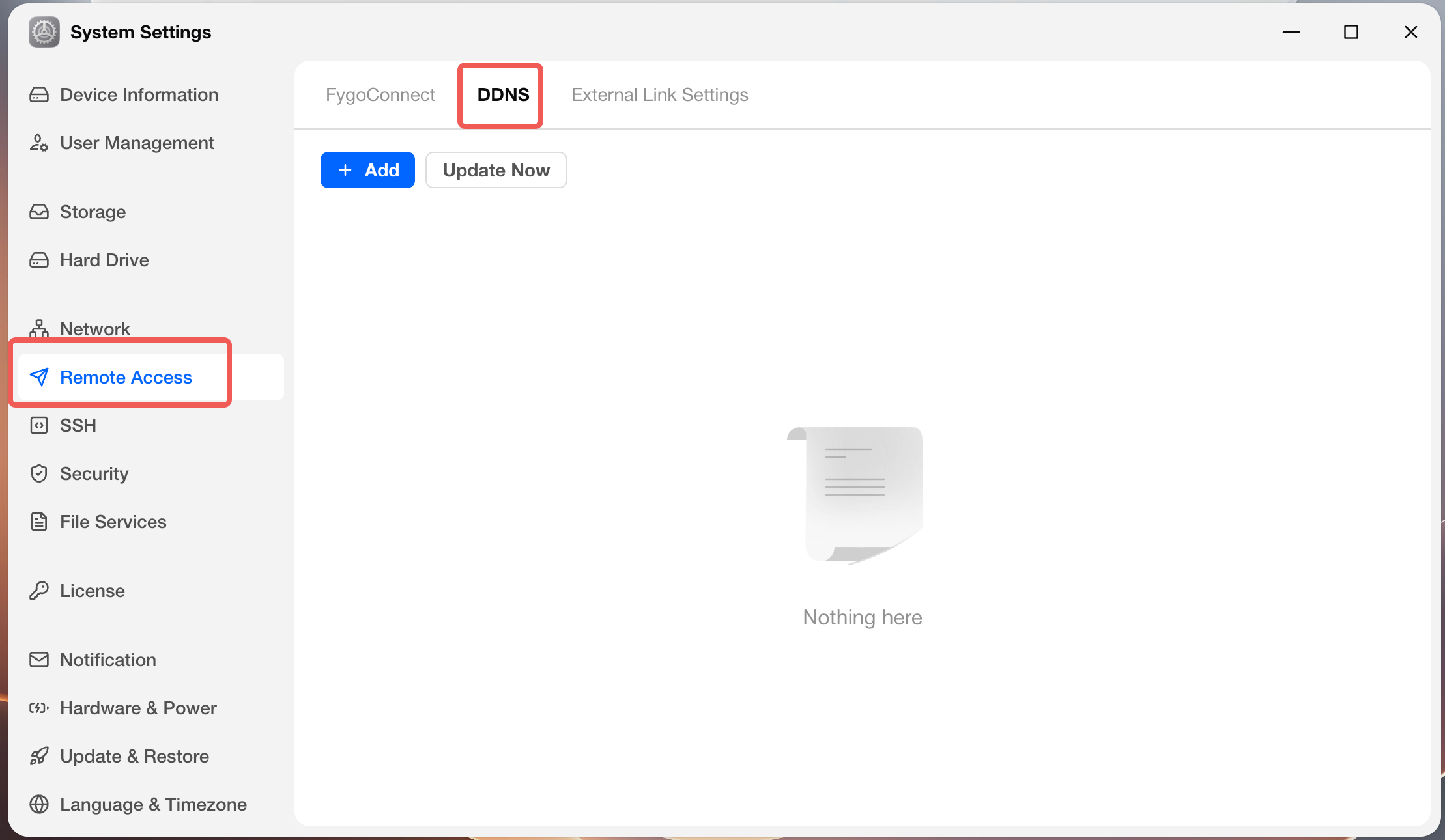 Basic process:
- Enter the "DDNS Settings" of FygoOS.
- Follow the page prompts to select or add a DDNS service.
- Fill in the necessary information such as domain name, account number or key.
- After saving, wait for the DDNS status to take effect.
- Use the configured domain name to access FygoOS from the external network.
- Open Fygo Seek and confirm that the page loads correctly.
Set external Share Link
If you want the Share Link generated by Seek to use the specified external access address, you can configure the external link address in FygoOS.
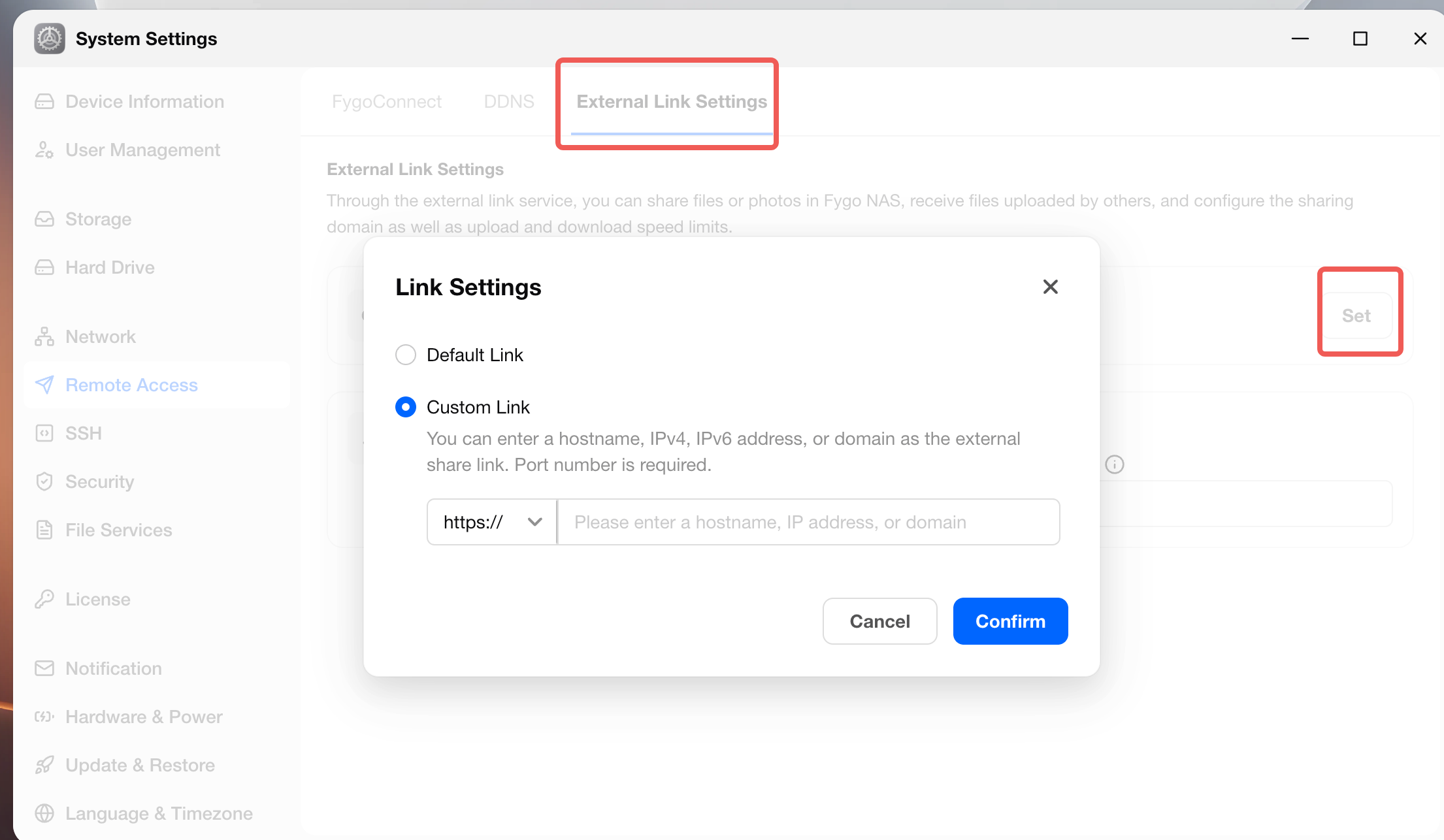
Operation path: FygoOS → System Settings → Remote Access → External Link Settings
After configuring the external access address in "External Link Settings", Seek will use this address to generate Share Link when sharing externally. In this way, when customers open Share Link, they will see the domain name or public network address you configured instead of the default address or LAN address.
The external link address can be customized, for example:
- A configured and effective DDNS domain name, such as
https://seek.example.com. - IP address or access address accessible from the public network, such as
http://public-ip:port.
What should I do if my custom domain name does not take effect?
You can check as follows:
- Confirm that the FygoOS remote access function has been turned on normally.
- If Seek cannot be accessed from the external network, first check whether the "DDNS Settings" status is normal.
- If Share Link is abnormal, check whether the external access address in "External Link Settings" is filled in as a DDNS domain name or public IP that can be accessed from the public network.
- Confirm that the domain name DNS resolution has taken effect.
- Verify that access is not blocked by routers, port forwarding, firewalls, or carrier networks.
- Confirm that the copied Seek Share Link is the latest generated link.
- Before sending to the outside world, you can use the mobile phone network or other external network environment to test.
Notes
- Seek’s domain name access depends on FygoOS remote access settings and is not configured separately in Seek.
- DDNS settings are mainly used for remote access to FygoOS and Seek; external link settings mainly affect the access address used by external Share Link.
- The external link address can use the configured DDNS domain name or an IP address accessible from the public network.
- After changing the external link address or DDNS domain name, it is recommended to recheck the access effect of the existing Share Link.
- Custom domain name and brand name and brand logo are two types of settings. For brand display, please see How to customize brand display?" .