
How to Add Asset Watermarks
Asset Watermark is a Fygo Seek content protection feature. Check your Plan Features for availability. When enabled for a Share Link, Seek generates watermarked versions of shared images, videos, and design assets to reduce the risk of unintended redistribution.
It is useful for client selection, video review, and previewing work before final delivery.
Visible Watermark vs. Asset Watermark
| Type | Action position | Main function |
|---|---|---|
| Visible Watermark | Viewer | Visible while a guest views the page |
| Asset Watermark | Generated asset | Embedded in the protected version prepared for the Share Link |
A Visible Watermark appears in the viewer; an Asset Watermark is part of the generated version served to the guest.
How to add Asset Watermark
Step one: Configure Asset Watermark style
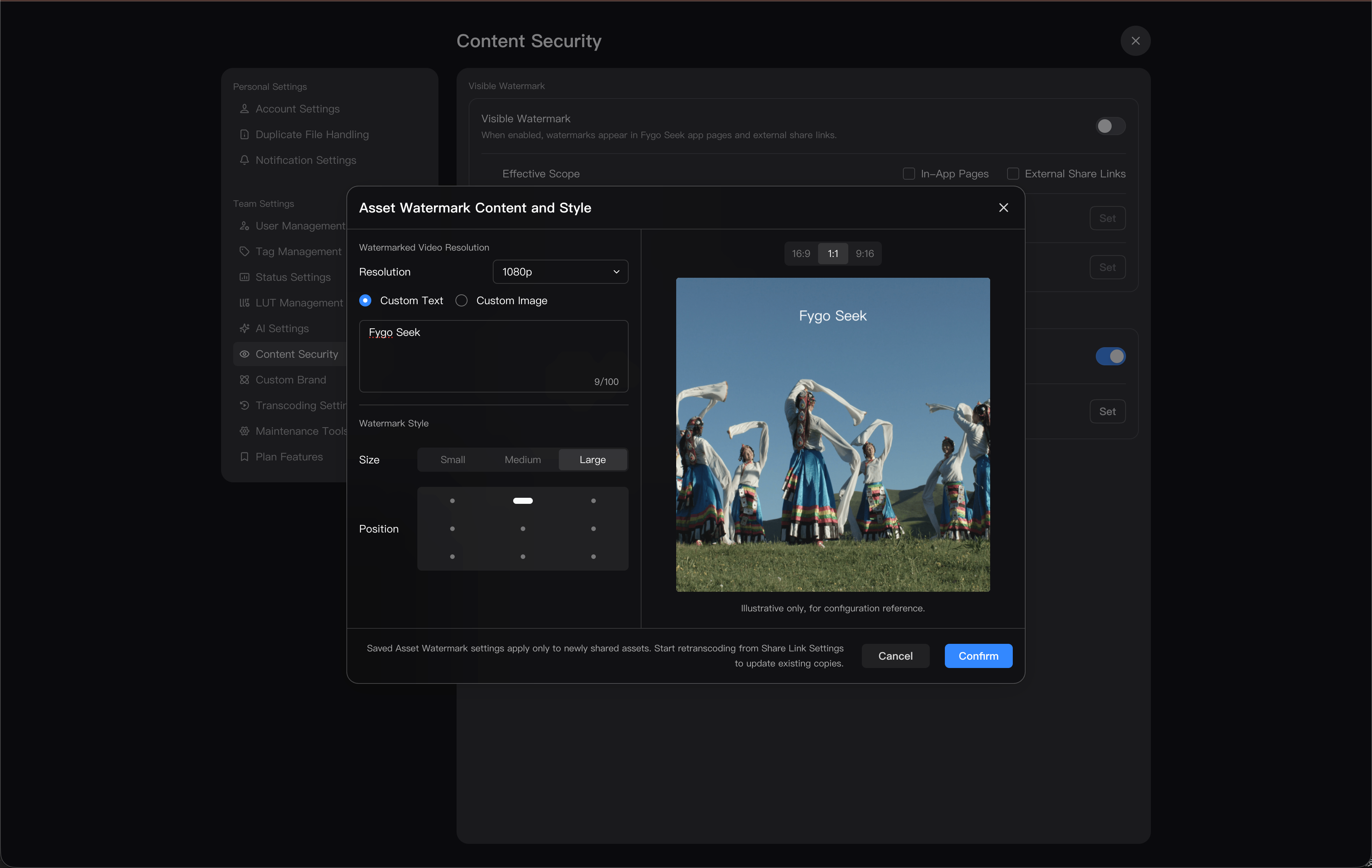
Administrators can enter: Settings -> Content Security -> Asset Watermark, and configure the content and style of Asset Watermark here, for example:
- Custom text or custom picture.
- Text, up to 100 words.
- Image requirements: PNG format only, cannot exceed 1 MB, image size cannot exceed 200 px.
- Watermark display size.
- Watermark position supports display in 9 positions on the screen.
- The resolution of the watermarked video version.
Step 2: Create or edit Share Link
Enter the project or asset that needs to be shared and create Share Link.
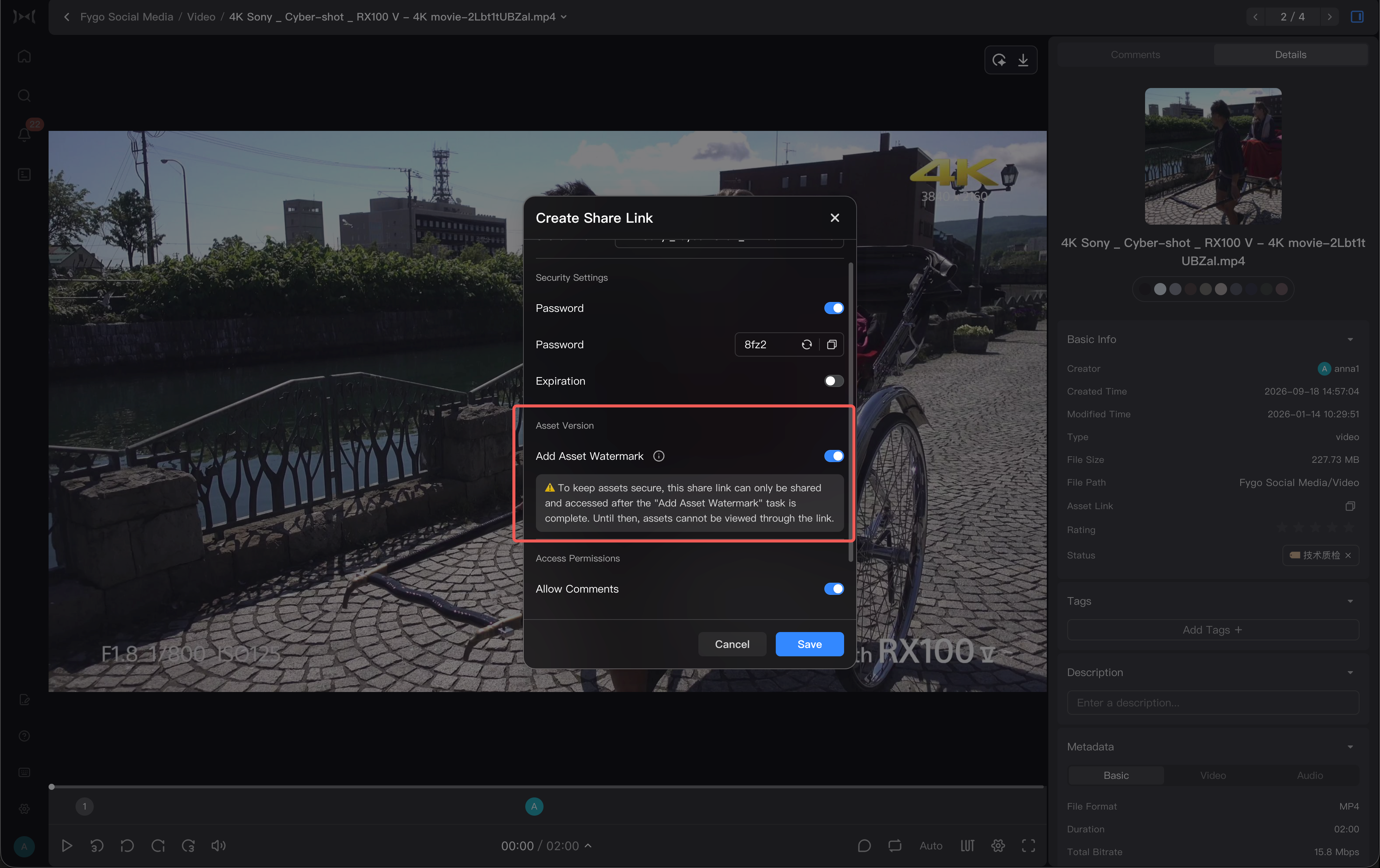
Turn on "Add Asset Watermark" in the sharing settings. Once enabled, Seek will automatically initiate the "Add Asset Watermark" task.
Asset Watermark is intended primarily for external sharing. Once enabled, Seek generates watermarked versions of the images, videos, and design files in the Share Link. Guests can preview only those protected versions.
Wait until the watermark task is complete before sending the Share Link.
Step 3: Wait for the watermark task to be completed
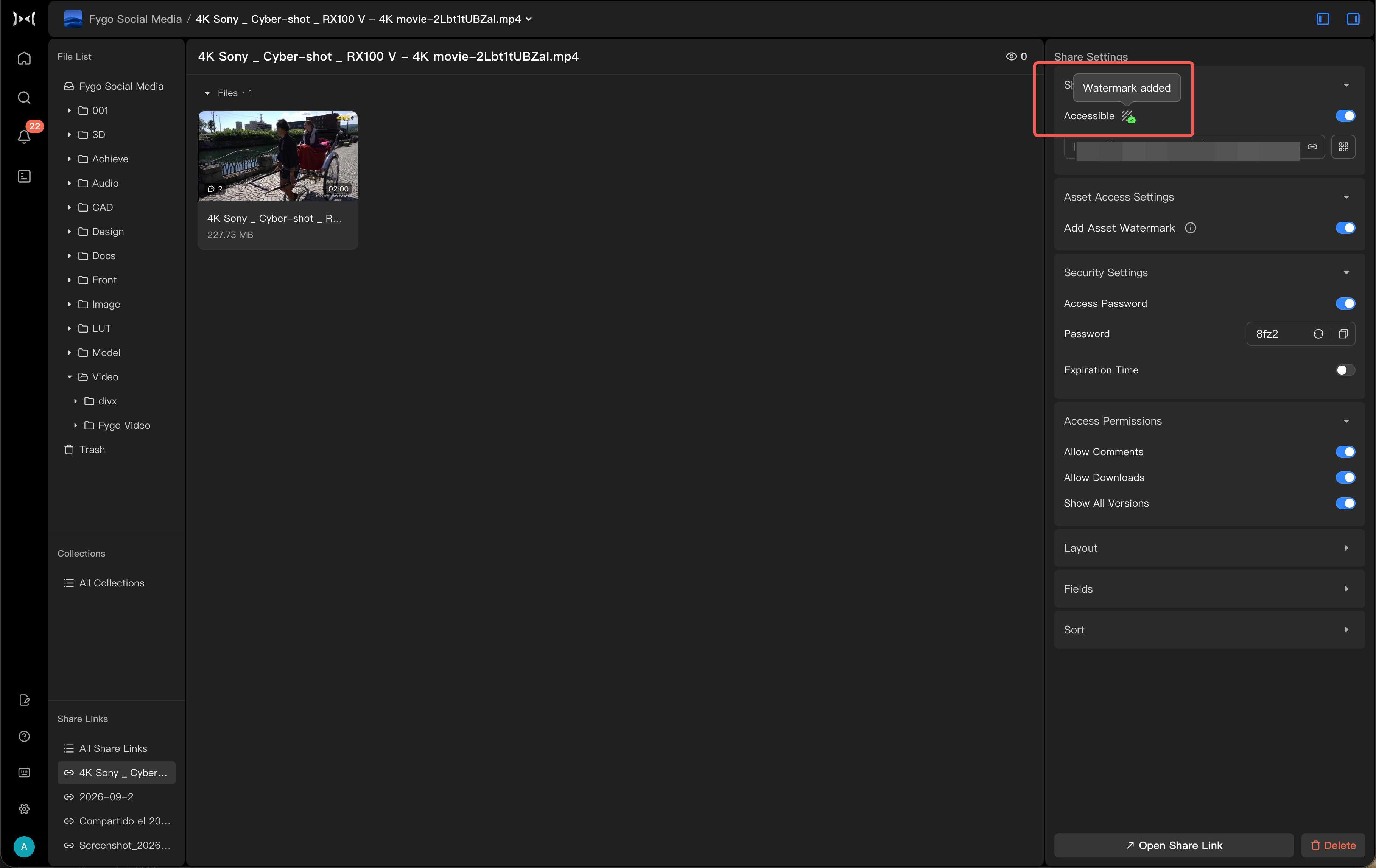
After turning on Asset Watermark, Seek will generate watermarked versions of related assets in Share Link.
You may see these statuses during processing:
- Generating Asset Watermark.
- Asset Watermark complete.
- Asset Watermark failed.
- Watermark settings changed; regenerate the protected version.
If the task has not been completed, Share Link may not be able to view valid assets temporarily. Please wait for the task to complete before sending it to the customer or external member.
Step 4: Publish Share Link
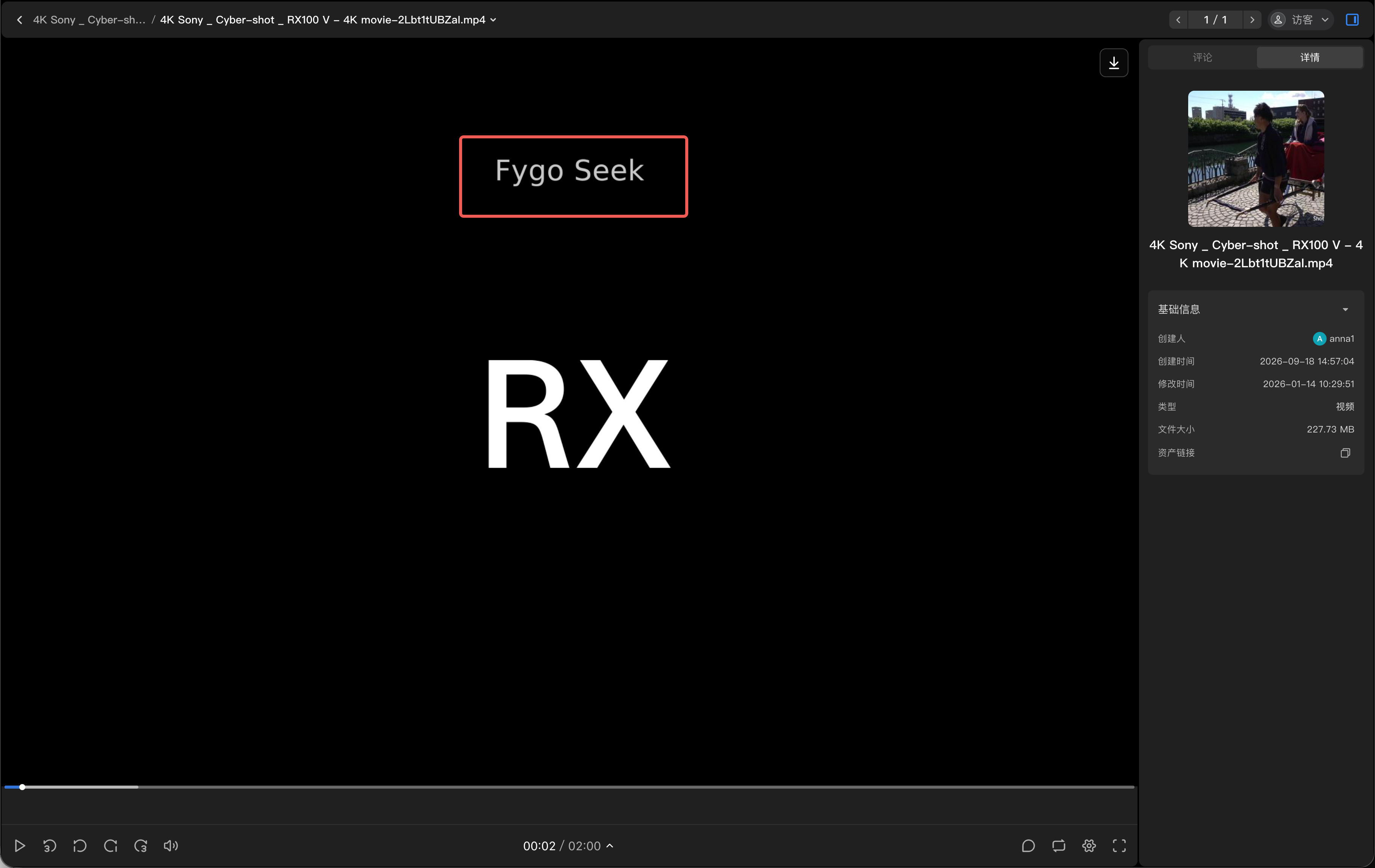
After the task is complete, publish or copy the Share Link. Guests will see the watermarked preview, not the unprotected original preview. Set an Access Password, Expiration Date, and download and comment permissions as needed.
Which Assets Support Asset Watermark?
Asset Watermark applies to videos, images, and design files.
Some files with special formats, damaged files, or files that cannot generate previews may not be able to successfully add Asset Watermark. When encountering failure, you can first confirm whether the original file can be previewed normally.
What if Asset Watermark Generation Fails?
If the Asset Watermark task fails, you can troubleshoot as follows:
- Confirm that the original asset can be previewed normally.
- Confirm that the device has sufficient storage space.
- Confirm that the relevant transcoding or preview tasks do not continue to fail.
- Retry the Asset Watermark task later.
- If the business needs to send the link first, you can temporarily close "Add Asset Watermark" and continue creating the share.
Notes
- Disabling Asset Watermark prevents guests from accessing existing watermarked versions through their Share Links; it does not merely hide a Visible Watermark. Original files on the NAS remain unchanged.
- After Asset Watermark settings are saved, they usually apply only to newly shared or reprocessed assets.
- After turning on Asset Watermark, external visitors can only view the watermarked versions of images, videos and design files, but cannot view the original images or preview versions without watermarks.
- If the administrator modifies the watermark content or style, existing shares will not be automatically updated, and the task of adding Asset Watermark needs to be triggered again.
- After turning on Asset Watermark, the processing time will be affected by the number of assets, video duration, file size and device performance.
- Asset Watermark cannot replace contracts, authorizations and confidentiality agreements, but can enhance content protection during external delivery.