How to share a Team Folder?
On FygoOS, you can share files stored on local volumes among multiple users. The sharing method varies depending on the file location:
-
Files are located in a Team Folder, that is, stored in the @team directory under a volume and not owned by any user:
Administrators can set access permissions for users or groups on Team Folders, subfolders, or files. Other users can access them from Team Folder. See the instructions below for details.
-
Files are located under My Files, that is, stored in a user's personal directory:
The directory owner can use Share on This Device to allow other users to access files in their personal directory from Shared with Me. For details, see How to share My Files with other users?.
How to create a Team Folder?
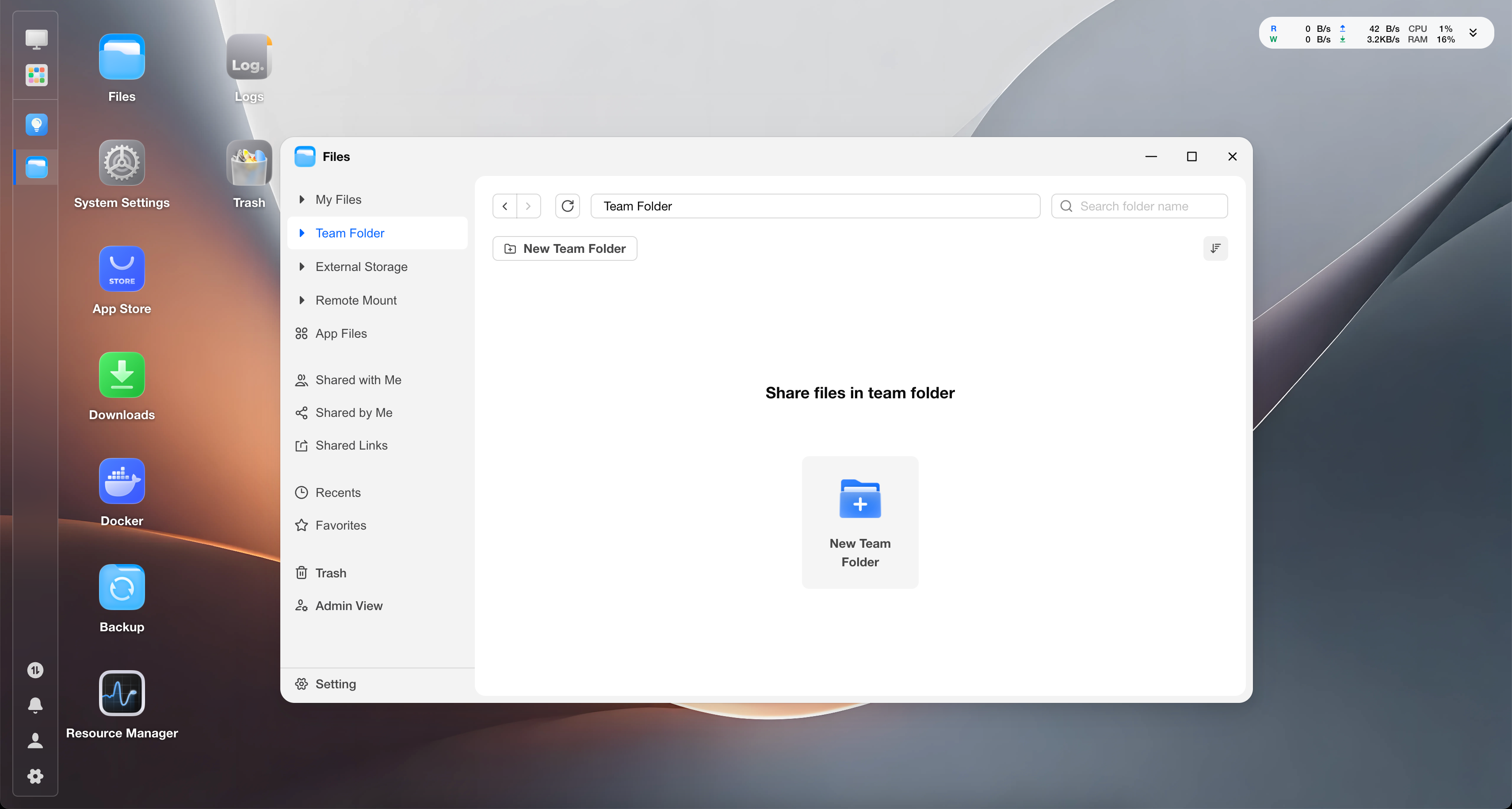
Log in with an administrator account, select My Files > Team Folder, and click Create Team Folder.
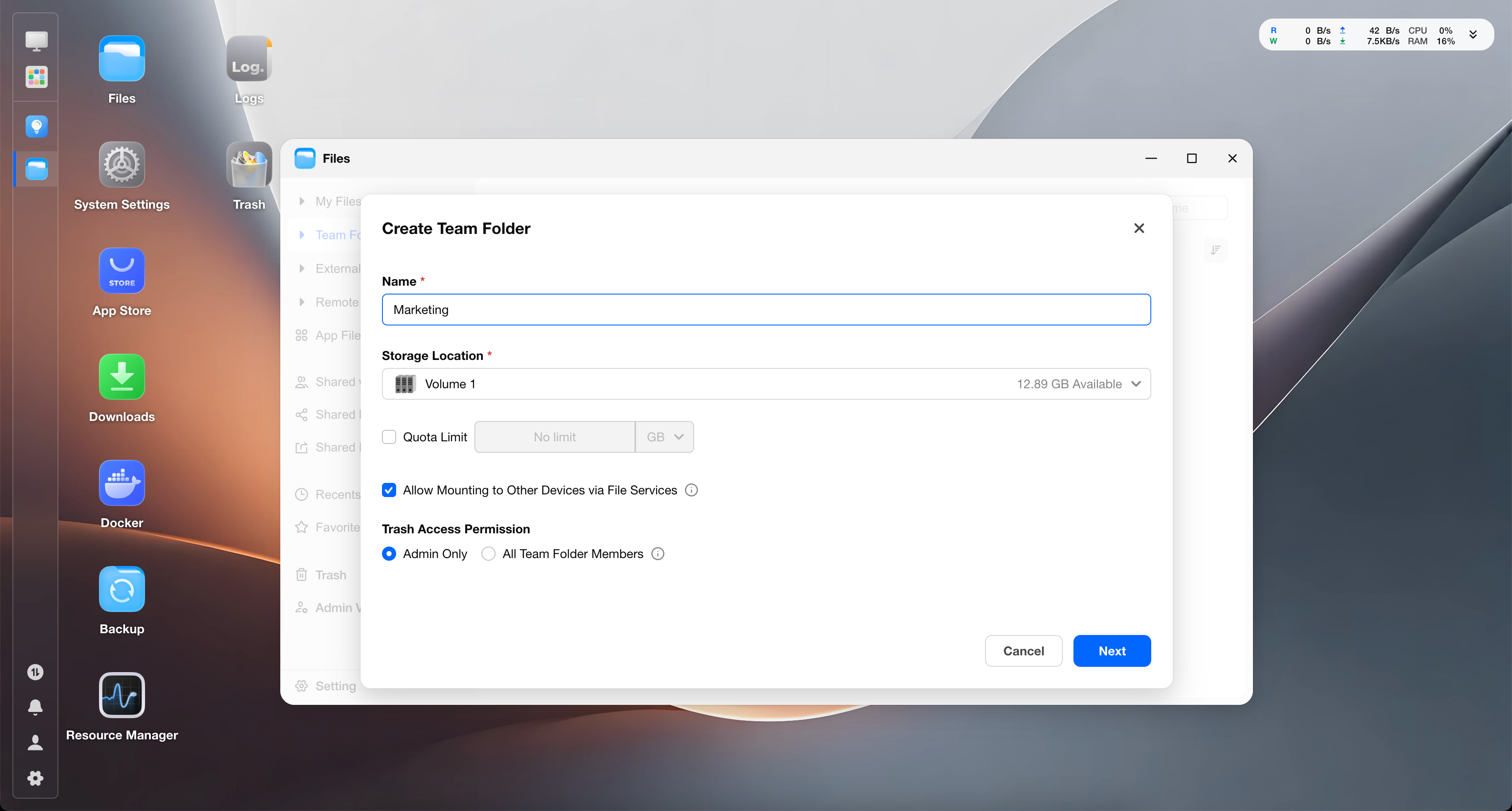
Enter the Team Folder name and select the volume to store it on. Additional options include:
- Whether to set a quota limit to prevent the Team Folder from using too much volume space.
- Whether to allow mounting to other devices via File Services (SMB, WebDAV, FTP).
- Who can view and manage files deleted from the Team Folder and moved to Trash.
After confirming, click Next.
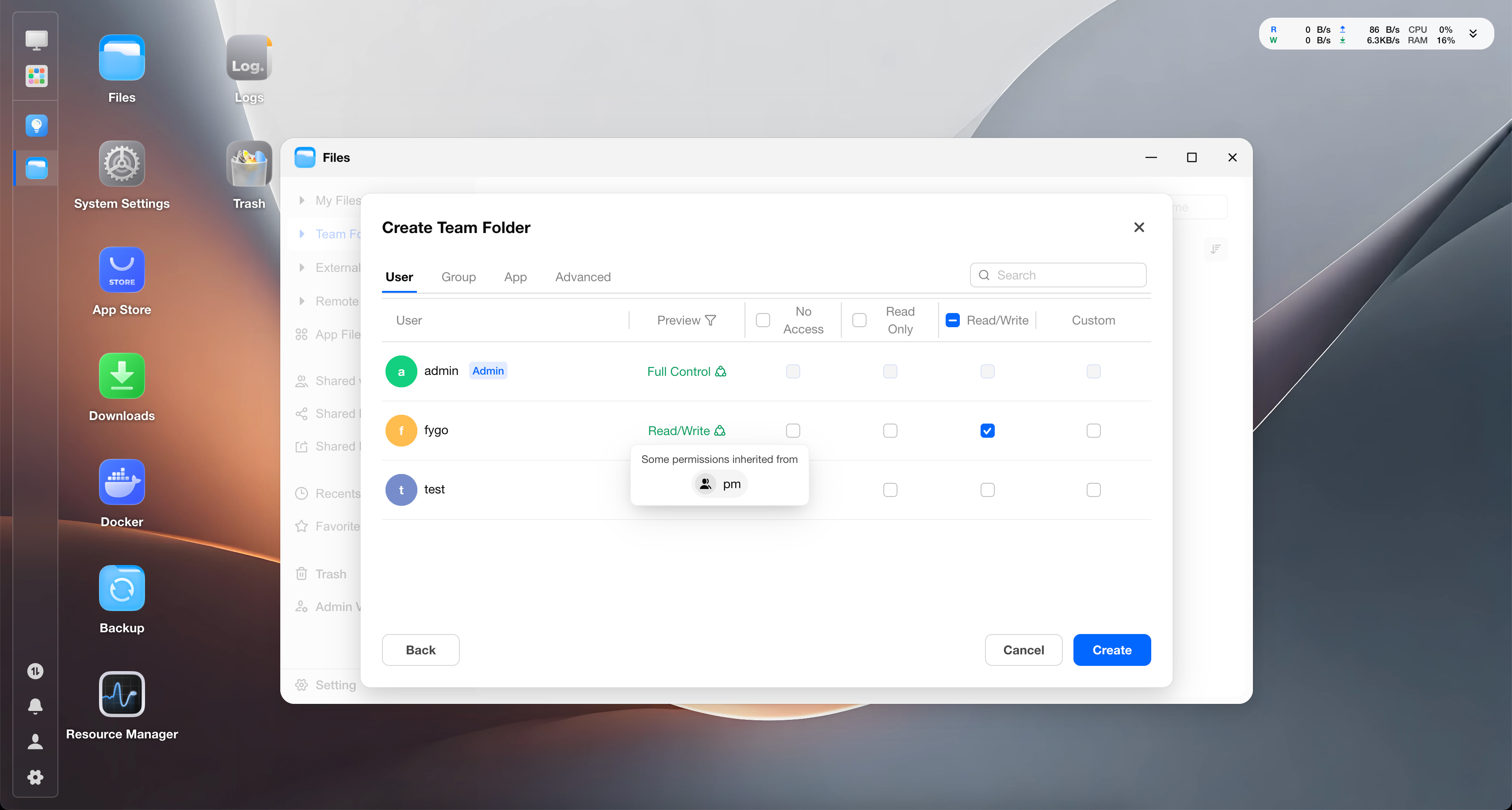
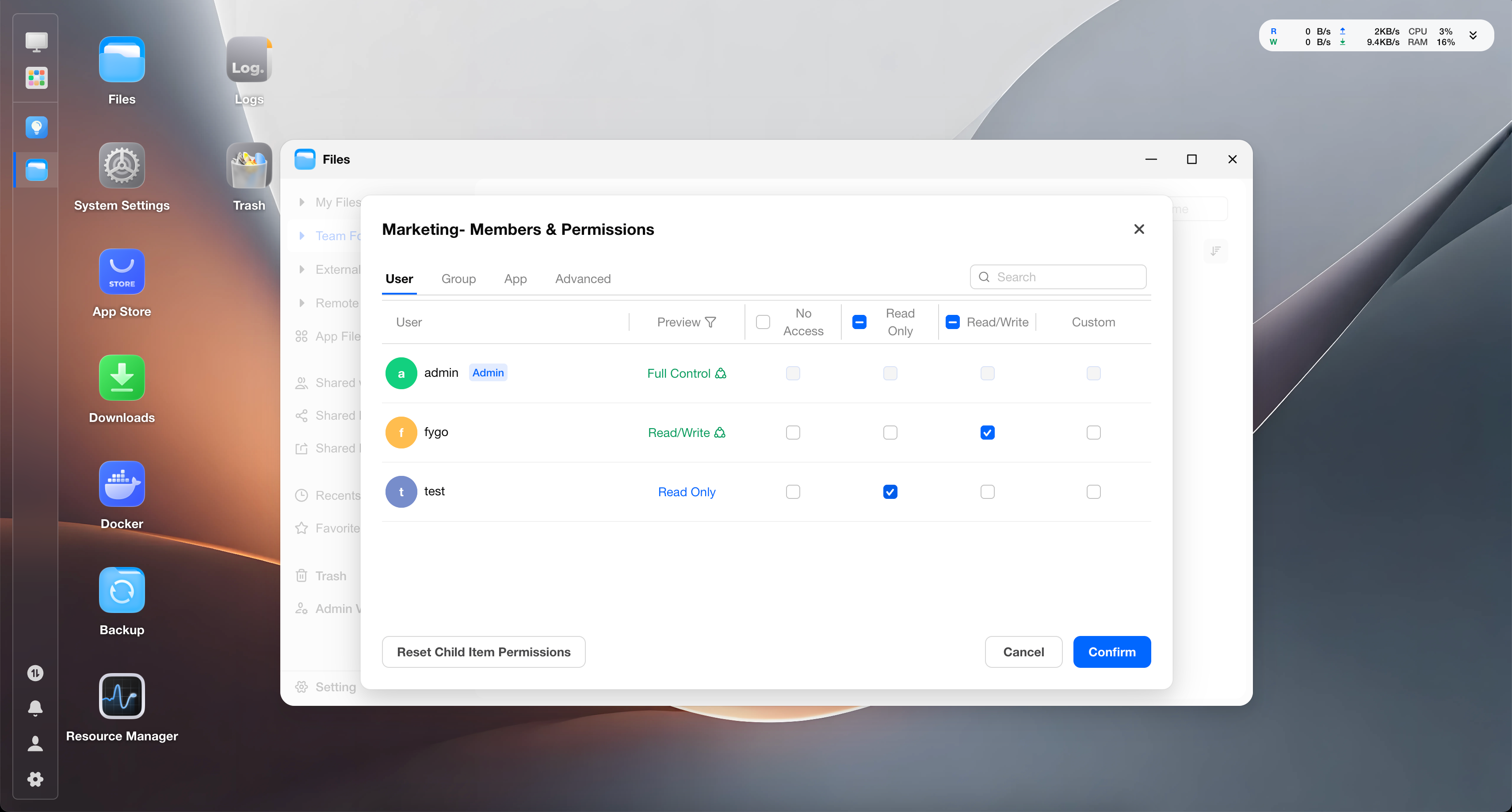
Set members and permissions. You can set permissions for users, groups, or apps. The available permissions and descriptions are as follows. After confirming, click Create.
Permission descriptions:
- Administrators always have the highest permissions. Regular users have no permissions by default.
- Available permissions
- Read Only: Shared users can view or download files, but cannot modify them.
- Read/Write: Shared users can view, upload, edit, or delete files. The actions they can actually perform depend on the final ACL permissions.
- No Access: Shared users cannot access this folder. This permission is often used to restrict access to specific subfolders or files when the parent folder is already shared.
- Custom: Customize a combination of 13 detailed permissions to meet special permission needs, such as allowing editing but not deletion.
- The first 3 basic permission combinations are applied to all files in the Team Folder by default, including files added later. To change the scope, select Custom permissions.
- When different permissions are set for a user and the group the user belongs to, the system calculates the combined effective permissions. You can view the final effective permissions in the Permission Preview column. Hover over the "team" icon to see which groups the permission comes from.
Created successfully.
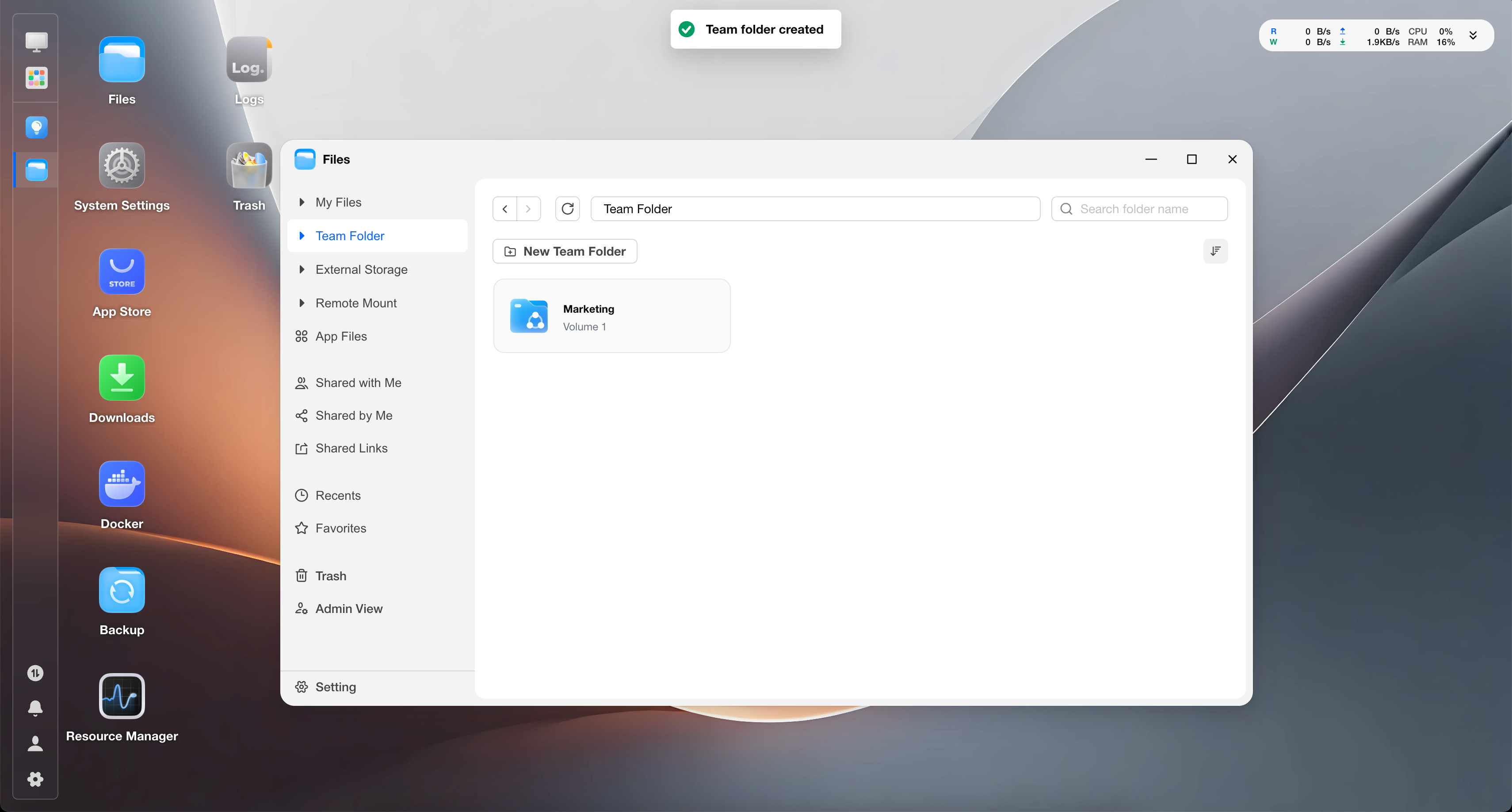
How to modify Team Folder member permissions?
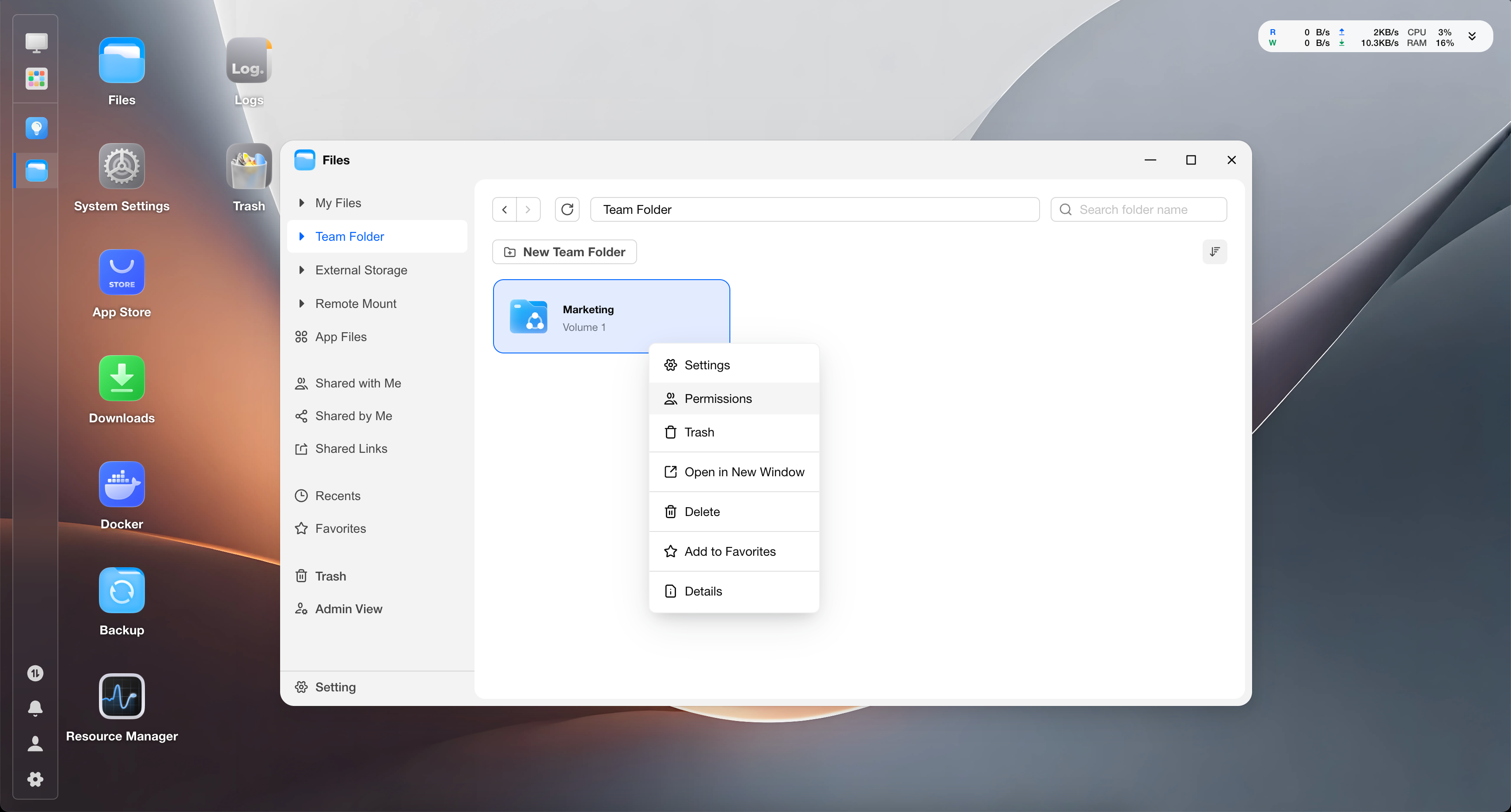
Open Files > Team Folder, find the Team Folder you want to modify, right-click, and click Permissions.
Modify permissions and click Confirm.
How to restrict permissions for specific child items in a Team Folder?
During collaboration, you may encounter this scenario: a user can access most files in a Team Folder, but cannot access certain subfolders or files.
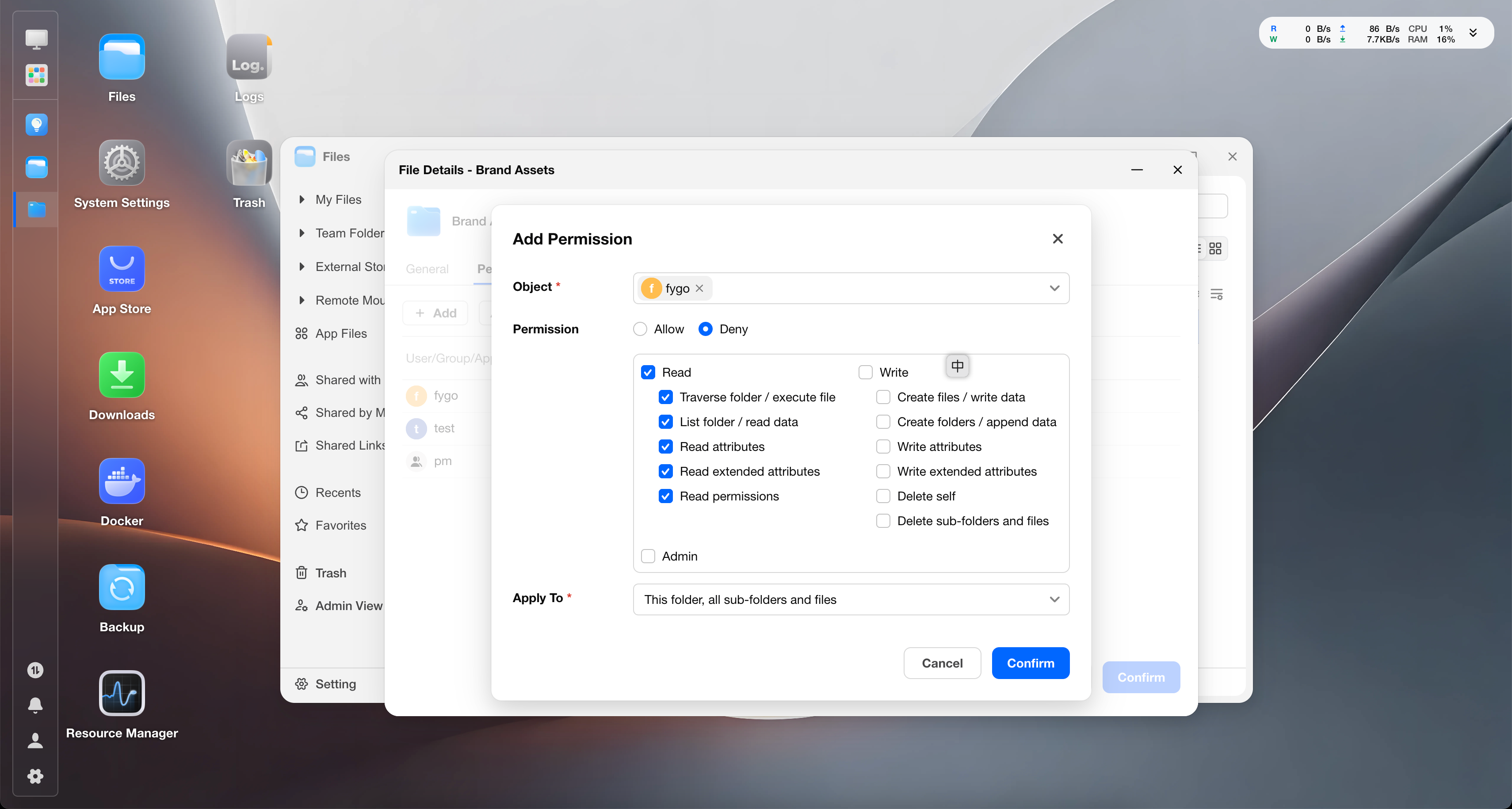
You can first set an allowed permission, such as Read Only or Read/Write, for the user or group on the parent Team Folder. Then set No Access separately on the child item that needs restricted access. No Access on the child item is a deny permission and takes precedence over allowed permissions inherited from the parent.
To restrict permissions on a child item:
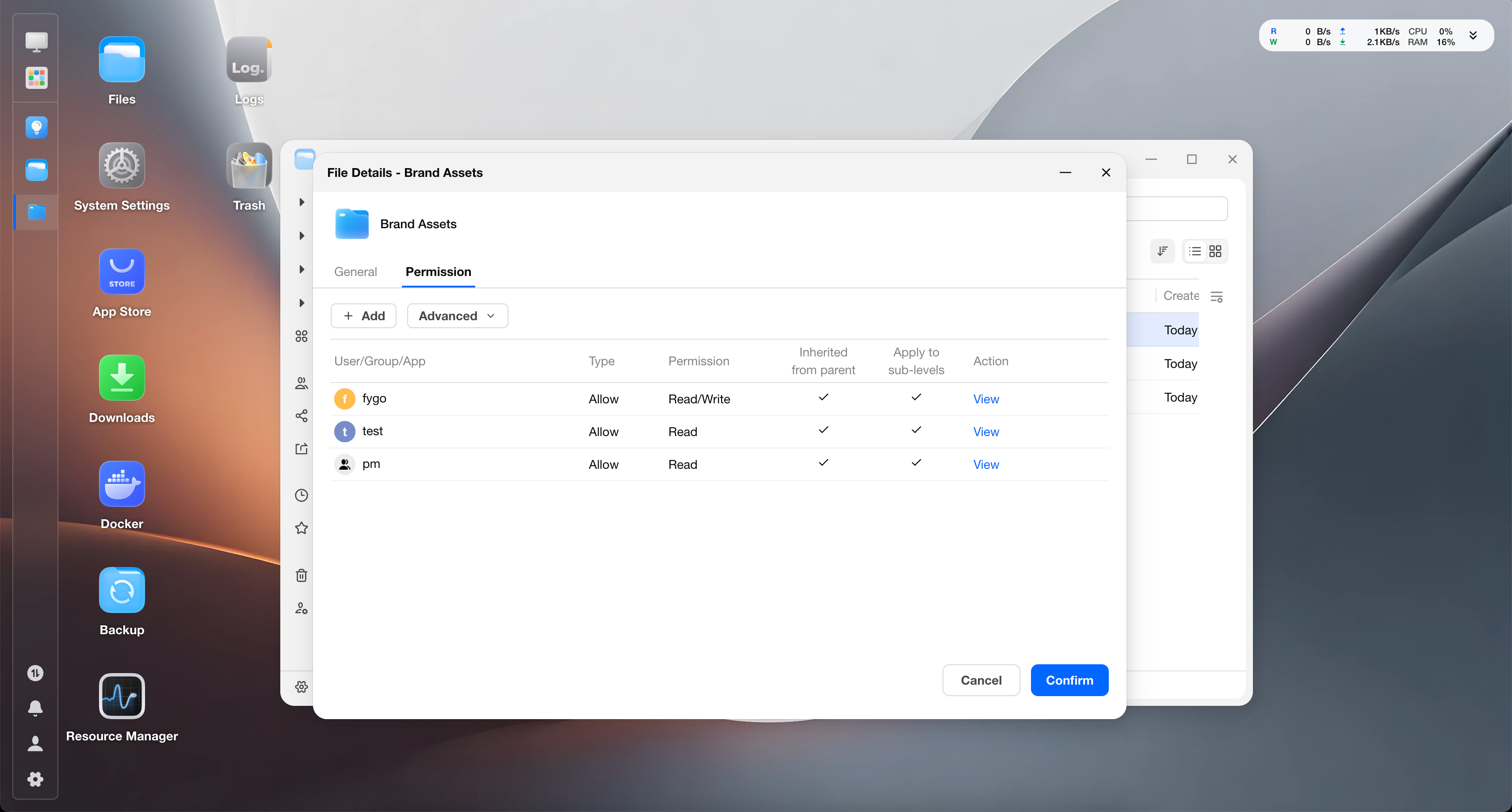
Select the child folder or file whose permissions you want to restrict, right-click it, and click Details.
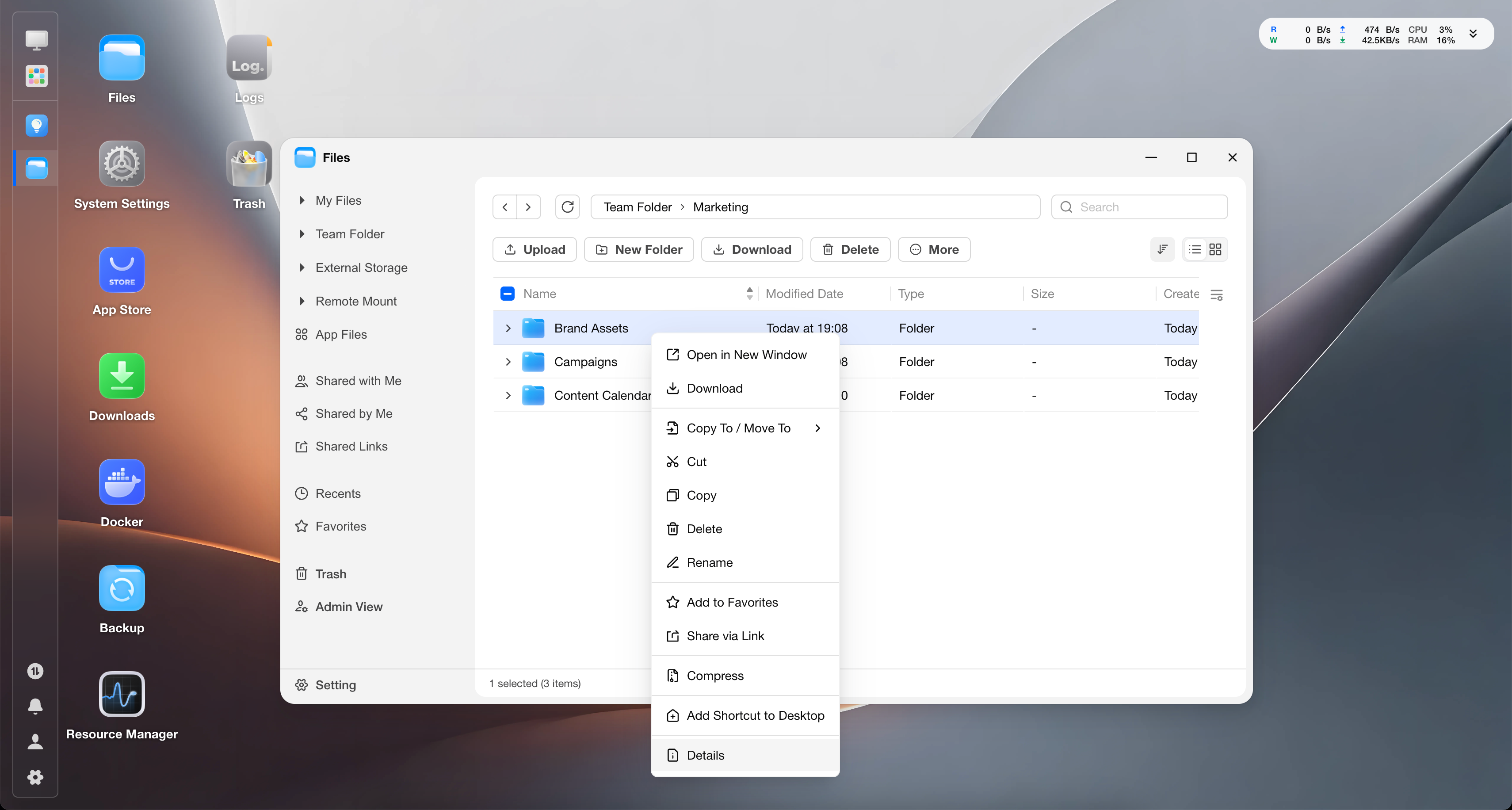
Switch to Permissions and click Add.
Under Object, select the user or group to restrict. Set Permission to Deny, select the permissions to deny, and click Confirm.
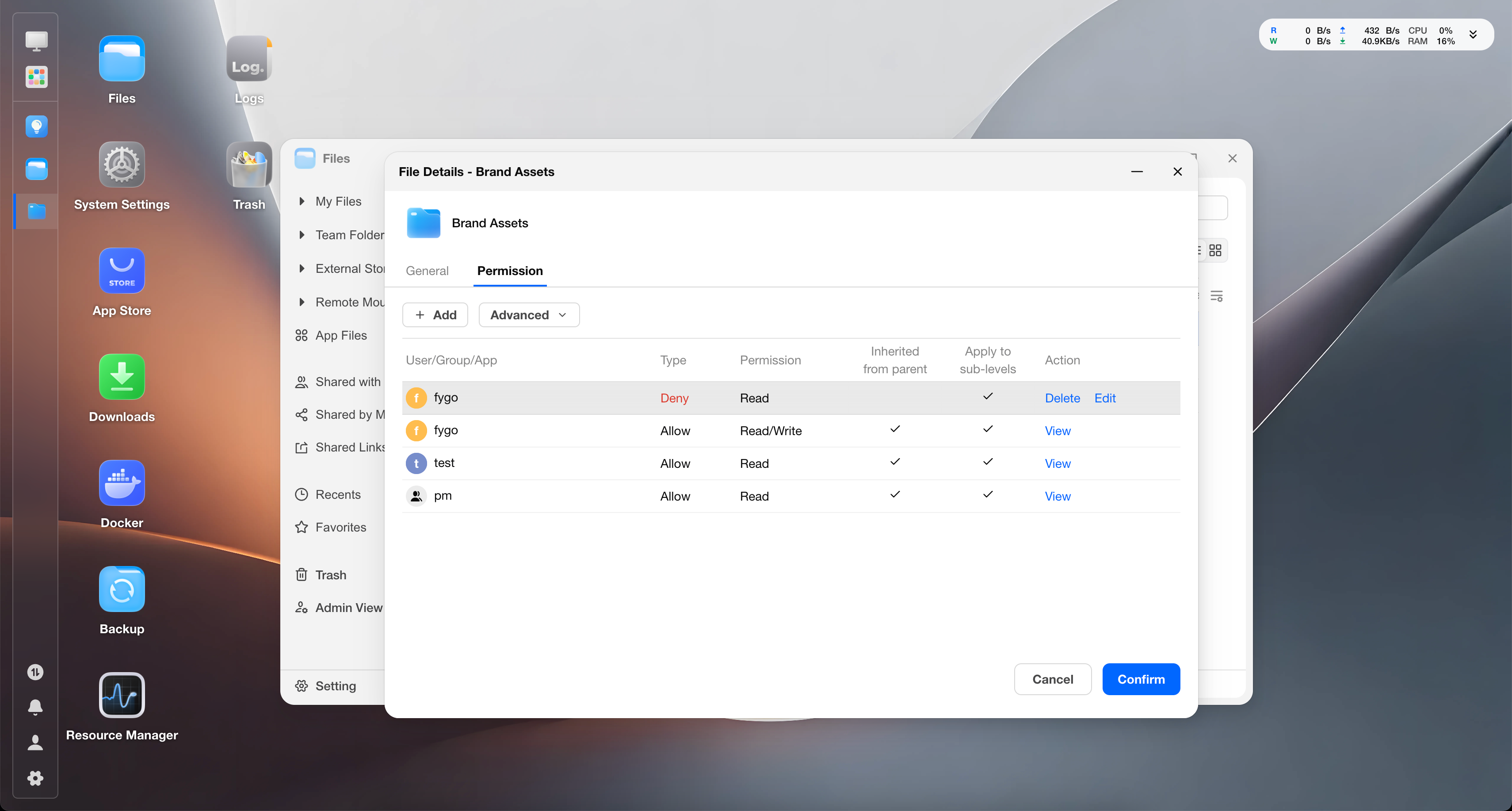
If the child folder needs to be managed independently and avoid being affected by parent permissions, you can also go to Details > Permissions > Advanced for that child item, disable inherited permissions from the parent, and then set permissions separately.
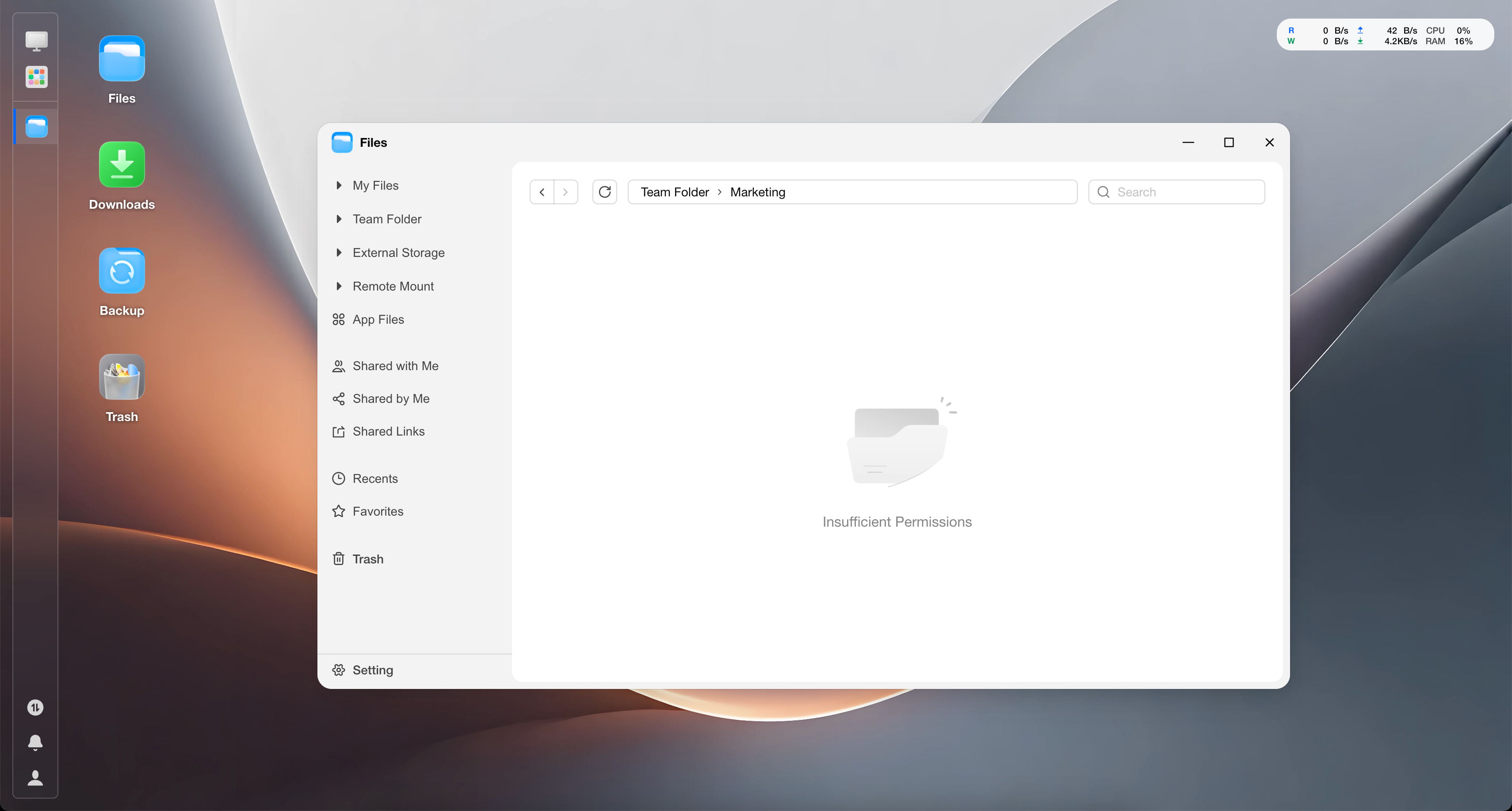
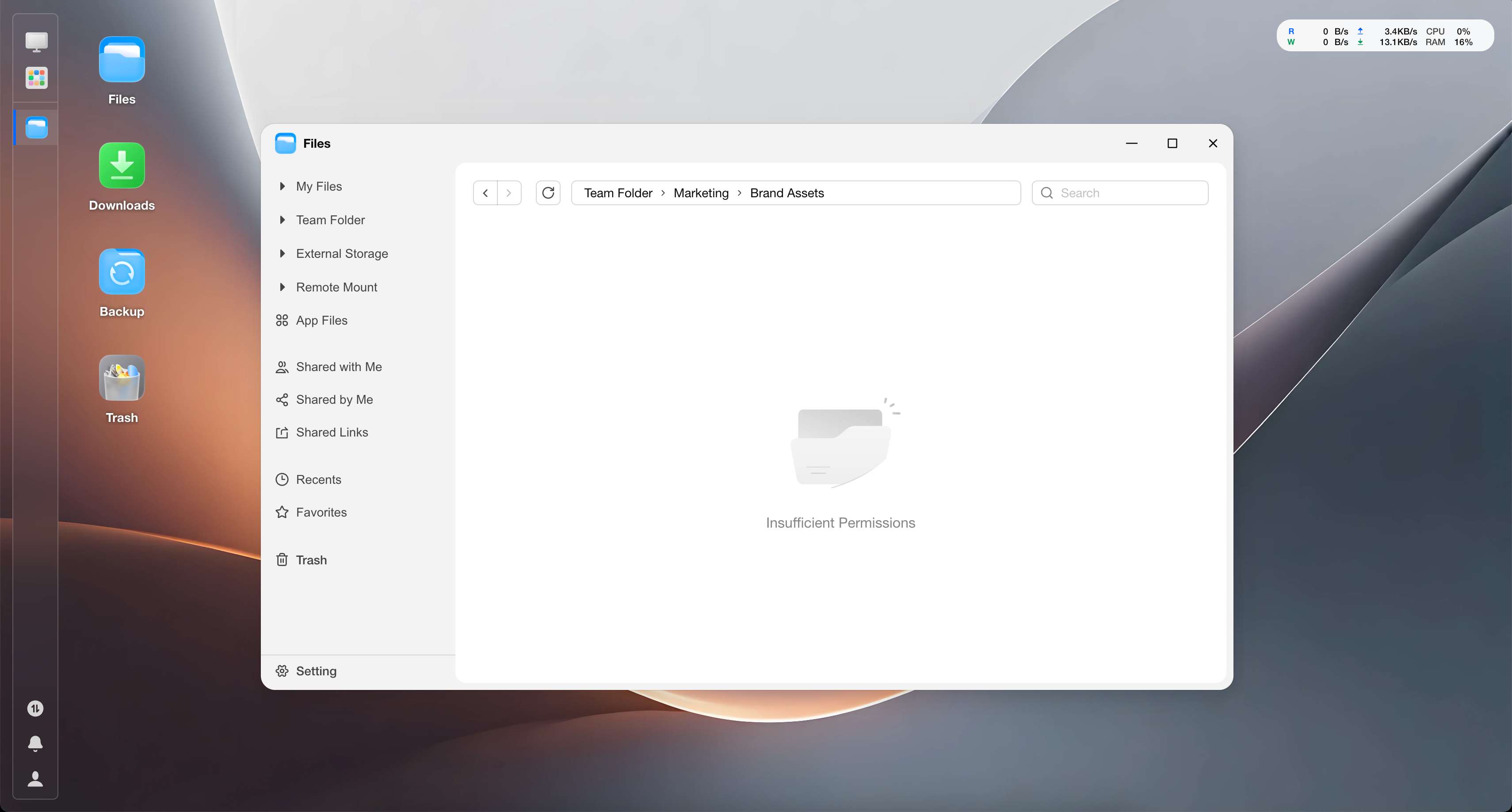
When the restricted user opens this folder or file, a permission denied message is displayed.
How to temporarily share a child item with a user who is not a Team Folder member?
During collaboration, you may encounter this scenario: a user is not a Team Folder member, but needs temporary access to a specific subfile or folder in the Team Folder.
The steps are as follows:
Select the child folder or file whose permissions you want to modify, right-click it, and click Details.
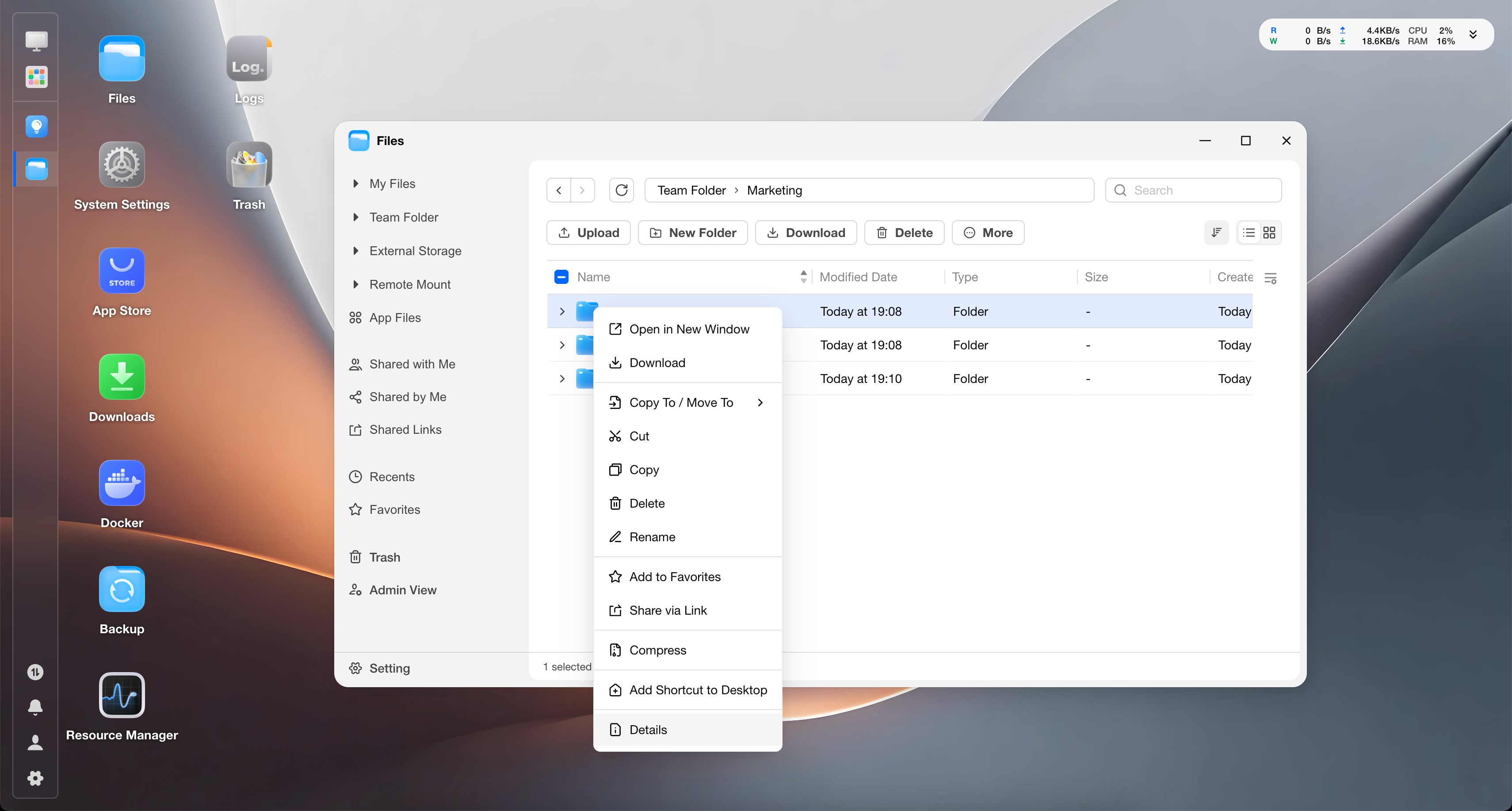
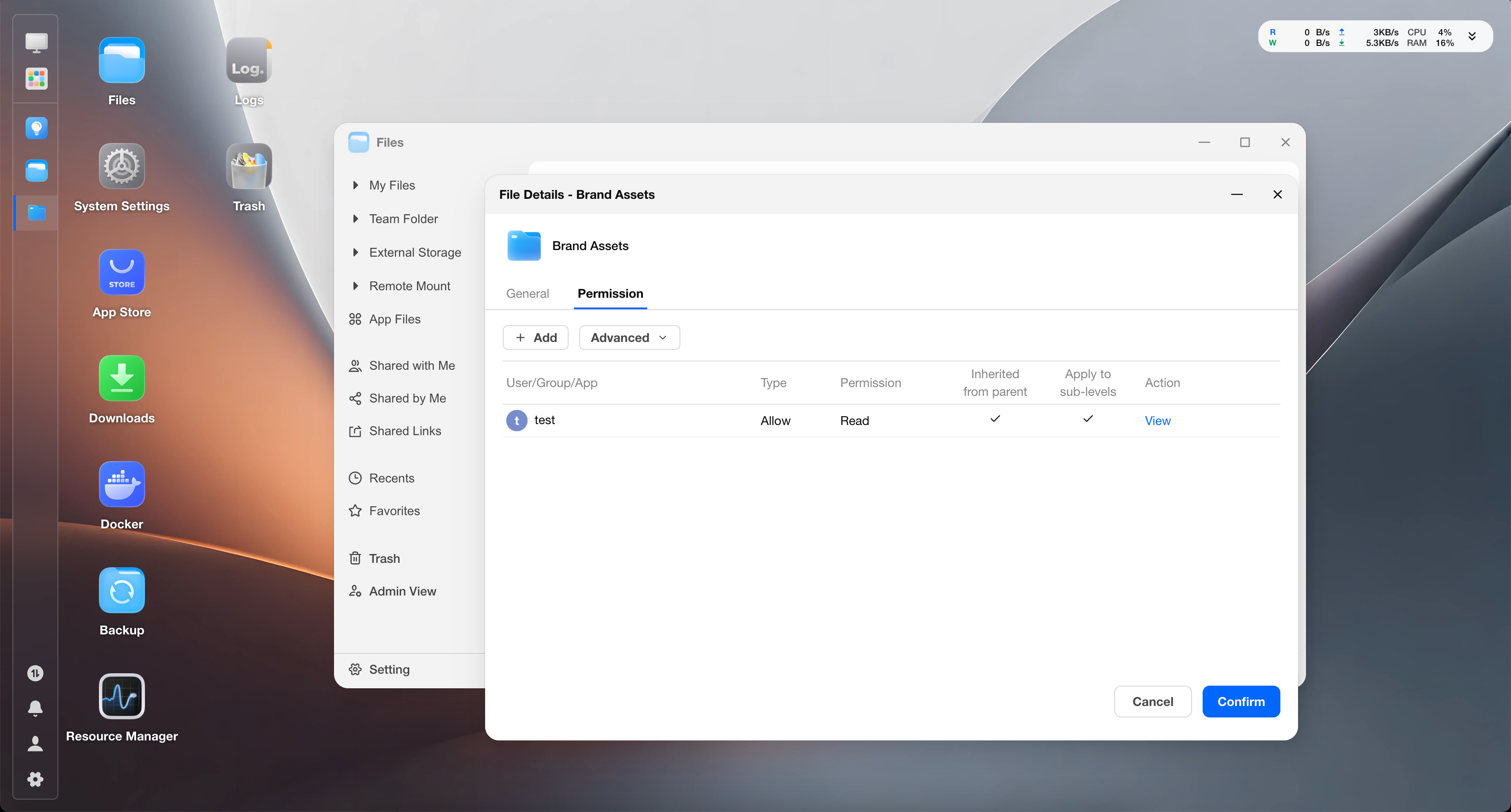
Switch to Permissions and click Add.
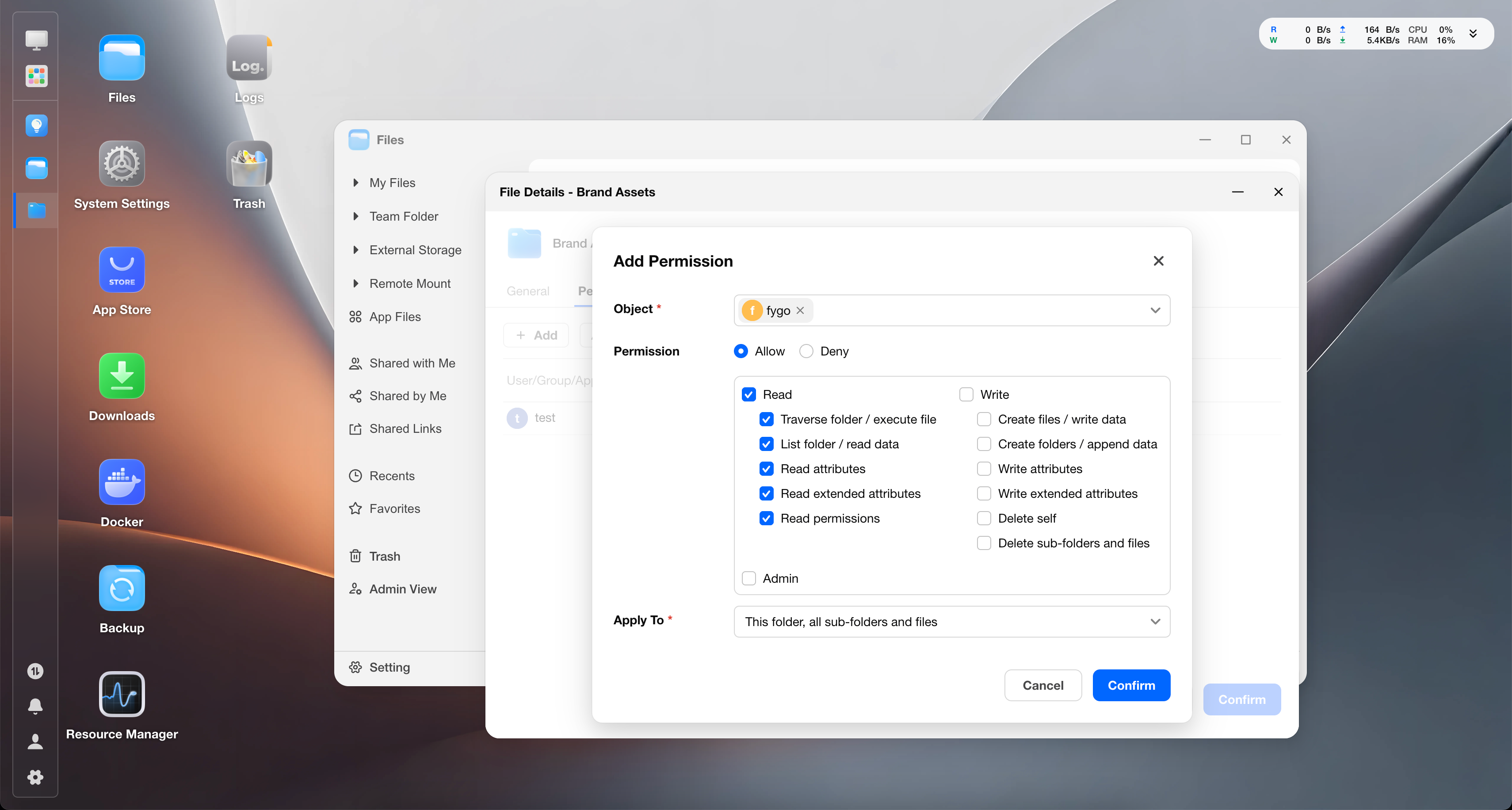
Under Object, select the user or group to allow access. Set Permission to Allow, select the permissions to allow, and click Confirm.
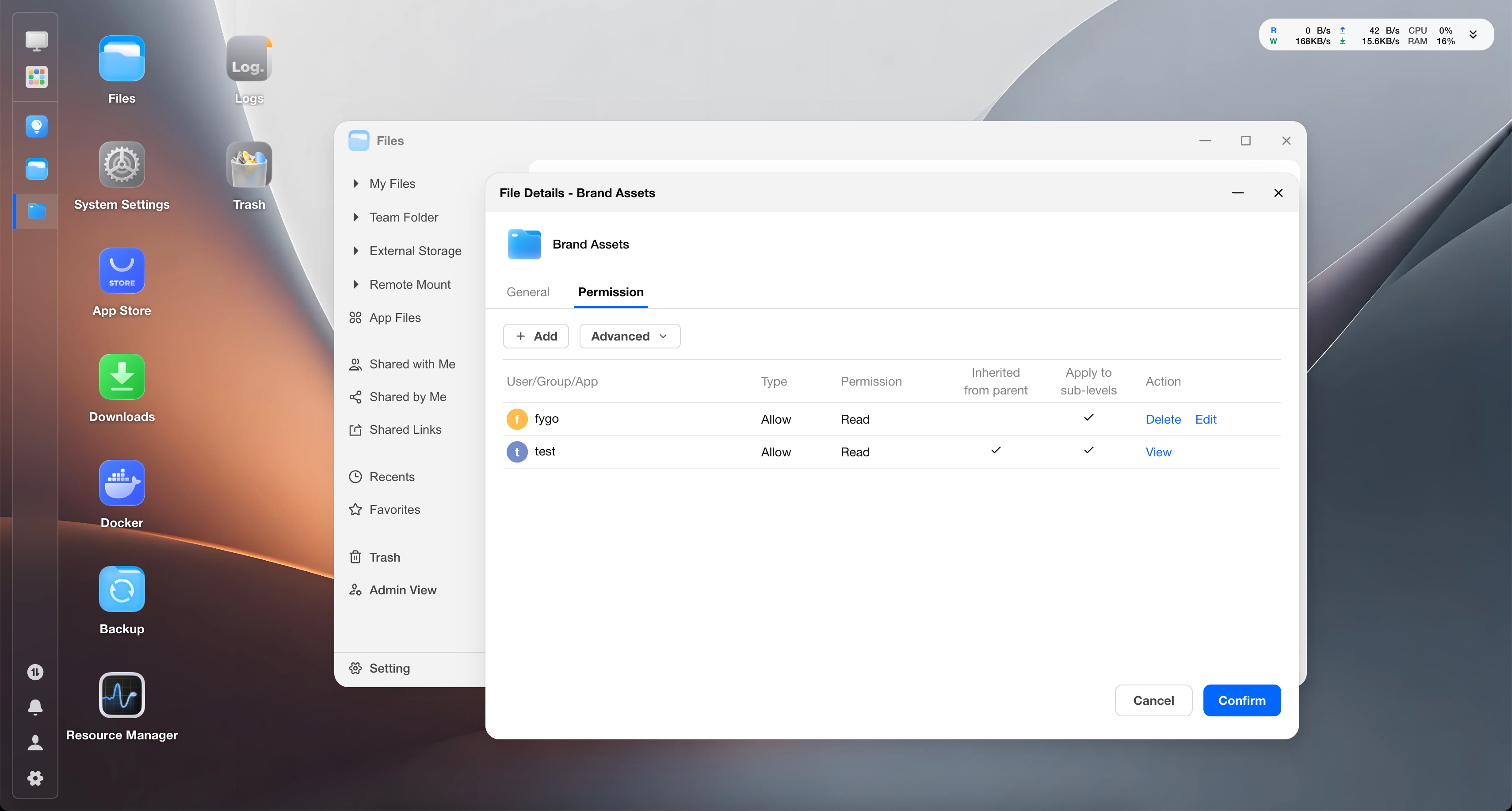
Select the folder or file again, right-click it, click Details, click Copy Original Path, and send the file path to the shared user via a messaging app.
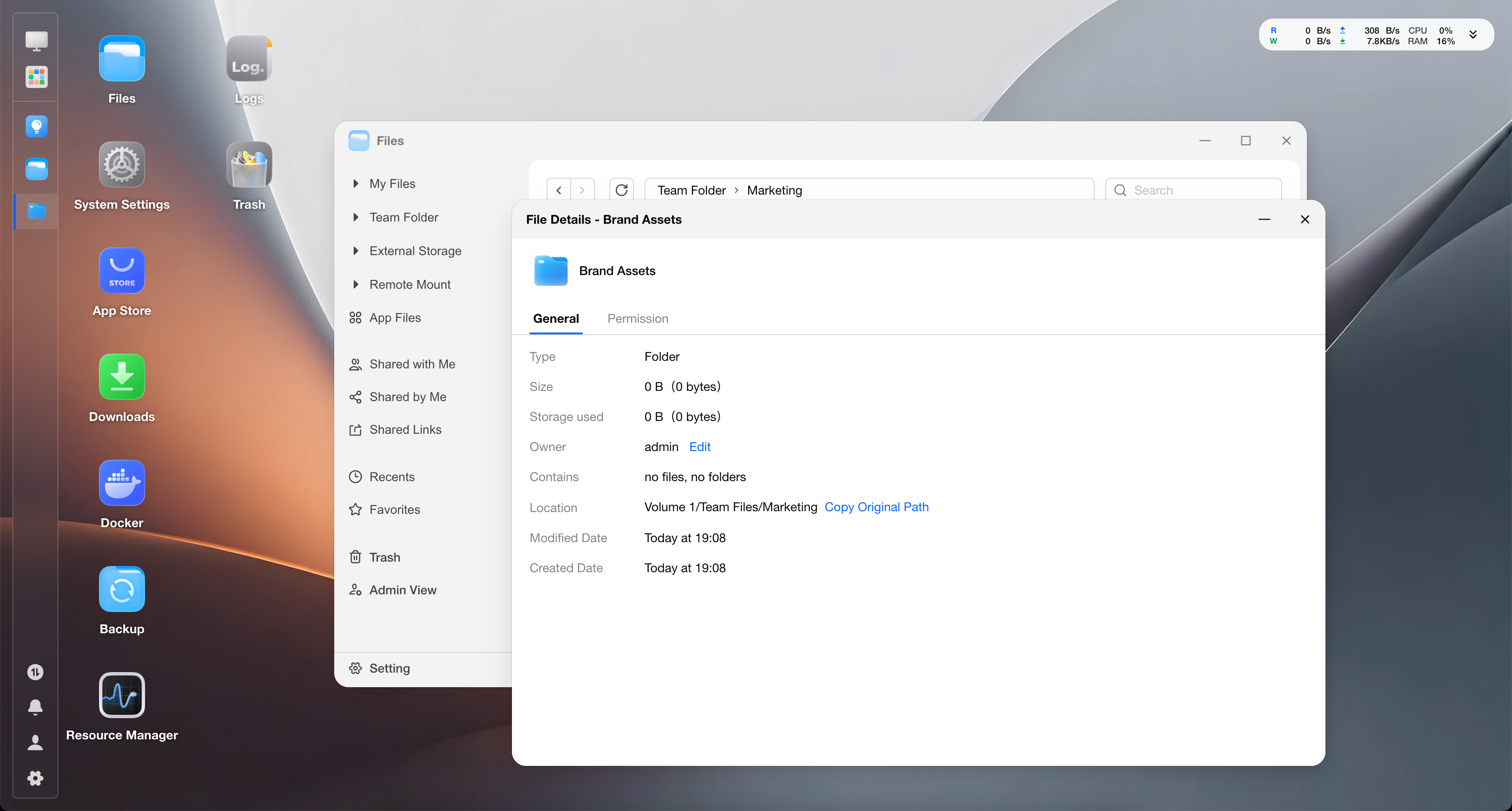
Recipient perspective: Open Files, click the file path breadcrumb to enter edit mode, paste the file path, and press Enter. The page automatically navigates to the corresponding folder.
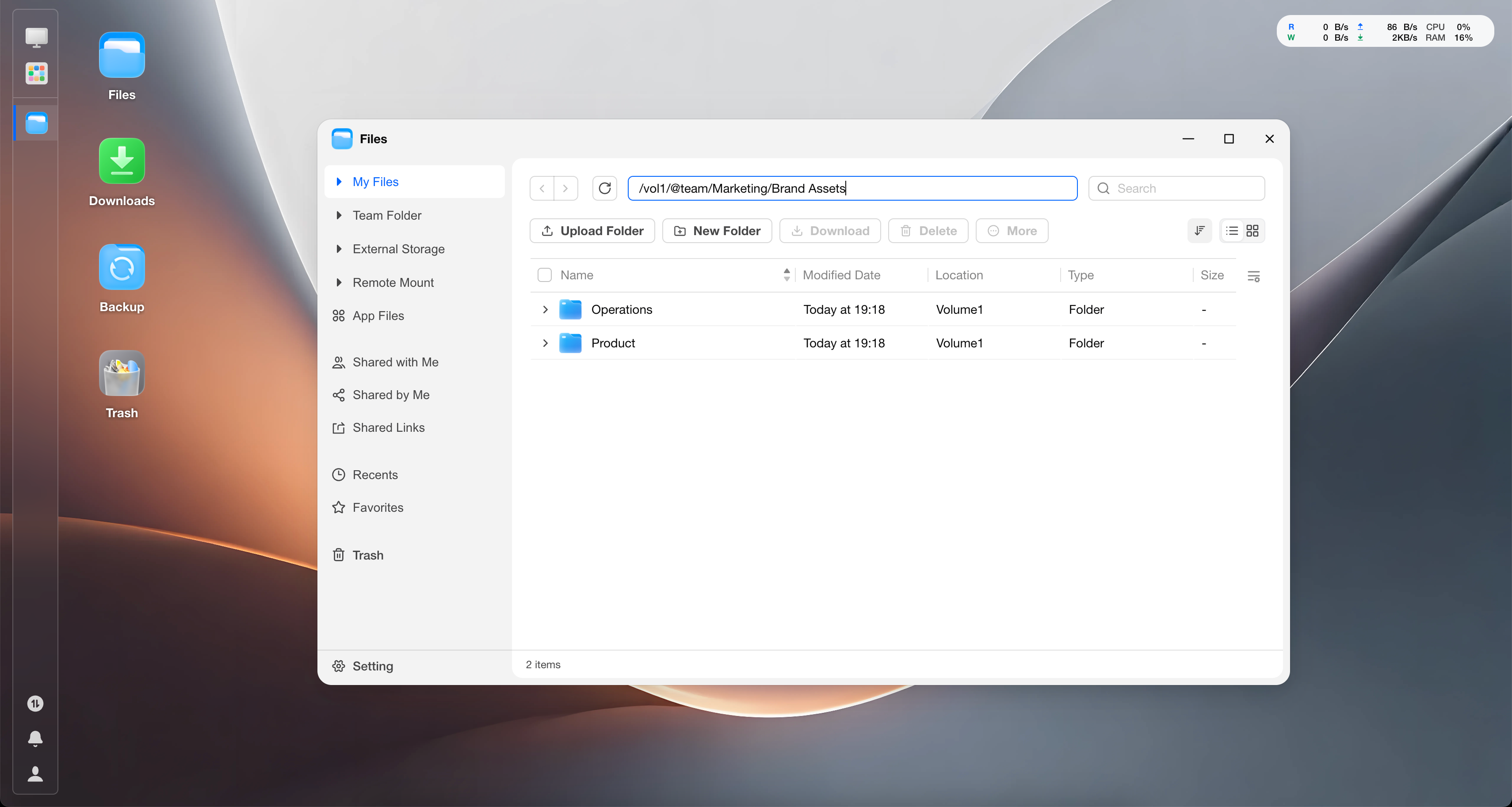
If the shared user uses the breadcrumb to switch to a parent directory where they do not have permission, a permission denied message is displayed.